
What you need
- A map, see Create and publish a map
- For "Open now": opening hours on the locations, see Opening hours, lunch break and public holidays
- The Free plan is enough (route inside the map from Pro)
Search and filters for visitors
Open the map under Maps → Edit and switch to the 4 · Search & filters tab. Each switch shows or hides an element on the public map.
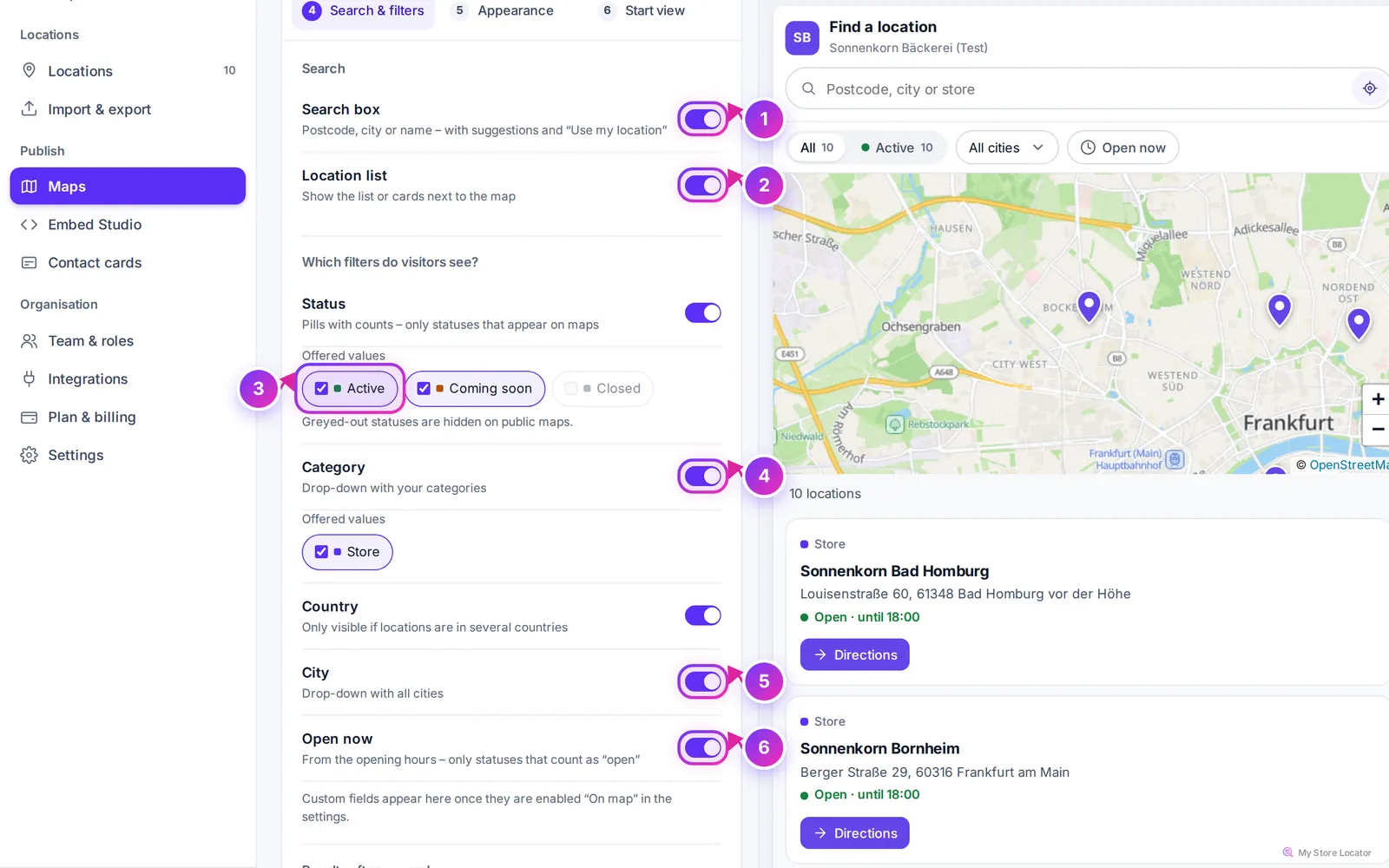
- Search box: visitors search by postcode, city or name – with suggestions and "Use my location".
- Location list: shows the list or cards next to the map.
- Status: filter pills with counts. Under Offered values you tick which statuses visitors can choose. Greyed-out statuses never appear on public maps.
- Category: dropdown with your categories, also with offered values. Country only appears if your locations are in several countries.
- City: dropdown with all cities of your locations.
- Open now: uses the opening hours – only statuses that count as "open" are included.
Tip: Custom fields appear here as extra filters as soon as On map is switched on for them, see Custom fields.
Results after a search
Further down in the same tab you decide what visitors see after a search. Then click Save and check the map with View.
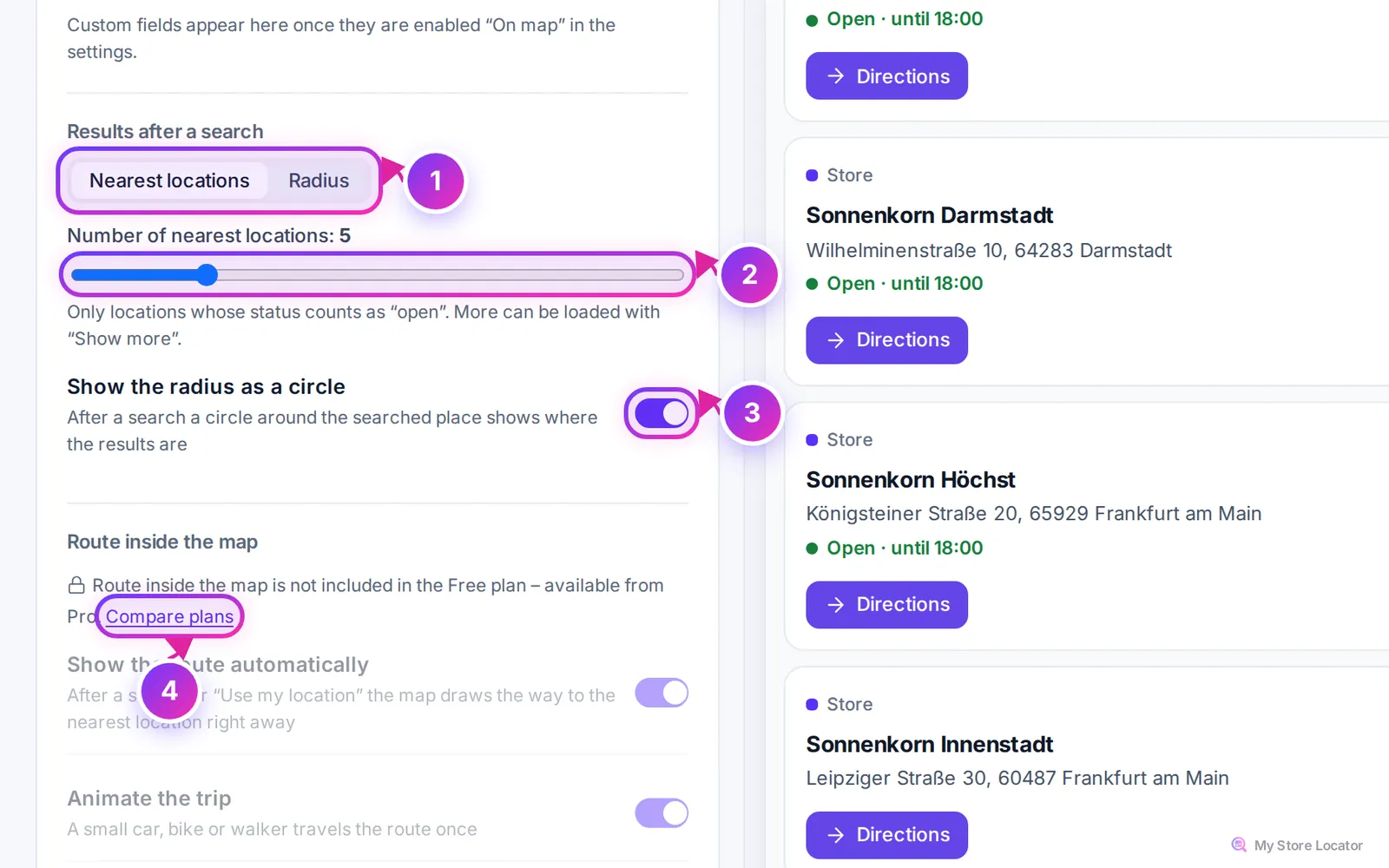
- Nearest locations shows a fixed number of the nearest locations. Radius shows all locations within the chosen distance (5–200 km), sorted by distance.
- Use the slider to choose the number (1–20). Only statuses that count as "open" are included; visitors can load more.
- Show the radius as a circle draws a circle around the searched place after a search.
- The route inside the map (car, bike, on foot) is available from Pro, see Route inside the map.
How a visitor searches
On the public map, suggestions appear while typing.
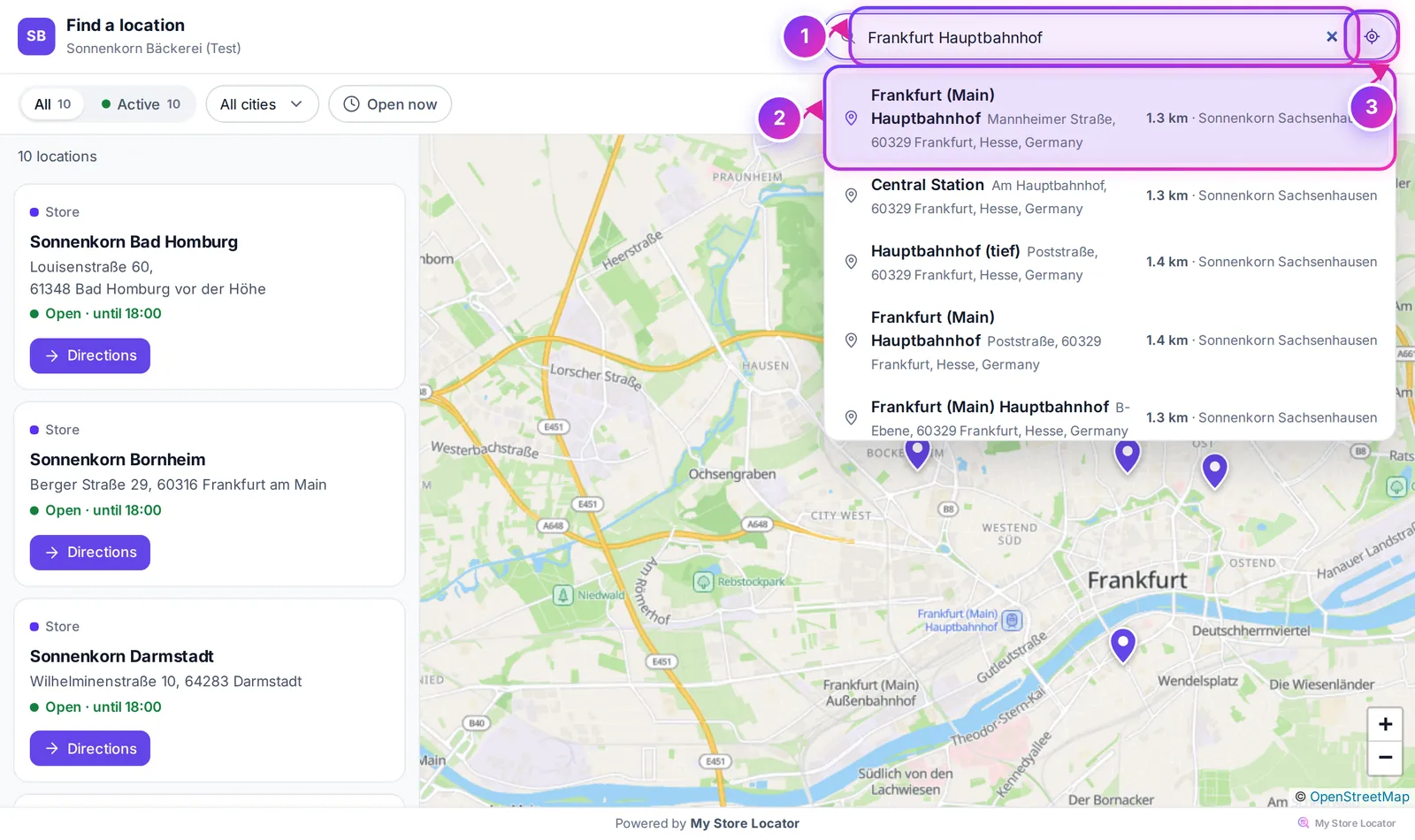
- The visitor types an address, a city or a postcode.
- Each suggestion already shows the distance to the nearest location.
- Or they use Use my location – the browser then asks for permission.
The results
After choosing a suggestion, the map shows the nearest locations – here 5 – with their distance. The dashed circle shows where the results are.
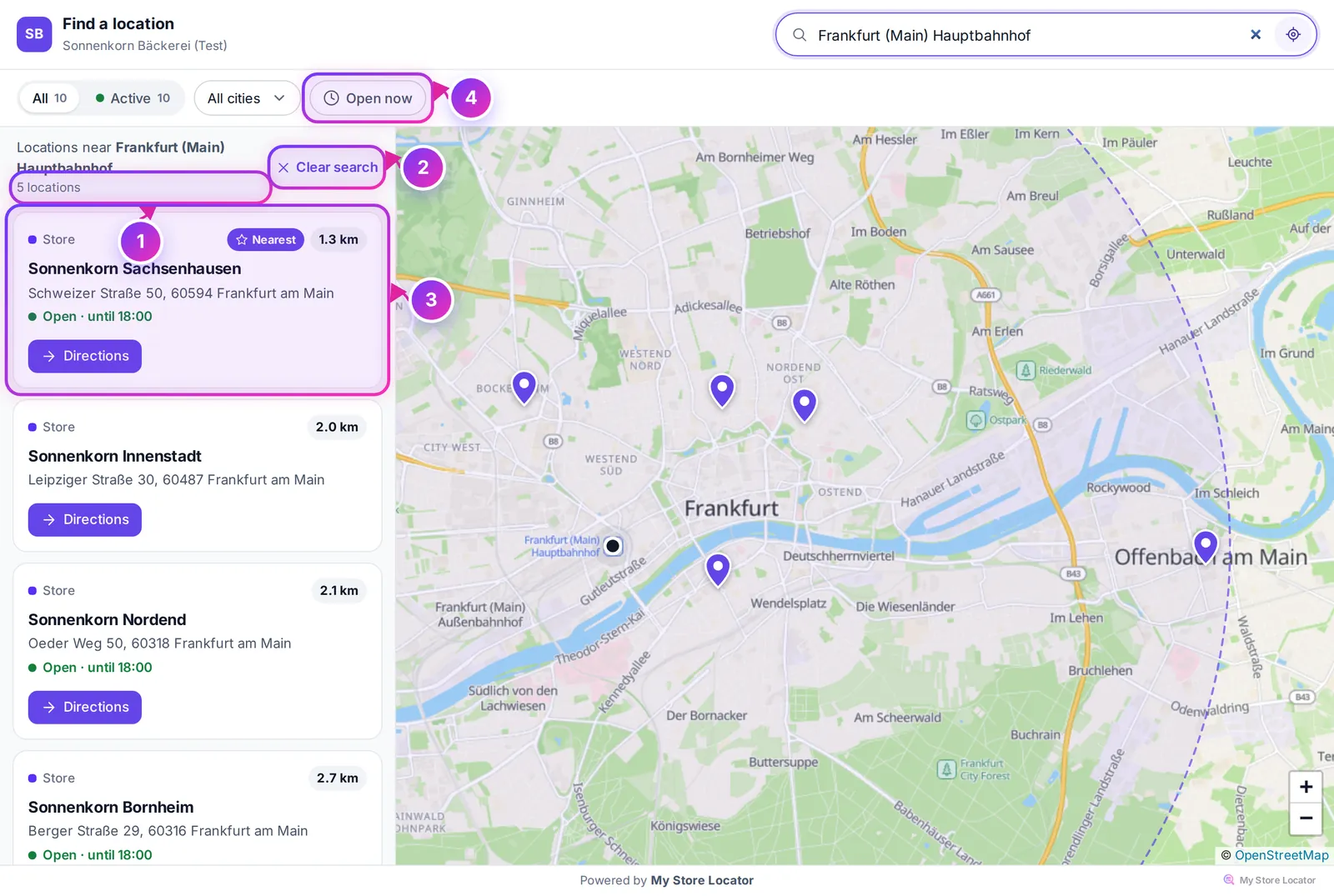
- Above the list are the searched place and the number of results.
- Clear search shows all locations again.
- The nearest location has the Nearest badge, each entry shows the distance.
- Filters such as Open now can be combined with the search.
Tip: At the end of the list, Show more locations loads further results.
Good to know
Why is the "Country" filter missing?
It only appears if your locations are in several countries.
Why does "Open now" not show a location?
The location needs opening hours, and its status must count as "open". You set this under Settings → Values & reports, see categories and status.
Nearest locations or radius – which is better?
With few, widely spread locations, nearest locations work well: visitors always see results. With many locations in one region, the radius shows all nearby ones.