
What you need
- At least one location, see Add a location
- The right "Publish maps" (owners and admins have it)
- The Free plan is enough – it includes 1 map
The Maps page
Under Maps you see all maps as cards with a preview, status ("Live" or "Draft"), template, number of locations and views in the last 30 days. In the Free plan your one map has already been created; Starter includes 3 maps, Pro 10 and Business as many as you like.
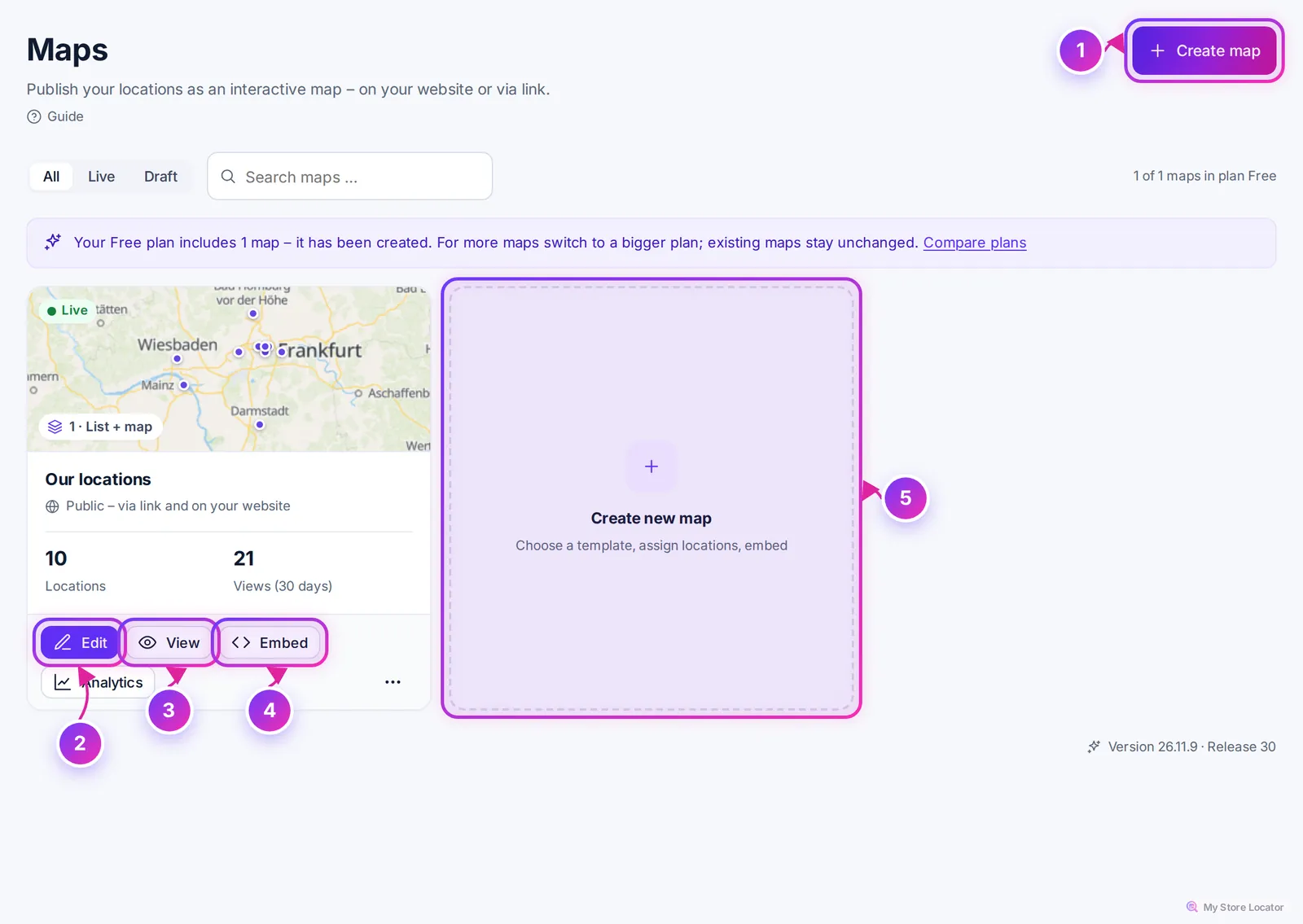
- Create map opens a new map. New maps automatically include all locations. If your plan's limit is reached, a notice tells you so.
- Edit opens an existing map in the editor.
- View shows the public map in a new tab – the way visitors see it.
- Embed takes you to the Embed Studio with the code for your website, see Embed Studio.
- The Create new map tile starts a new map too.
Tip: Via a map's ⋯ menu you can copy the link, duplicate the map (the copy is a draft) or delete it. After deleting, embedded maps show "Map not available".
Tab 1 · General: publish, name, language
The editor has six numbered tabs on the left and the Live preview on the right with the views Desktop, Tablet and Phone. A map that is not published yet shows a ribbon in the preview saying that the map is not published.
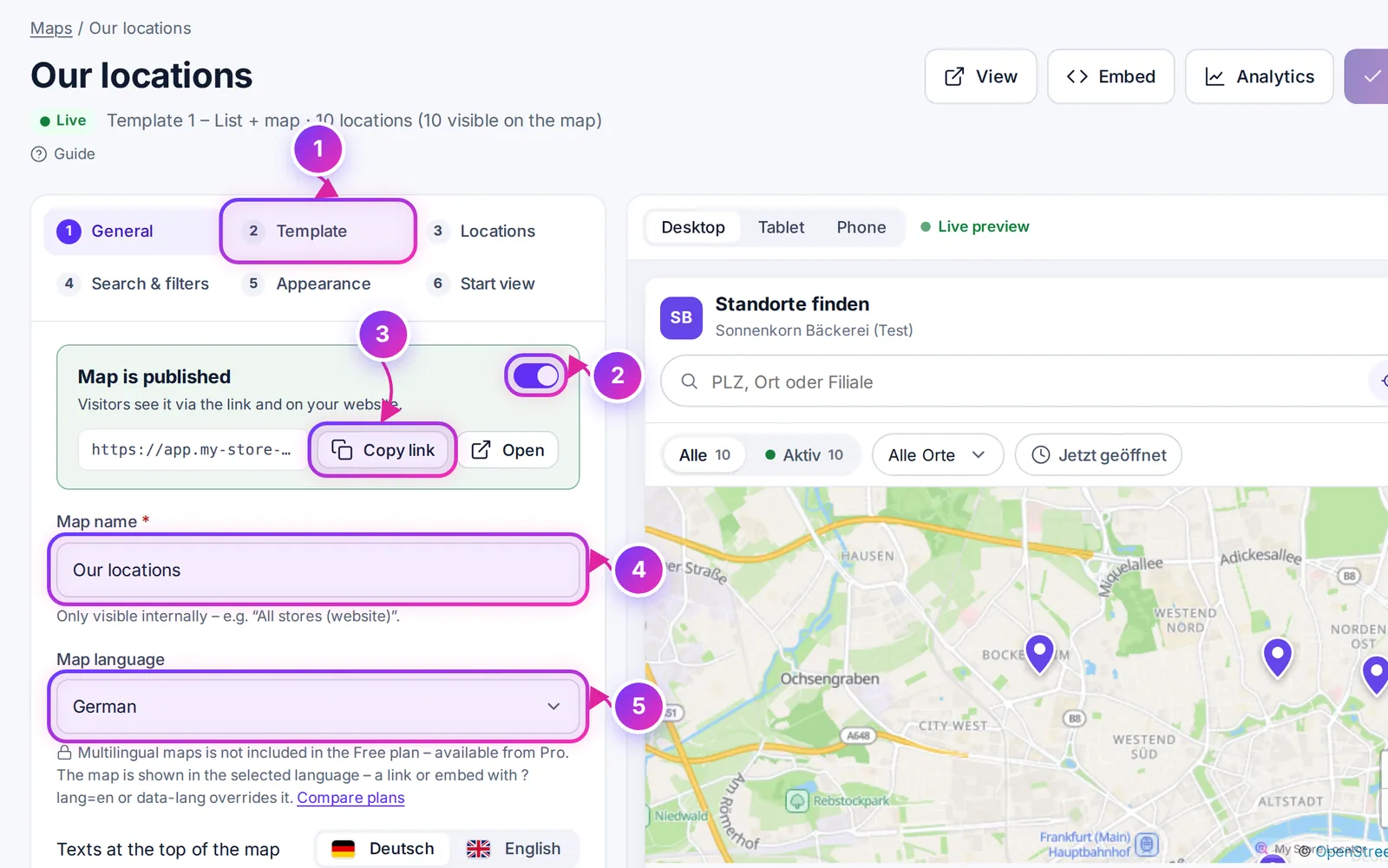
- The tabs guide you through the map step by step: General, Template, Locations, Search & filters, Appearance and Start view. Next at the bottom of a tab takes you to the next one.
- Switch on Published. It then says "Map is published" and visitors see the map via the link and on your website. Switched off, the map is a draft that only your team sees.
- Copy link copies the public link, Open shows the map. For a new map the link is created when you save for the first time.
- The Map name is only visible internally, e.g. "All stores (website)".
- Choose the Map language: German or English. "Automatic (visitor's browser)" is available from Pro. A link with
?lang=enor embedding withdata-langoverrides the language.
Tip: Below you can adjust the Texts at the top of the map per language (small line, heading, text). Left empty, the default text appears. Templates 1, 5 and 6 show these texts.
Tab 3 · Locations: what goes on the map
Here you decide which locations this map shows. Above the list you see how many are selected and how many are visible on the map. You choose the map's look in the Template tab, see The 10 templates compared.
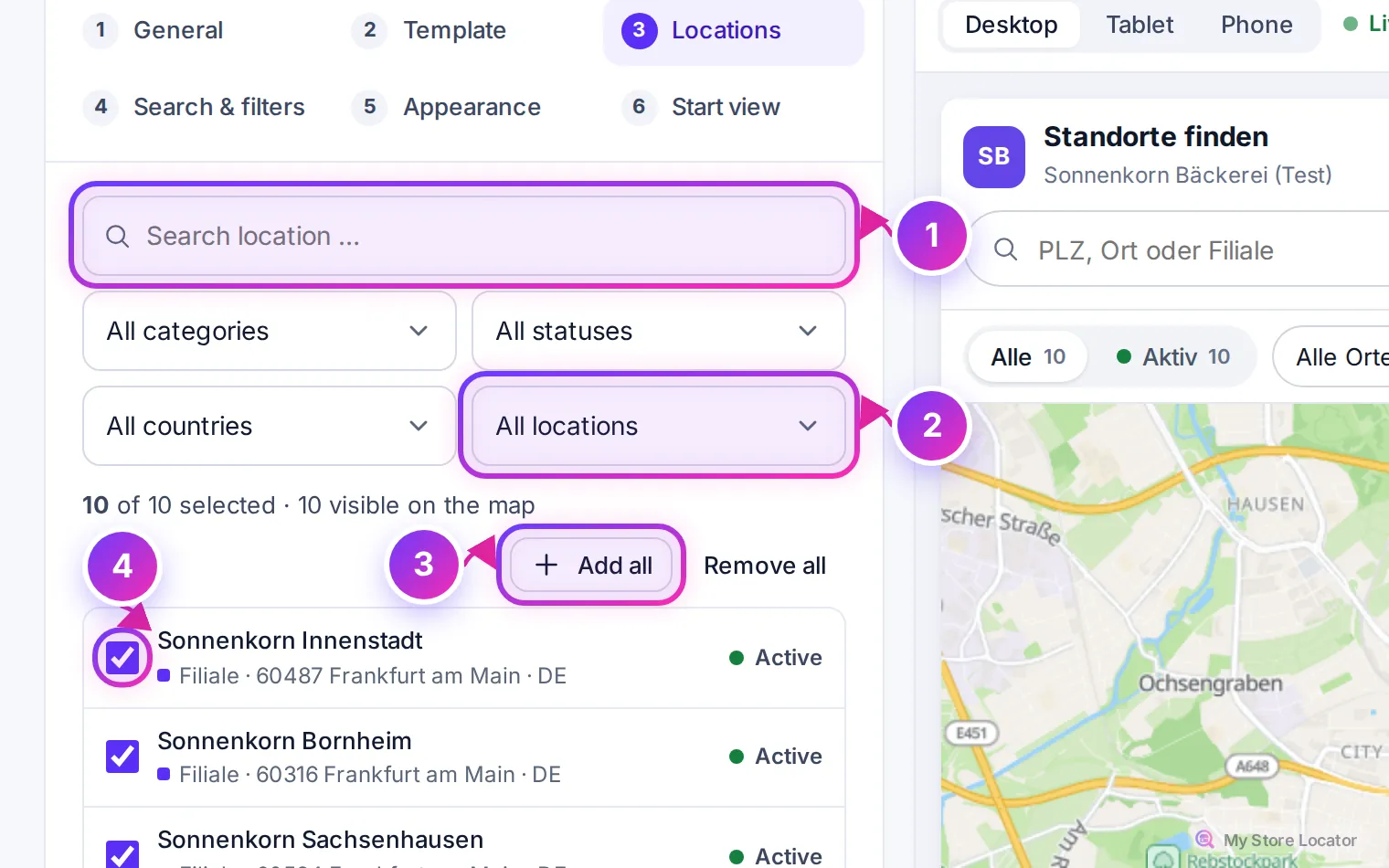
- Search for a location by name or city. Next to it you filter by category, status and country.
- Selected only or Not selected shows what is on the map and what is missing.
- Add all adds all (filtered) locations, Remove all takes them out.
- Use the tick to add or remove a single location.
Tip: The status comes from the location itself. Whether a status appears on public maps is set under Settings → Values & reports, see categories and status.
Save
As soon as you change something, the Unsaved changes bar appears at the top. Visitors only see the changes after you save. The tabs Search & filters, Appearance and Start view have their own guides, see below.
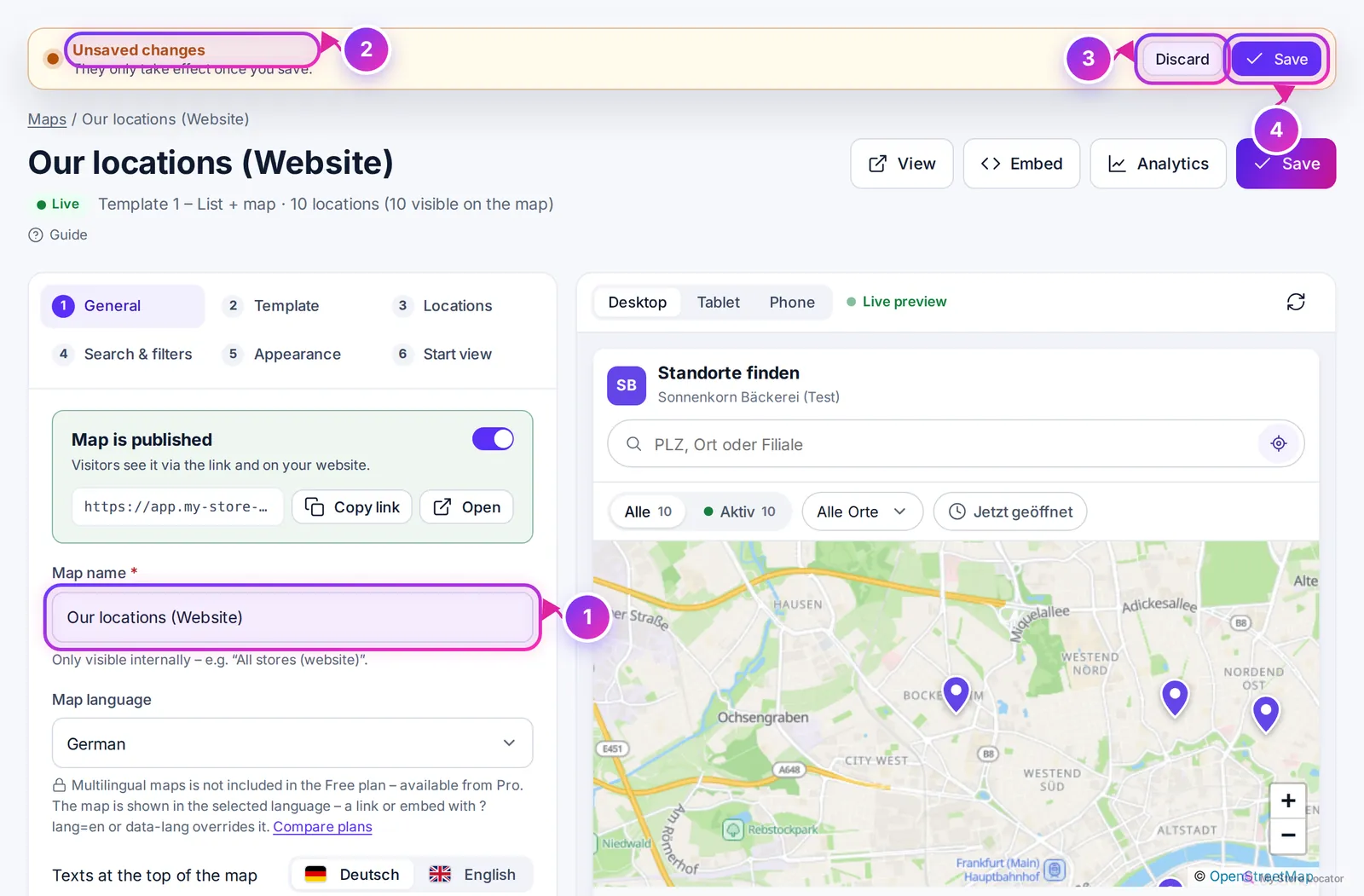
- Change something – here the map name.
- The bar shows: Unsaved changes – they only take effect once you save.
- Discard undoes the changes.
- Save applies them – or press Ctrl + S. Afterwards the editor says "All changes saved" at the bottom.
Good to know
Does the link change when I switch the template?
No. The public link and the token always stay the same – you do not need to re-embed maps.
Why is a location missing from the map?
Check in the Locations tab whether it is ticked, and whether its status is shown on maps. Locations without coordinates are missing too – the preview then shows a warning.
Do I need a separate map for my website?
No. The same map works as a link, as a QR code and embedded on your website, see Share link and QR code.