
What you need
- Permission to change settings (e.g. as owner or admin)
- The Free plan is enough
Name, colour and add categories
Open Settings → Values & reports. In the location editor, the link Manage values leads straight here. A category's colour is also the pin colour in the map view of the location list.
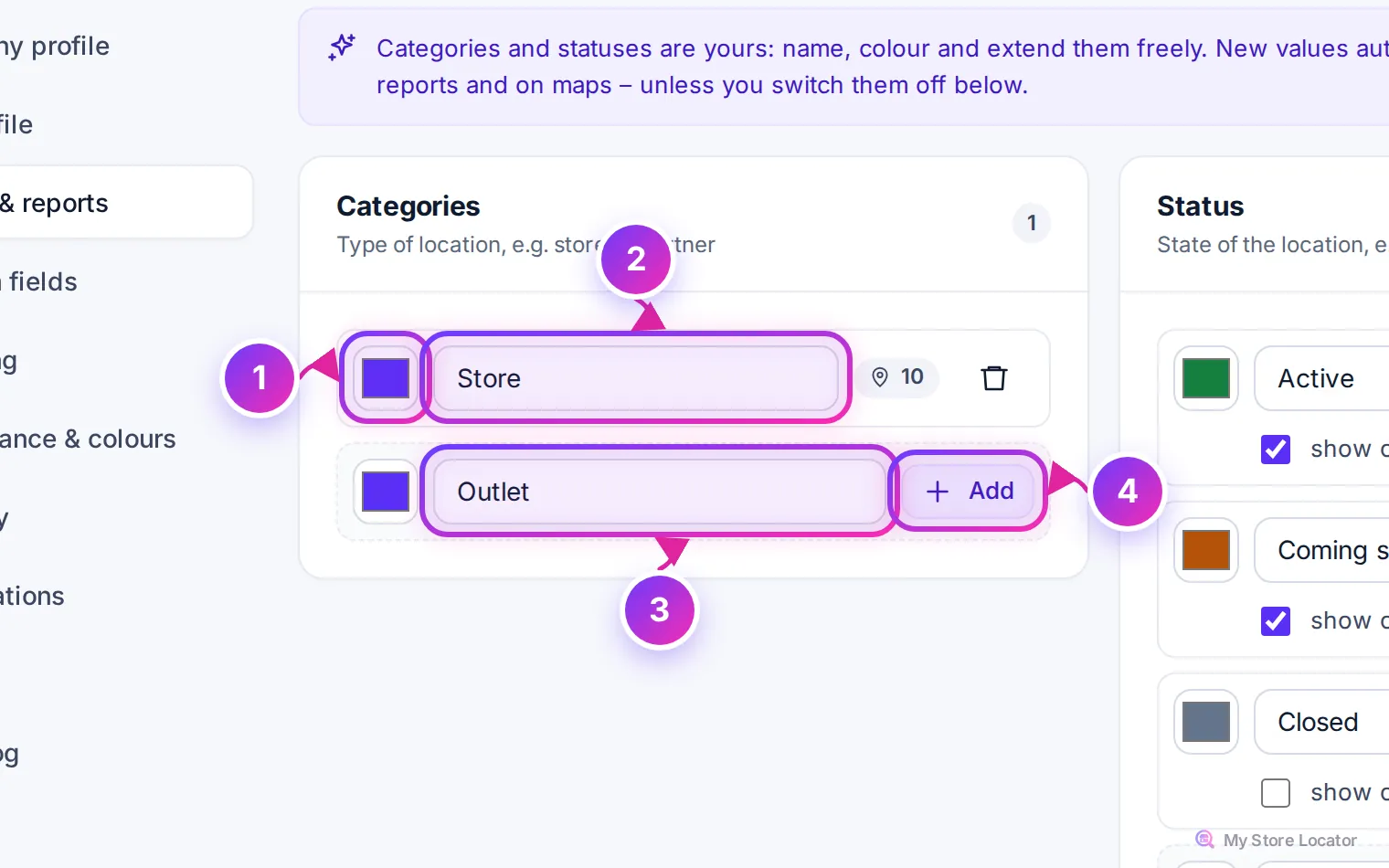
- Click the colour box to change the colour.
- Click into the name to rename the category. Next to it you see how many locations use it.
- Type a new category, for example "Outlet".
- Click Add.
Tip: You can also create a new category right in the location: just type a new name in the Category field.
Statuses and their two ticks
Statuses work like categories but have two extra ticks. They control what visitors see – without deleting locations.
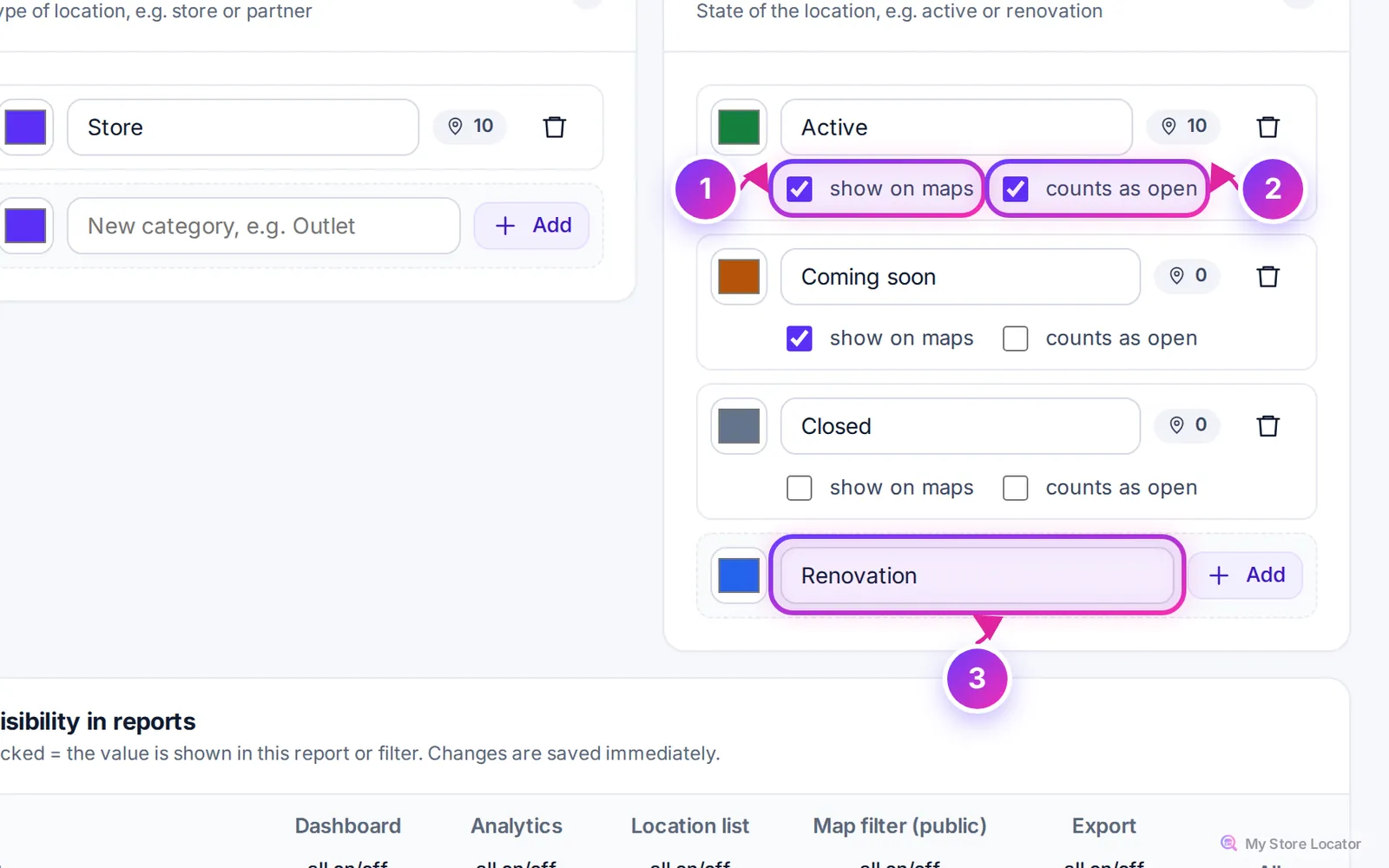
- show on maps: locations with this status appear on public maps. Without the tick they stay hidden – for example with "Closed".
- counts as open: locations with this status can be shown as "Open now" and suggested as the nearest location. Leave it off for "Coming soon".
- Type a new status, for example "Renovation", and click Add.
Tip: To announce a new store: status "Coming soon" with show on maps but without counts as open.
Visibility in reports
In the Visibility in reports table you decide for each value where it appears: Dashboard, Analytics, Location list, Map filter (public) and Export. Changes are saved immediately.
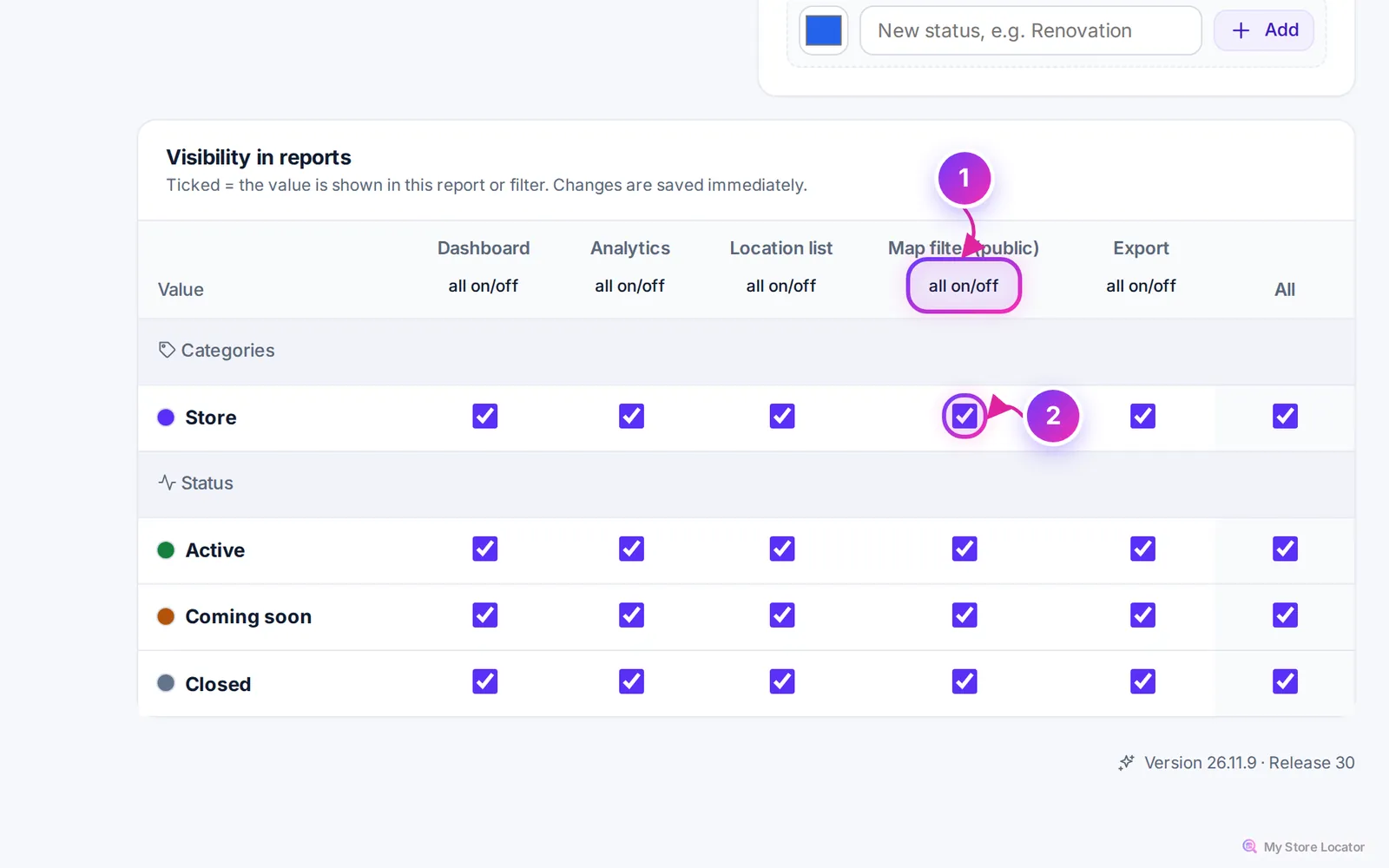
- all on/off switches a whole column – here the public map filter.
- A single tick controls one value in one report. Without the tick under Map filter (public) visitors cannot filter by this value.
Good to know
What happens if I delete a category that is still in use?
The app asks which category the locations should be moved to. The last value of a list cannot be deleted.
How do I change category or status for many locations?
In the location list: tick the locations and choose Set category or Set status in the bar.
How do I hide a location for a while?
Give it a status without show on maps, for example "Closed". All data is kept.
What's next?
- Custom fields
- Location list: search, filter, bulk actions
- Opening hours, lunch break and public holidays