
What you need
- At least one location, see Add a location
- The Free plan is enough
Search, filter and choose columns
The tiles at the top show the total and the number per status – a click on a tile filters the list. The column headers sort the table, a click on a row opens the location.
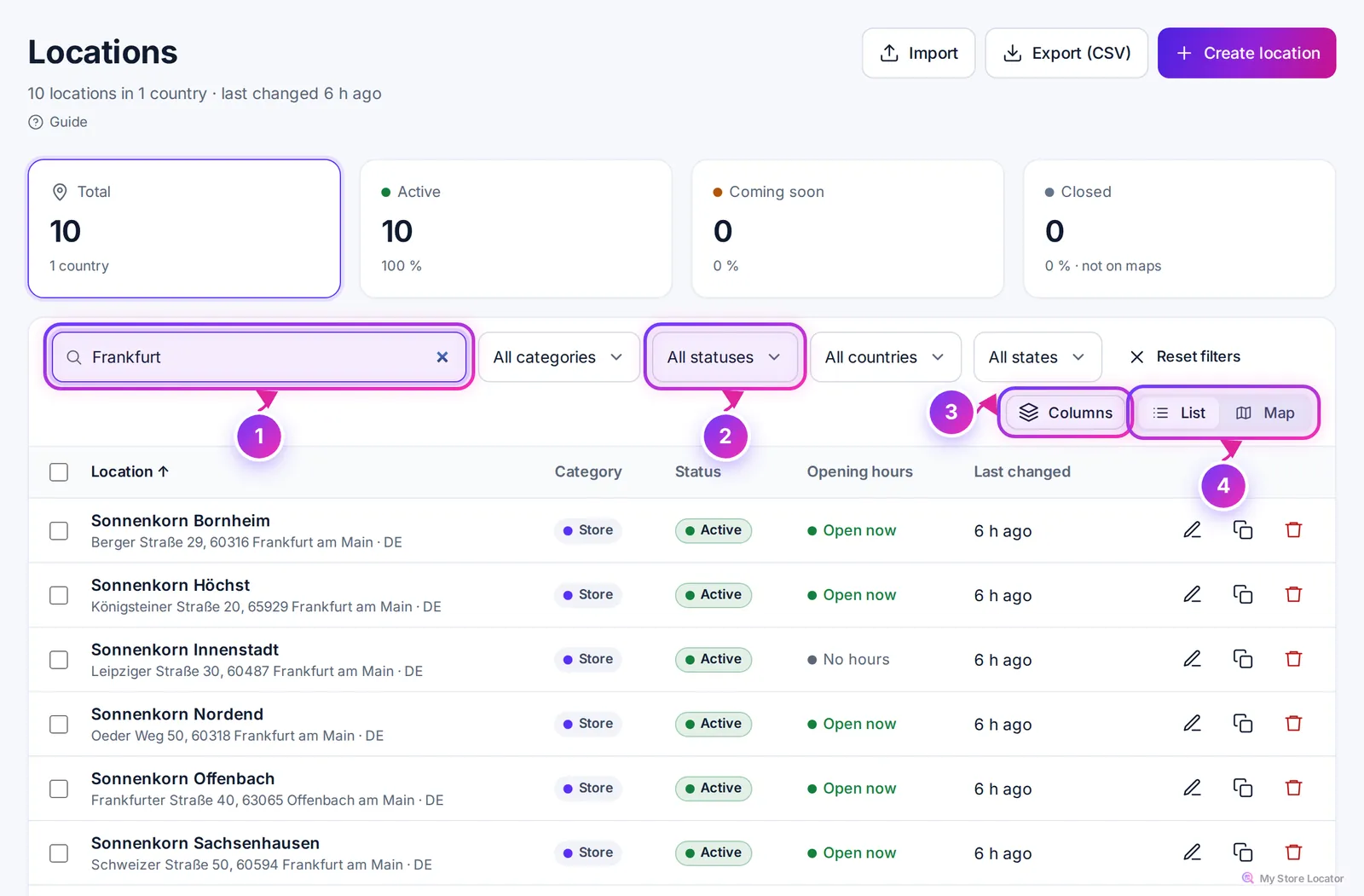
- Type a name, city or postcode into the search. Tip: the / key jumps straight into the search.
- Filter by category, status, country or state. Reset filters shows all again.
- Under Columns you choose which columns the table shows – including custom fields that appear on the map.
- Switch between List and Map.
Change many locations at once
Tick the locations you want to change. A bar with bulk actions then appears above the table. The box in the table header selects all locations on the page.
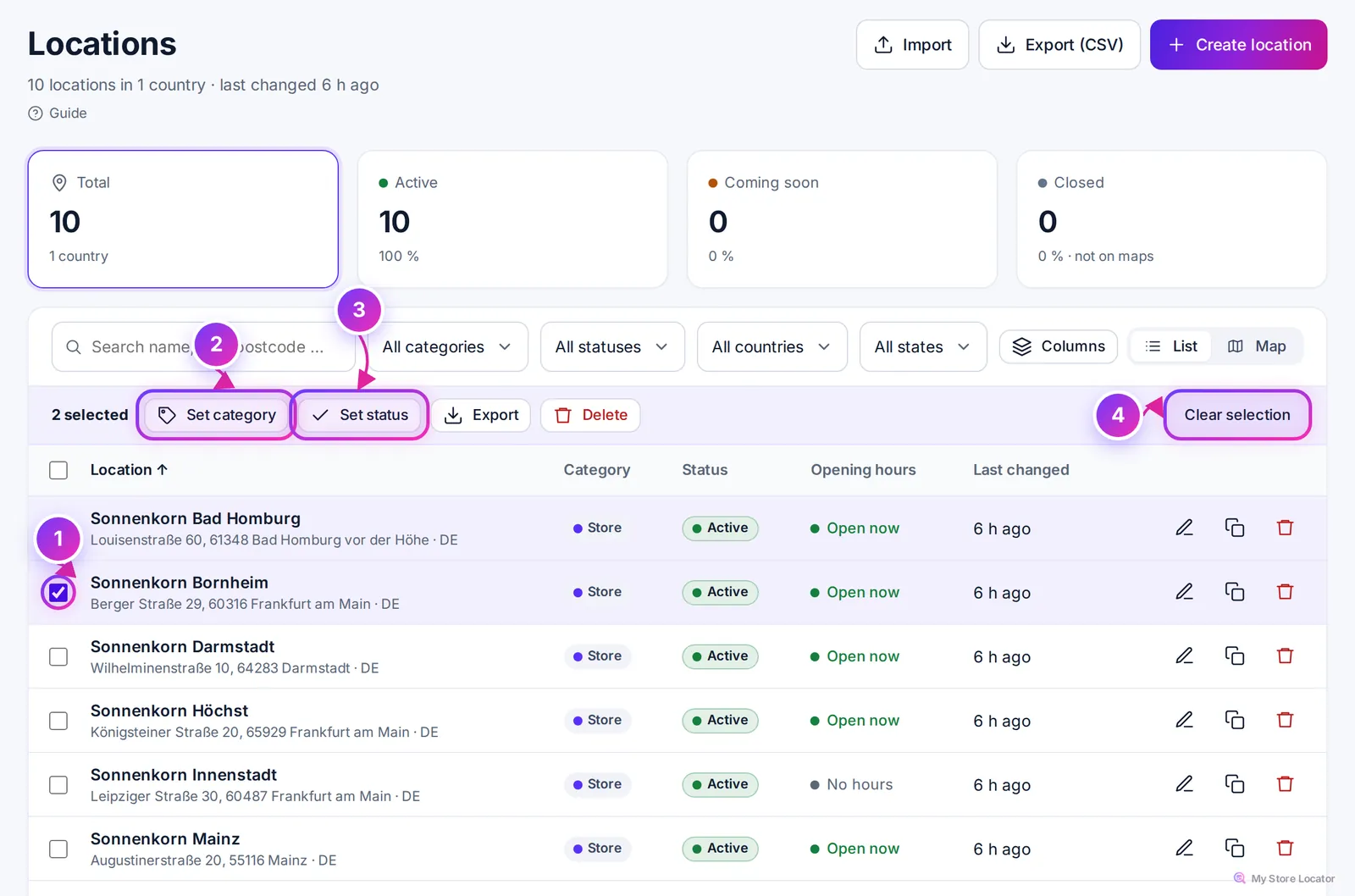
- Tick the locations you want.
- Set category: choose a category or type a new one and click Apply.
- Set status works the same way – for example to set several stores to "Closed".
- Clear selection removes all ticks.
Tip: Delete in the bar asks first – deleted locations disappear from all maps. To hide locations for a while, a status without "show on maps" is better, see categories and status.
Map view
The map view shows all locations as pins – coloured by category. Hollow pins have a status that is not shown on public maps. The filters at the top apply here too.
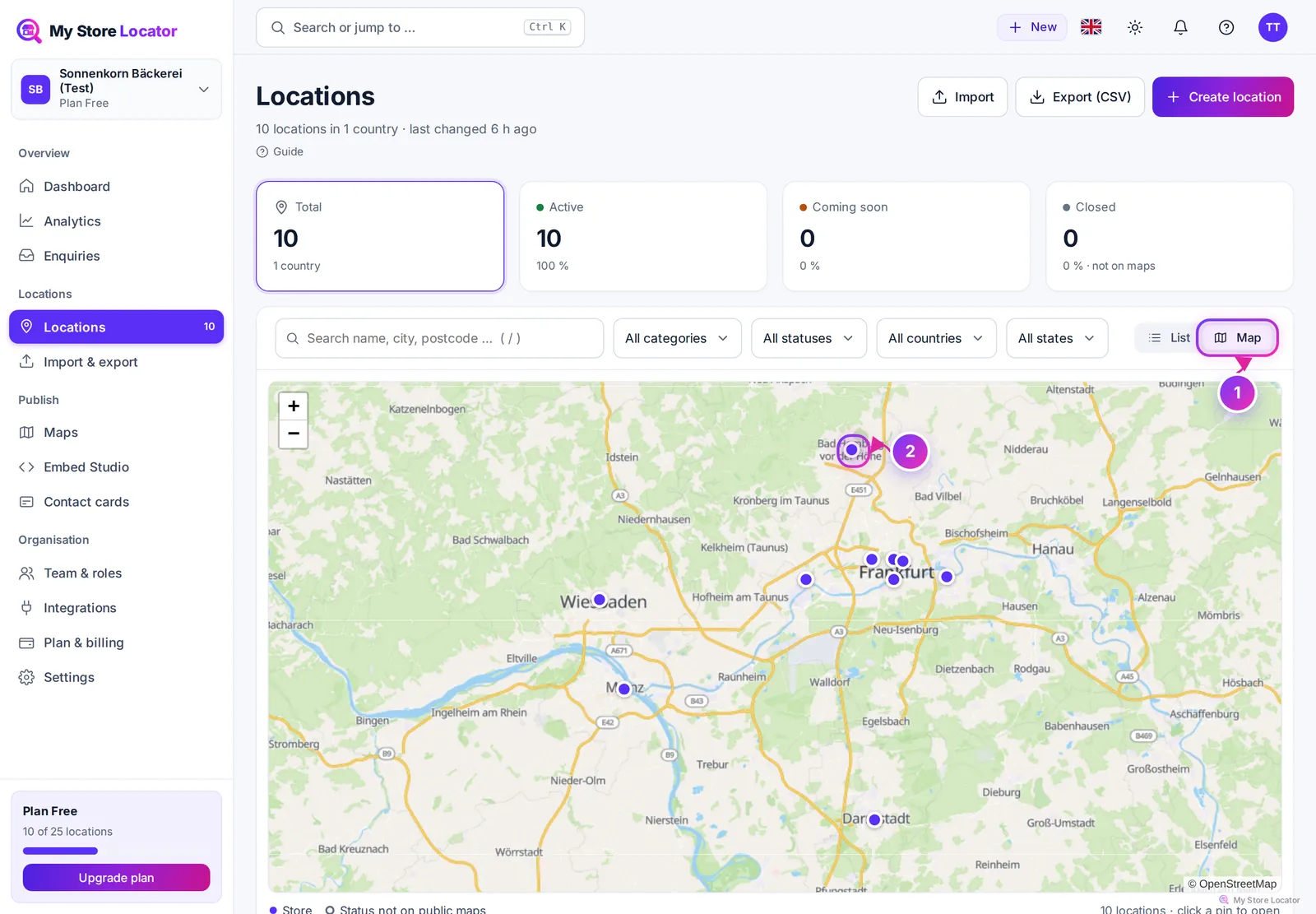
- Click Map.
- A click on a pin opens the location – handy for fixing pins in the wrong place.
Good to know
How do I duplicate a location?
Click the Duplicate icon in the row. The copy is called "Name (Kopie)".
What does "No hours" in the opening hours column mean?
No opening hours are entered for this location. See opening hours.
How do I export the list?
With Export (CSV) at the top right. CSV import and export are included from the Starter plan.