
What you need
- A published map (status "Live")
- The Free plan is enough
Link and QR code in the Embed Studio
In the Embed Studio you find link and QR code in the Link & QR tab. First choose the right map at the top.
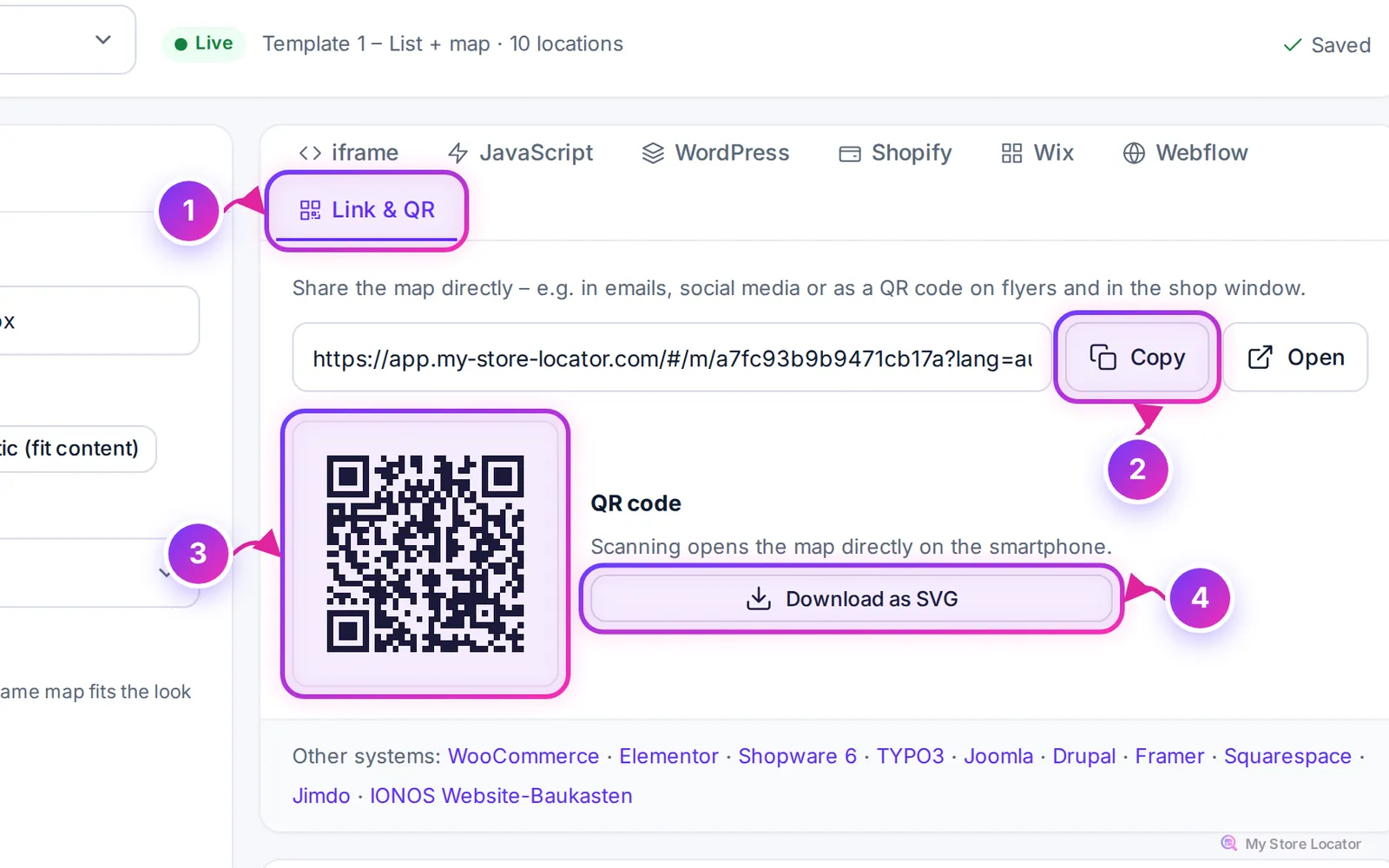
- Open the Link & QR tab.
- Copy puts the link on your clipboard – to paste into e-mails or posts. Open shows the map in a new tab.
- The QR code opens the map straight on a smartphone.
- Download as SVG saves the QR code – sharp at any print size.
Tip: The link never changes – not even when you switch the template. Printed QR codes therefore keep working.
Copy the link quickly from the map list
If you only need the link, you can also copy it straight from Maps.
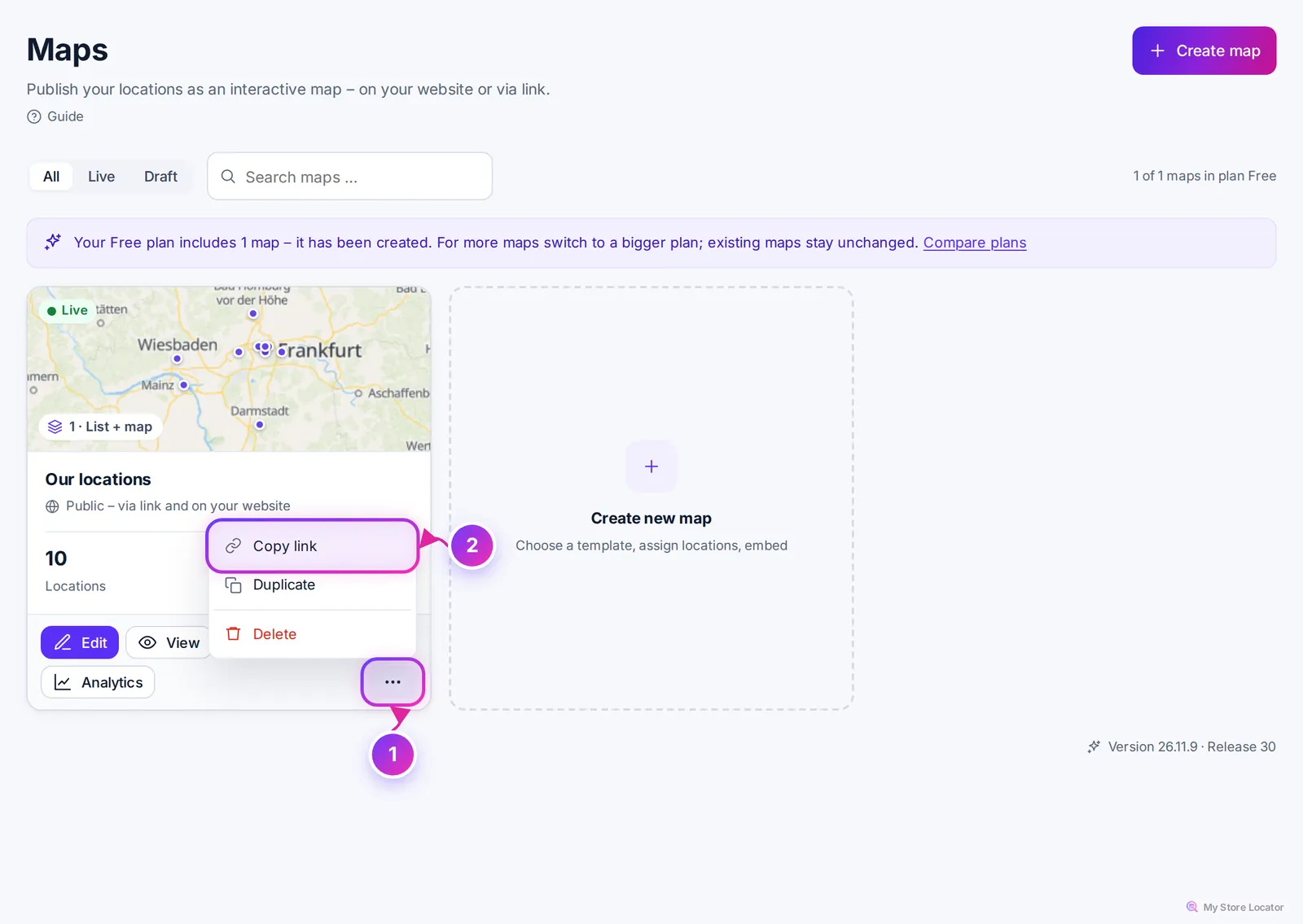
- Click ⋯ (More actions) on the map card.
- Choose Copy link.
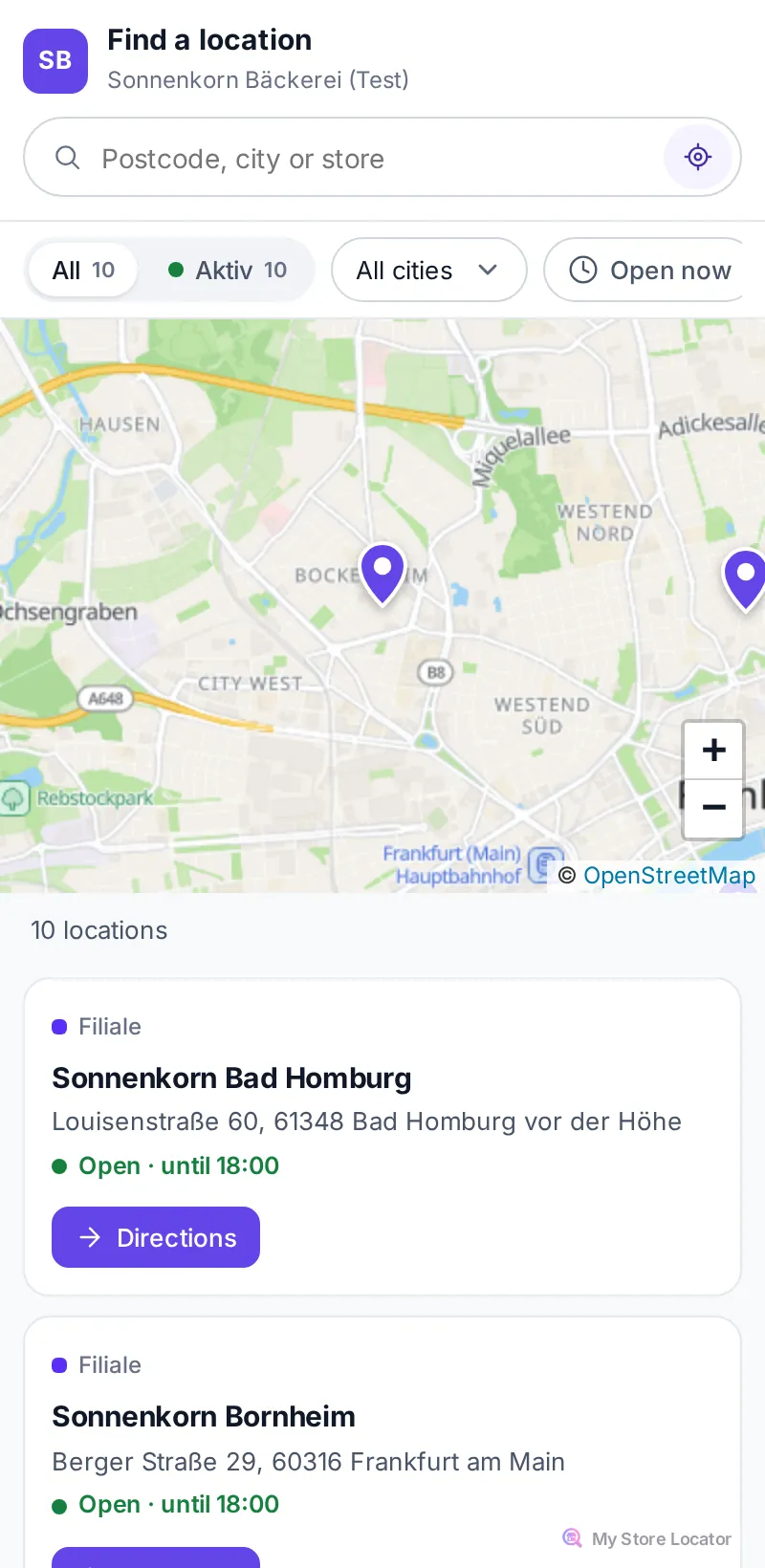
This is what visitors see on a smartphone
Anyone who opens the link or scans the QR code sees your map full screen – with search, filters, opening hours and directions. The template and design of your map apply.
Good to know
Does the link change when I edit the map?
No. The link uses the map's fixed token. You can change locations, design and template at any time.
Which format is best for print?
SVG. It is a vector graphic and stays sharp at any size – from a receipt to a shop-window poster.
What do visitors see if the map is a draft?
"Map not available". Publish the map in the map editor, see create and publish a map.