
What you need
- A map, see Create and publish a map
- Templates 1–3 on every plan, 4–6 from Starter, 7–10 from Pro
Choose a template
Open the map under Maps → Edit and switch to the 2 · Template tab. Each tile shows a sketch and a short description. Locked tiles say "from Starter" or "from Pro".
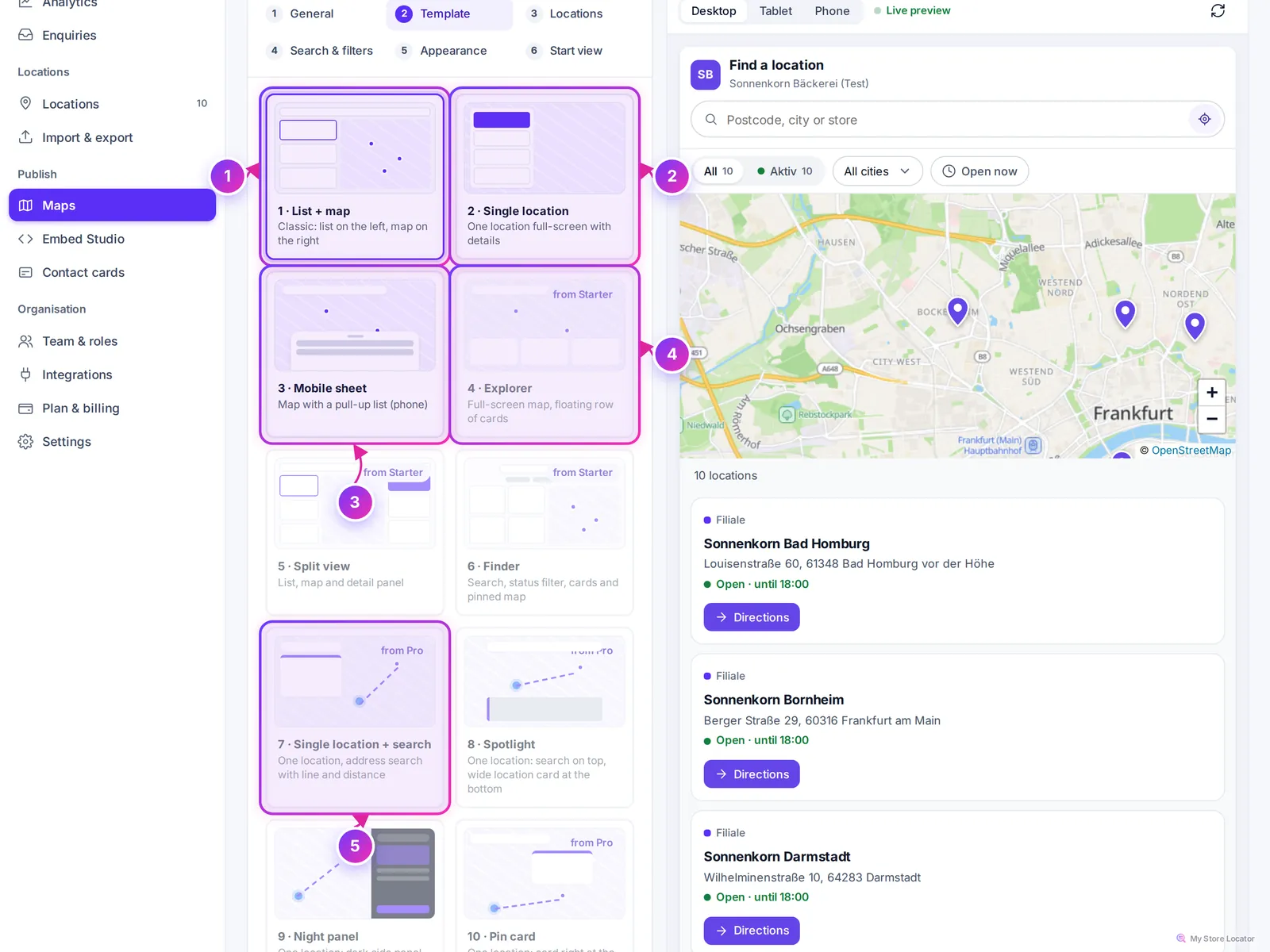
- 1 · List + map – the classic: list on the left, map on the right. The active template has a frame.
- 2 · Single location – one location in full screen with all details.
- 3 · Mobile sheet – map with a pull-up list, ideal for phones.
- Templates 4–6 are available from Starter – pictures further down.
- Templates 7–10 are available from Pro. They show exactly one location; a field "Location for this template" appears. More: Single-location templates 7–10.
| Template | What it looks like | Plan |
|---|---|---|
| 1 · List + map | Header with heading and search, filters, list on the left, map on the right | Free |
| 2 · Single location | Full-screen map with a detail panel, switch with ‹ › and a dropdown | Free |
| 3 · Mobile sheet | Map with floating search, pull-up list | Free |
| 4 · Explorer | Full-screen map, floating search and filters, row of cards at the bottom | Starter |
| 5 · Split view | Header with filters, narrow list, map and a detail panel on click | Starter |
| 6 · Finder | Big heading with search, status filter, grid of cards and a sticky map | Starter |
| 7 · Single location + search | One location, address search with line and distance | Pro |
| 8 · Spotlight | One location: search on top, wide location card at the bottom | Pro |
| 9 · Night panel | One location: dark side panel with a large distance | Pro |
| 10 · Pin card | One location: card right at the pin, search on top | Pro |
Tip: After choosing, click Save and then View – this shows the new look the way your visitors see it. The public link and the token stay the same: embedded maps take on the new look by themselves.
Template 1 · List + map
The default template for many locations. At the top are the heading and the search, below them the filters, the list on the left and the map on the right. You set the texts at the top in the General tab.
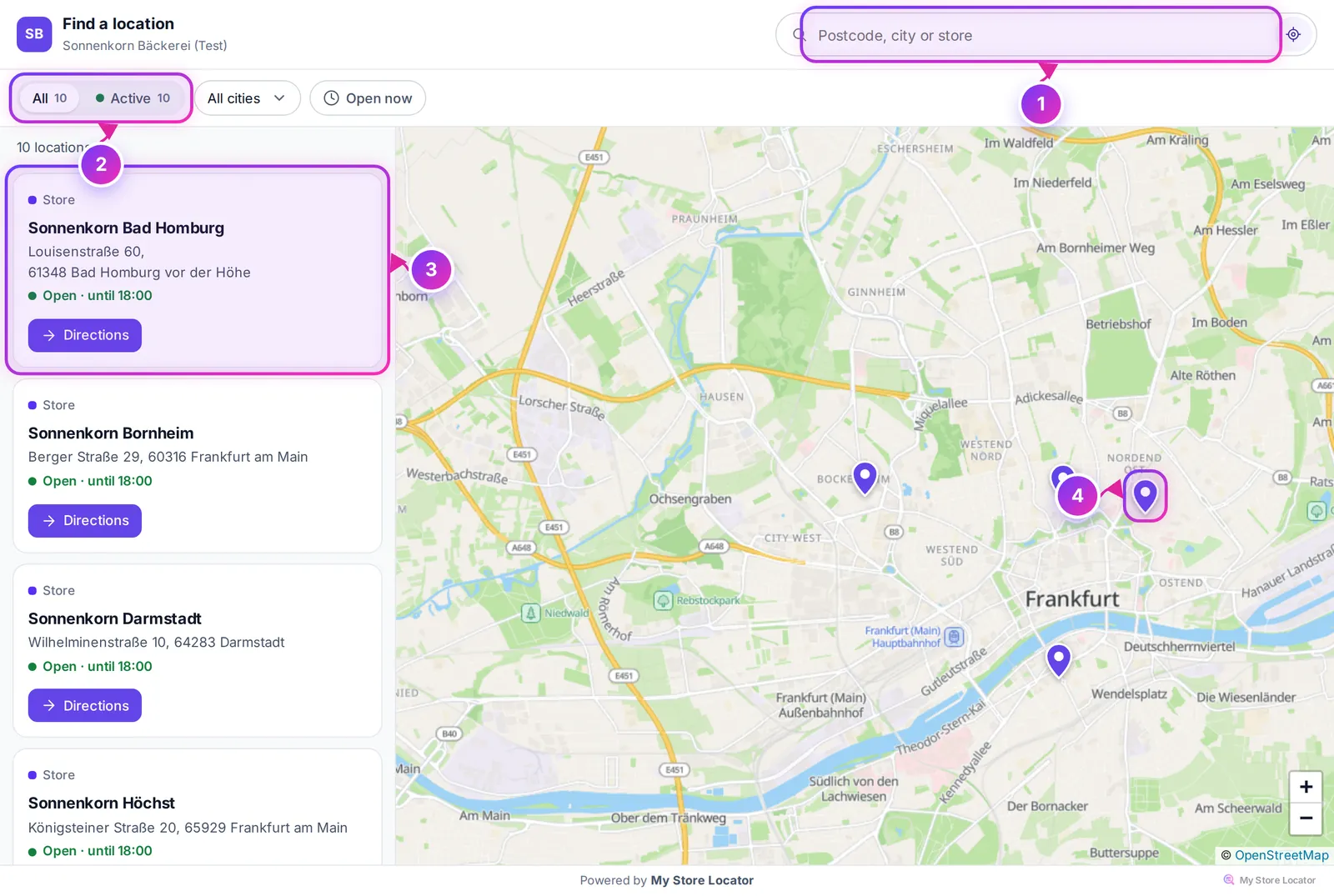
- Visitors search by postcode, city or store – or use their location.
- The status filters show the number per status. You choose which filters appear in the Search & filters tab, see Set up search & filters.
- Each location is a card in the list – with address, "Open" and Directions.
- The pins on the map belong to the entries in the list.
Template 2 · Single location
Good for companies with few locations or one page per store. The map fills the whole space, on the left there is always one location with all details.
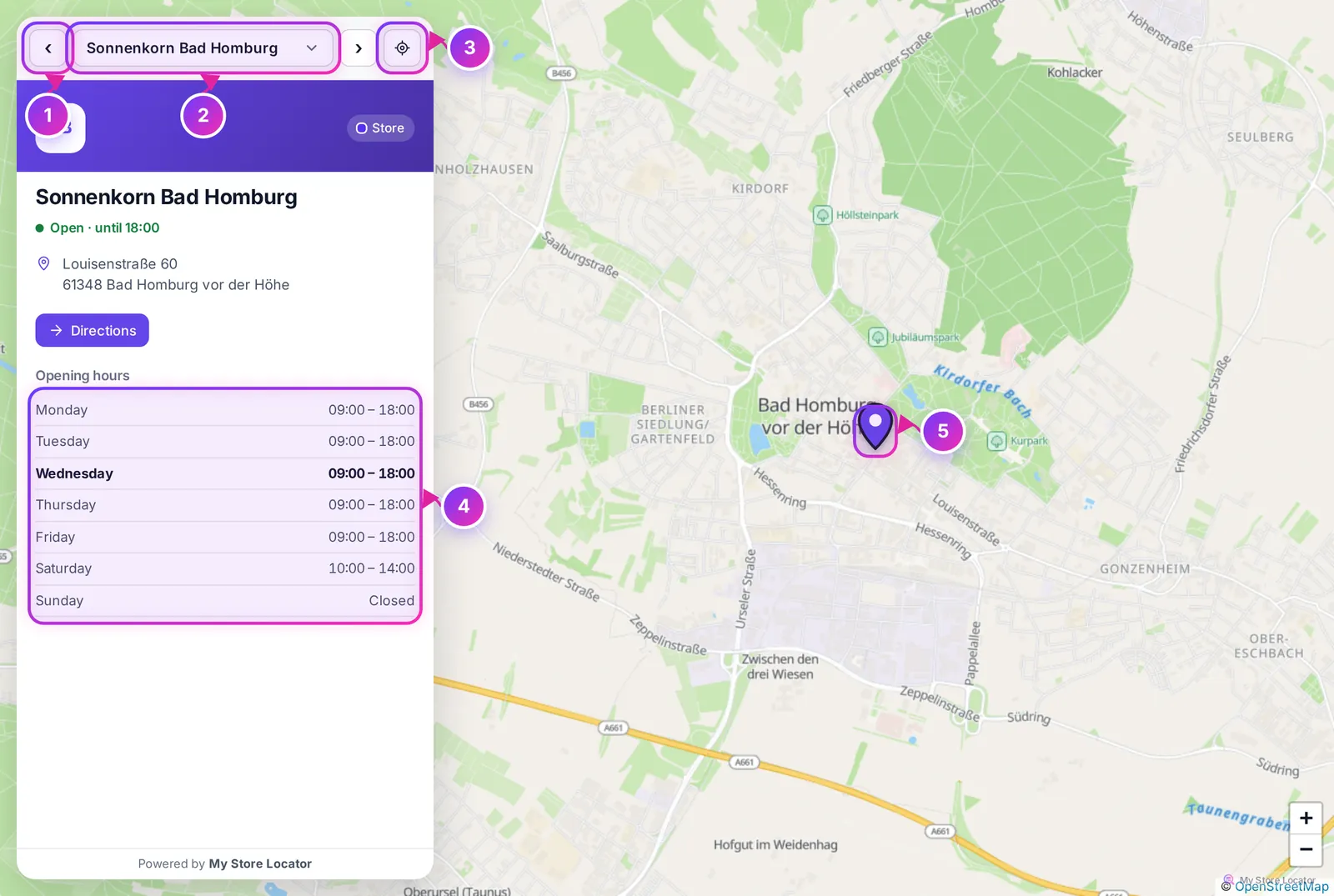
- With ‹ and › visitors go to the previous or next location.
- The dropdown jumps straight to a location.
- Use my location finds the nearest location.
- Below are the status, address, Directions and the opening hours – today is in bold.
- The map shows the selected location.
Template 3 · Mobile sheet
Made for phones: the map fills the screen, the list lies as a sheet at the bottom and can be pulled up. This is what the template looks like on a phone.
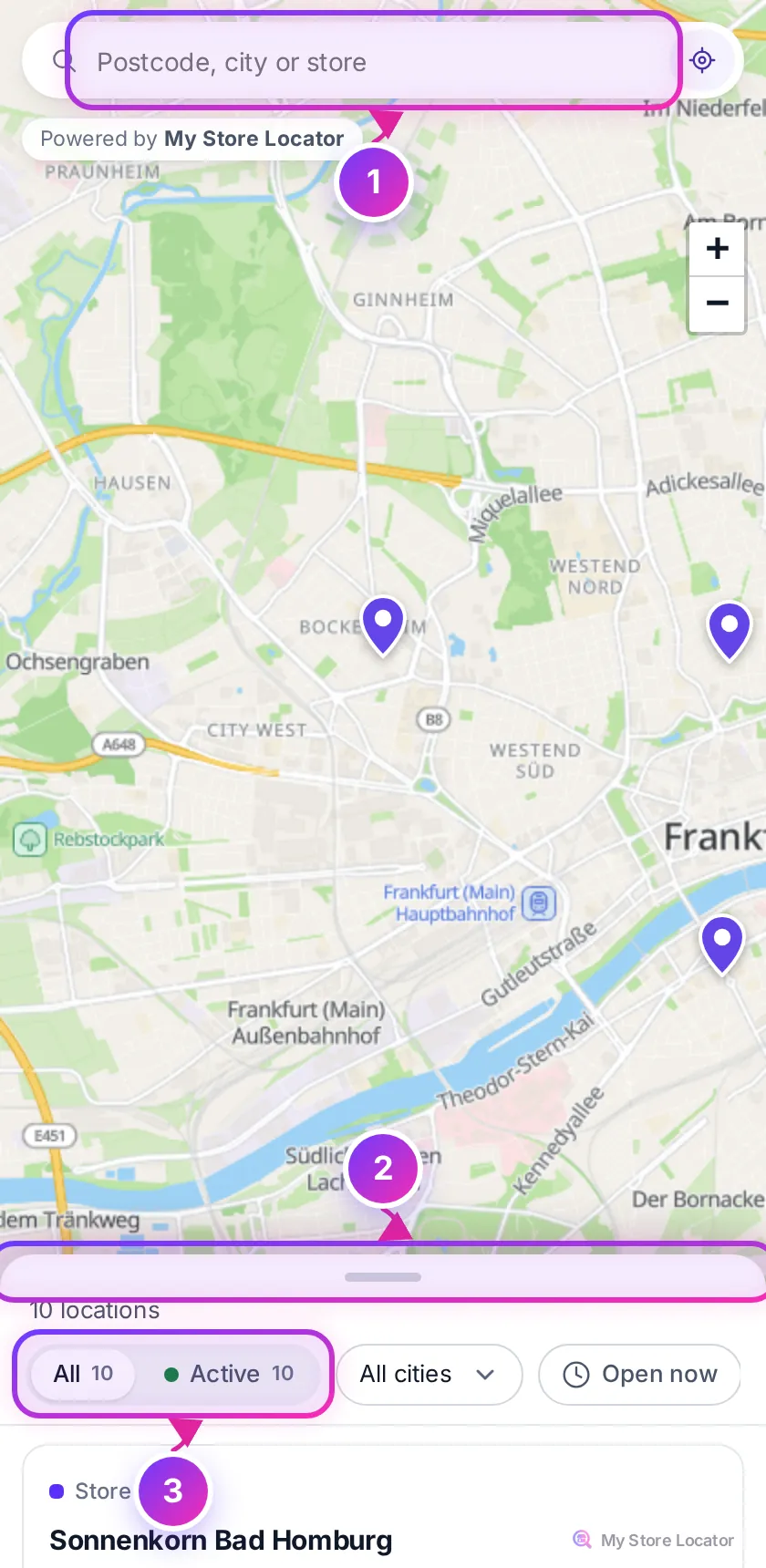
- The search floats above the map.
- Using the handle, visitors pull the list up or push it back down.
- Filters and the number of locations are at the top of the sheet.
Template 4 · Explorer (from Starter)
The map fills the whole space. Search and filters float at the top, the locations run along the bottom as a row of cards.
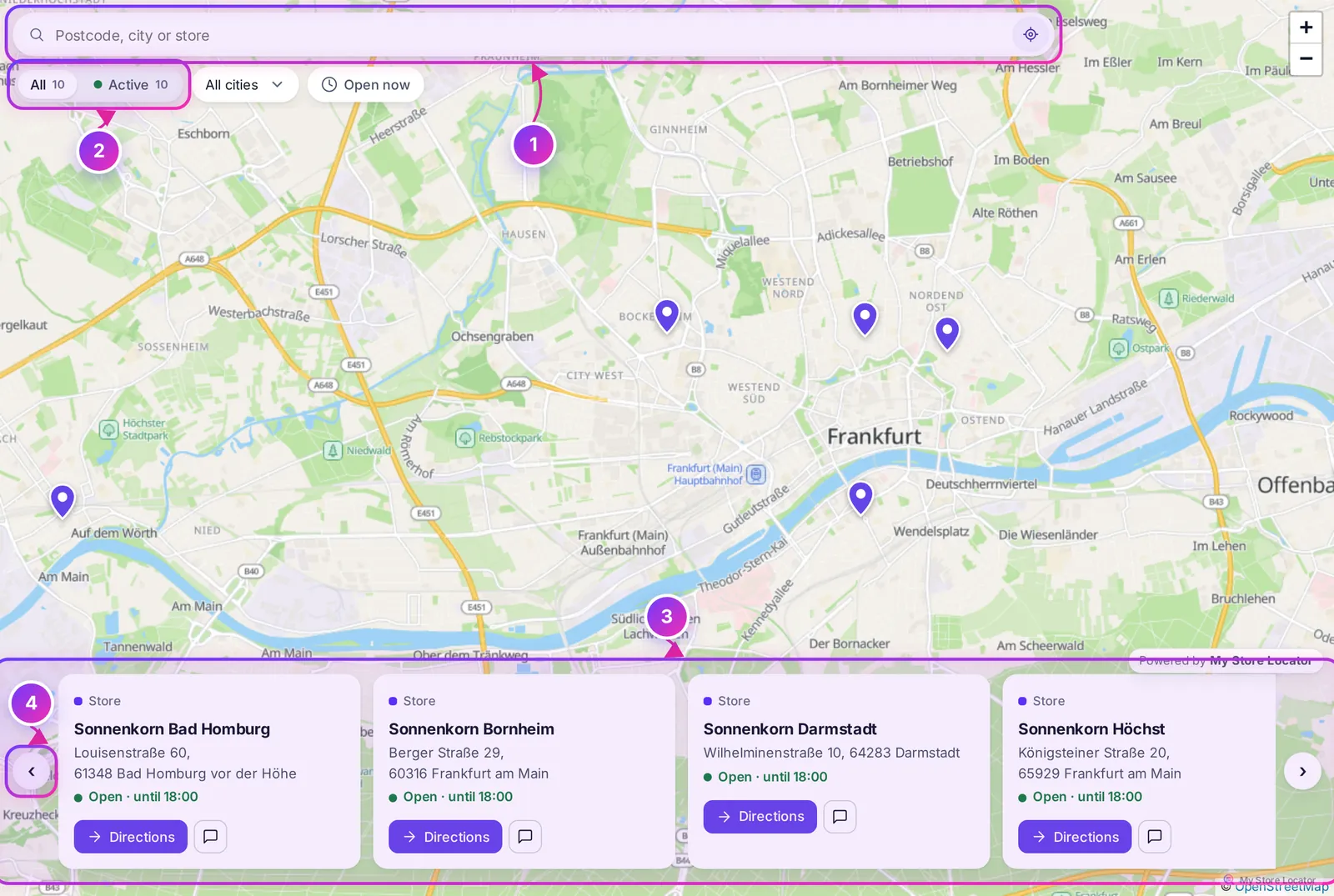
- The search floats above the map.
- Below it the filters, e.g. by status, city and Open now.
- At the bottom the row with all locations – each card with address, opening status and Directions.
- Visitors scroll through the row with ‹ and ›.
Template 5 · Split view (from Starter)
A header with the search, filters below it. A narrow list on the left, the map in the middle. Clicking a location opens the details on the right.
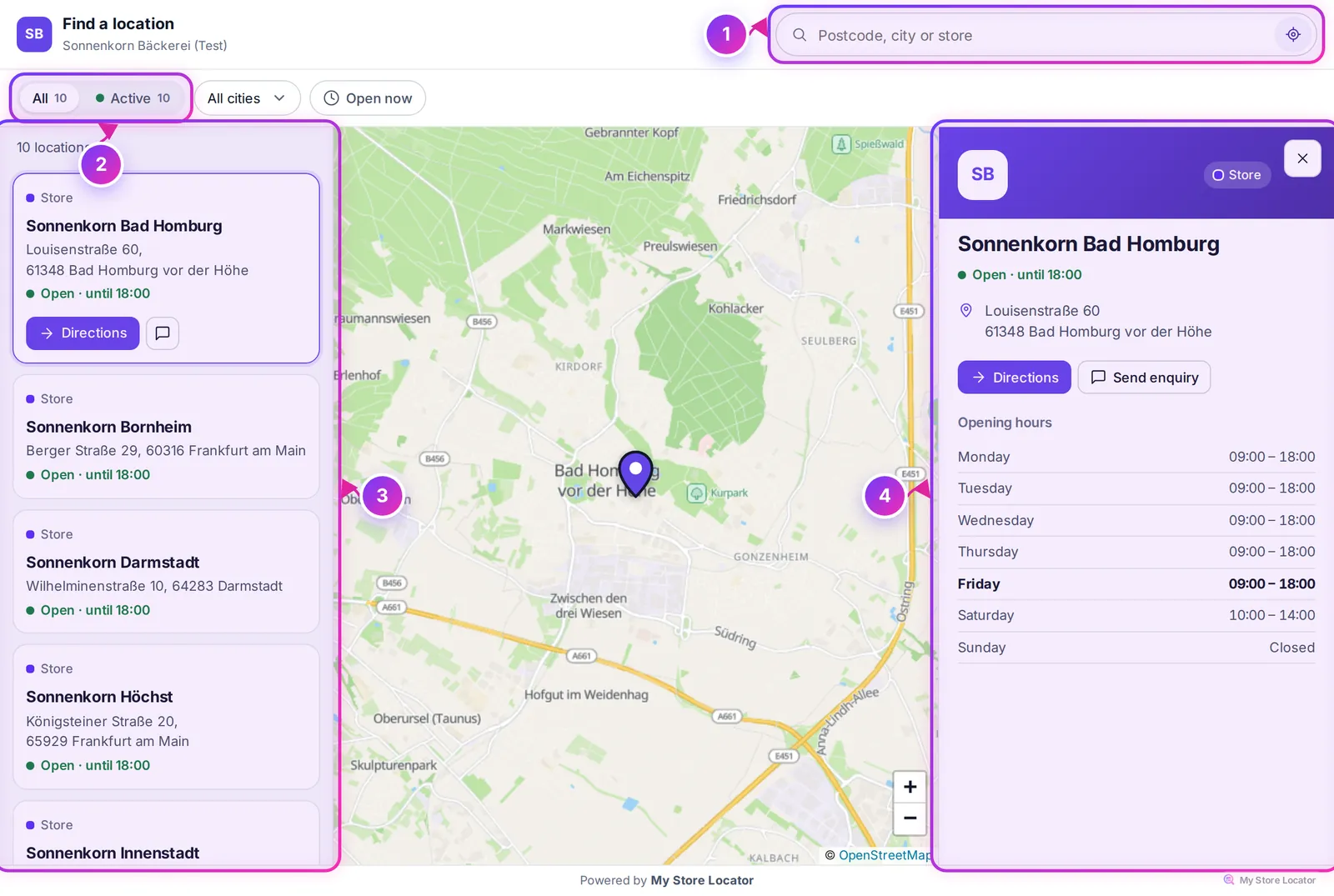
- The search at the top right of the header.
- The filters below the header.
- The narrow list with all locations.
- The detail panel: address, Directions, Send enquiry and the opening hours of the week. × closes it.
Template 6 · Finder (from Starter)
Like a page of its own: a heading with a big search at the top, filters below, the locations as tiles on the left and a map on the right that stays in view while scrolling.
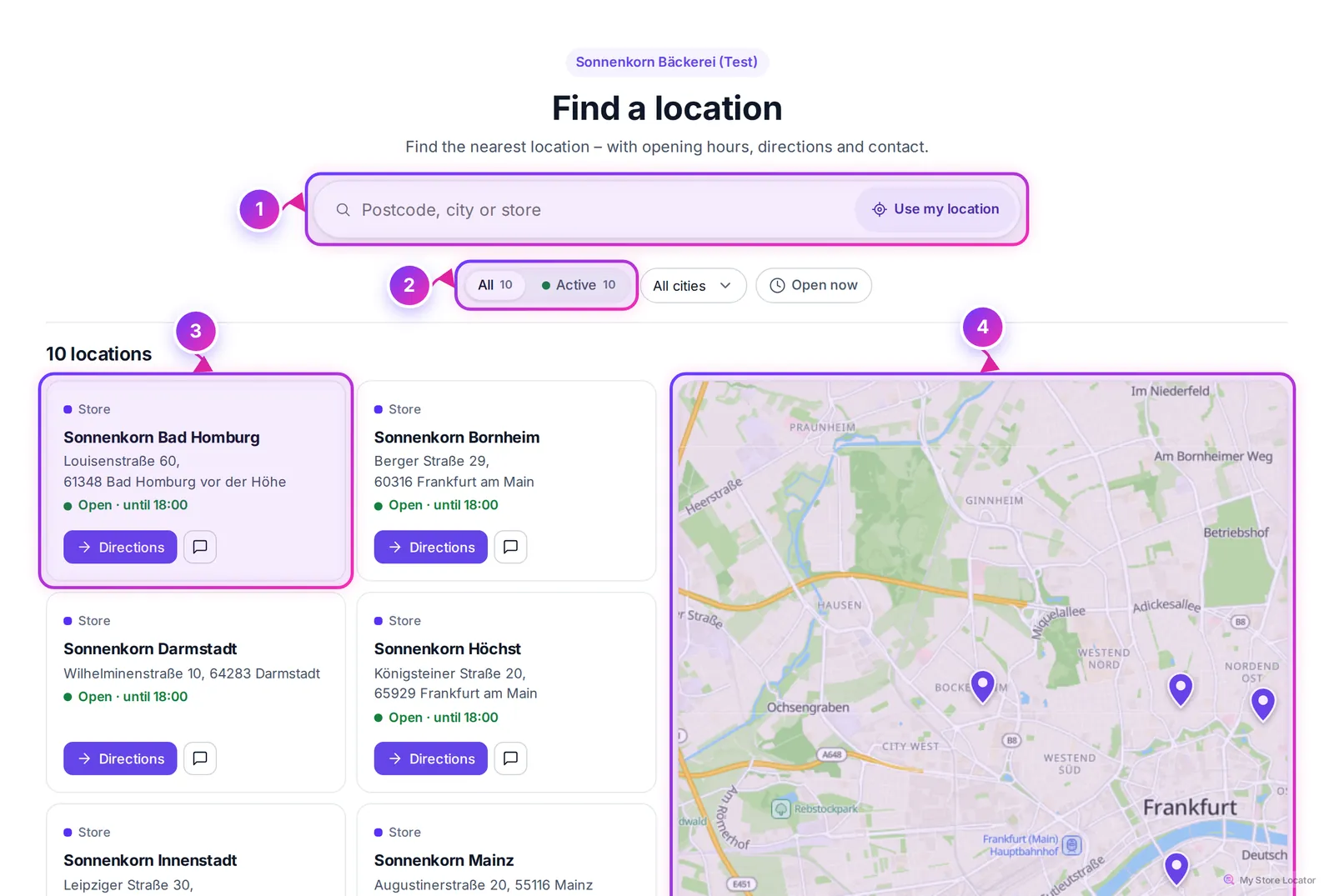
- The big search with Use my location.
- The filters.
- The locations as tiles.
- The map on the right stays in view while scrolling – best with the height "Automatic (fit content)" in the Embed Studio.
Good to know
Can I switch the template later?
Yes, at any time. The link and token stay the same, you do not need to embed anything again.
Which template suits me?
Many locations: 1 (or 4–6 from Starter). Few locations or one page per store: 2. Many visitors on phones: 3. Exactly one location with the distance to the visitor: 7–10 from Pro.
Does every template adapt to phones?
Yes. In the editor you can use Desktop / Tablet / Phone above the preview to check how the saved map looks on each device.