
What you need
- A map, see Create and publish a map
- Your brand colour as a hex value, e.g. #1b8079
Colours, font, shape and density
Open the map under Maps → Edit and switch to the 5 · Appearance tab. Without your own choice the map uses the My Store Locator violet.
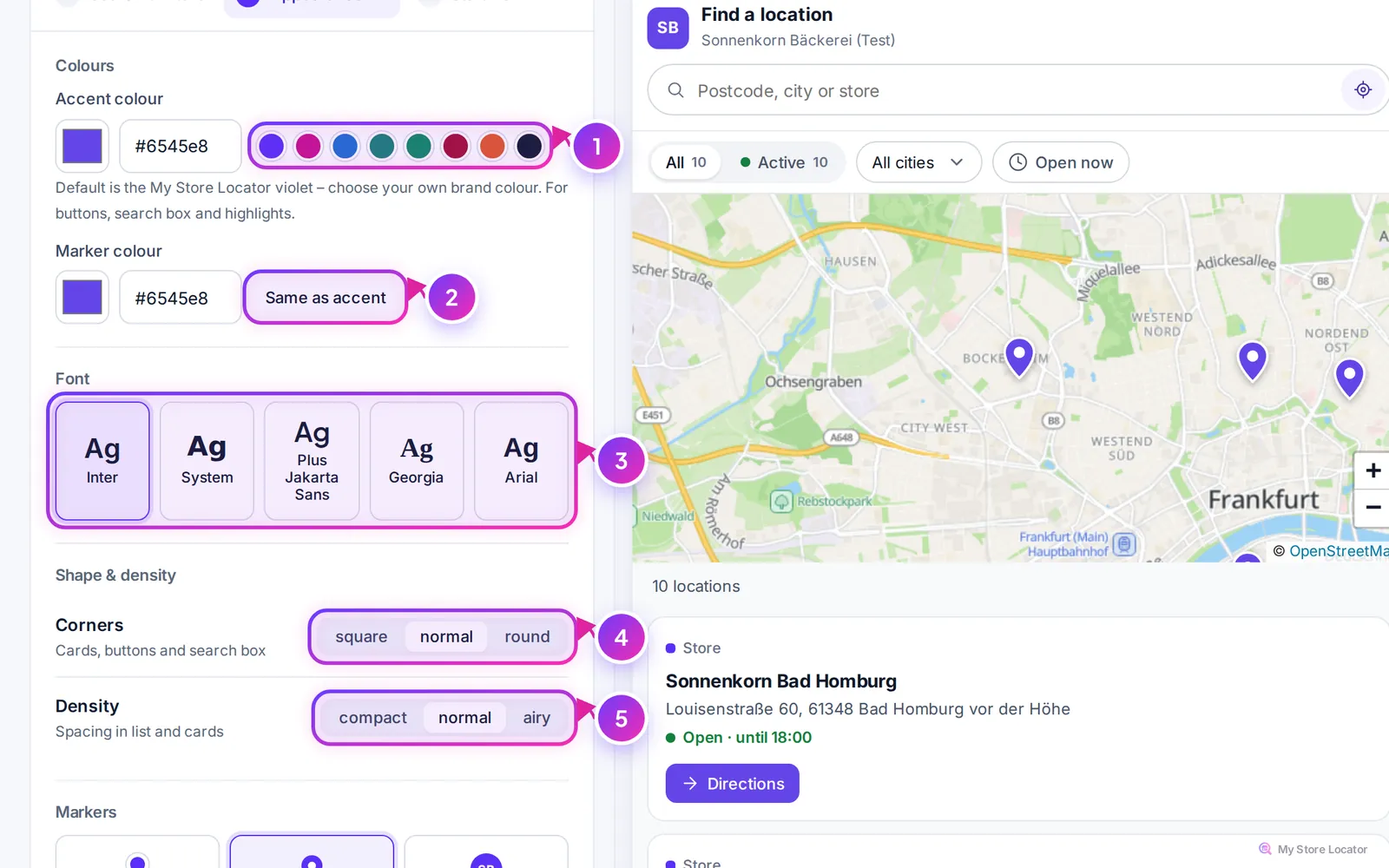
- Accent colour: used for buttons, search and highlights. Click a swatch or enter your hex value.
- Marker colour: the colour of the pins. Same as accent takes over the accent colour.
- Font: Inter, System, Plus Jakarta Sans, Georgia or Arial.
- Corners: square, normal or round – for cards, buttons and the search box.
- Density: compact, normal or airy – the spacing in the list and cards.
Markers and map style
Further down you choose how your locations appear on the map and what the map itself looks like.
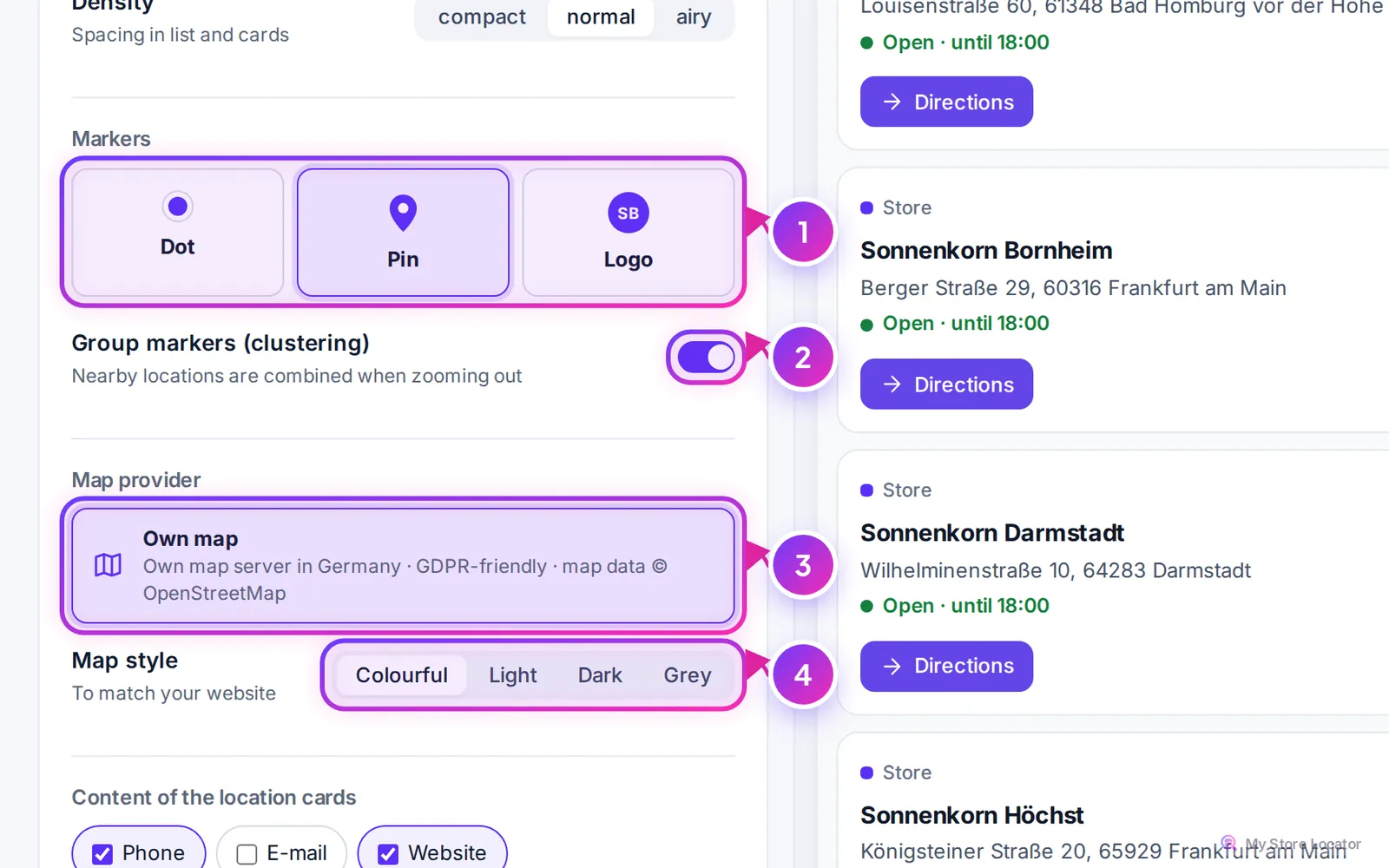
- Markers: dot, pin or logo (your company's initials).
- Group markers (clustering) combines nearby locations when zooming out.
- Map provider: My Store Locator's own map – map server in Germany, GDPR-friendly, map data © OpenStreetMap.
- Map style: Colourful, Light, Dark or Grey – to match your website.
Location card content, frame and custom CSS
At the bottom you decide which details the location cards show, and whether a frame and the "Powered by" note appear.
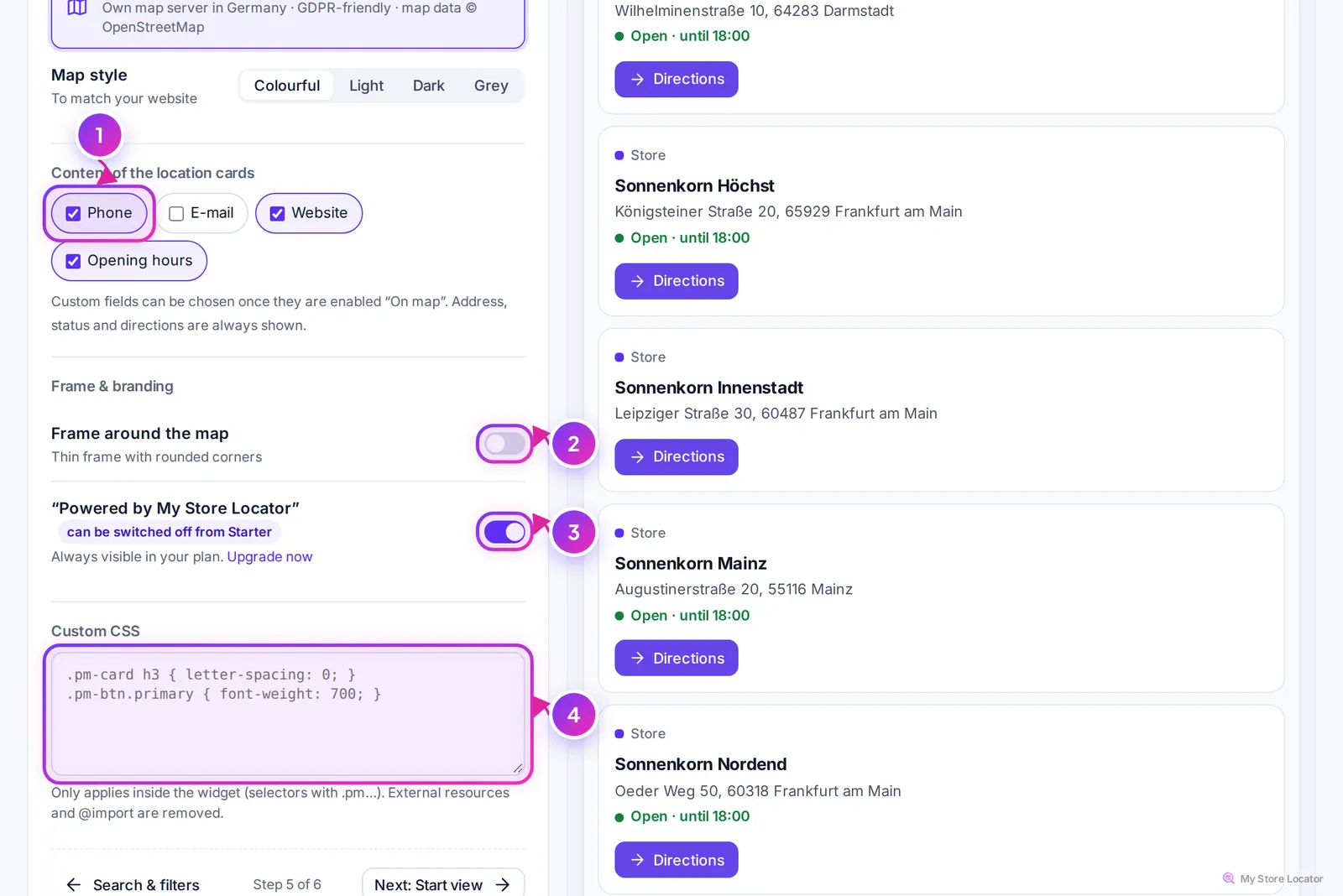
- Tick what the cards show: phone, e-mail, website, opening hours and custom fields that appear on maps. Address, status and directions are always shown.
- Frame around the map: a thin frame with rounded corners.
- "Powered by My Store Locator": always visible on the Free plan, can be switched off from Starter.
- Custom CSS only applies inside the map (selectors
.pm…). External resources and @import are removed.
Tip: Finally click Save and check the result with View.
What visitors see
An example: accent colour teal (#1b8079), font Georgia, round corners and map style Grey.
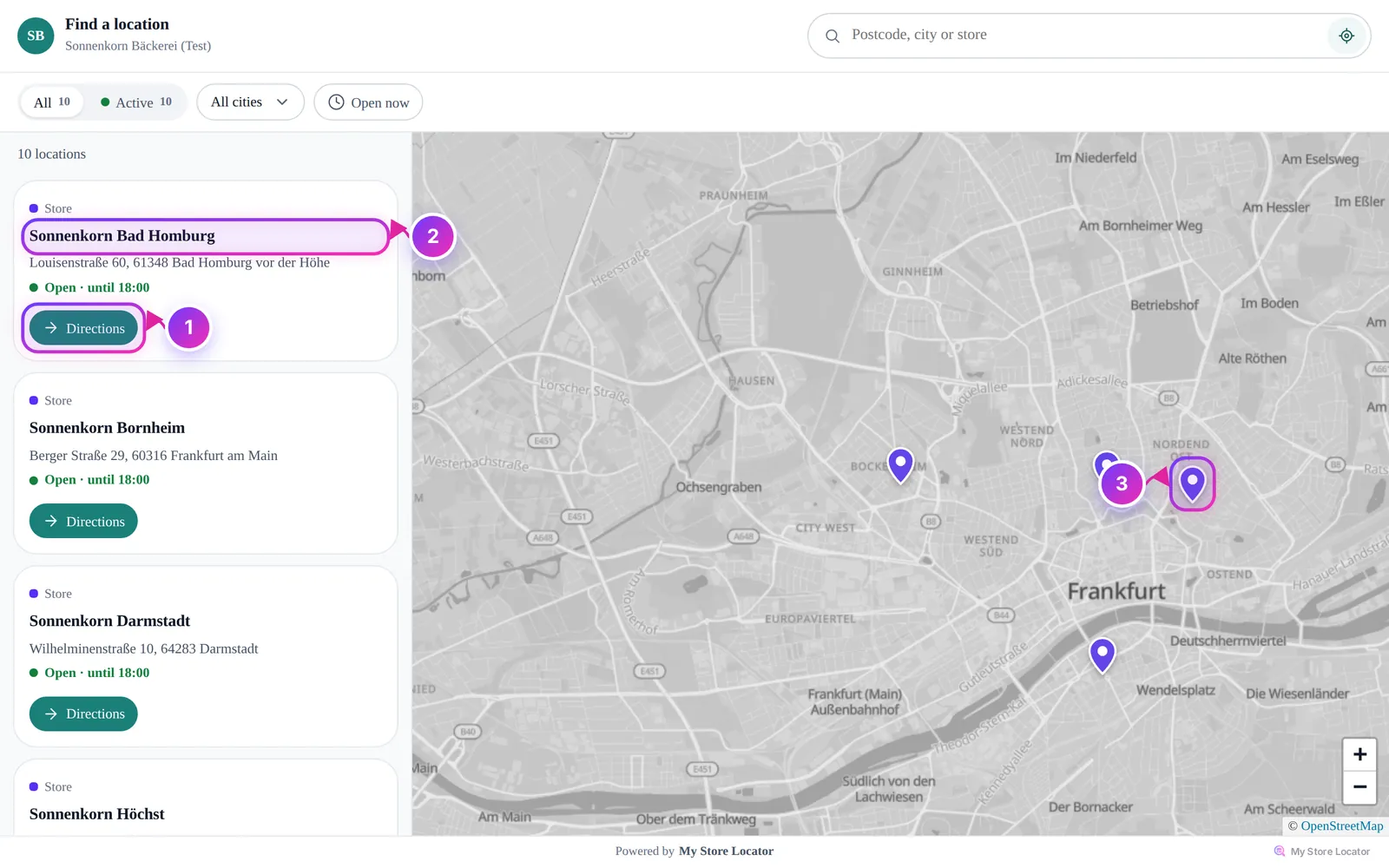
- The buttons take on the accent colour and the round corners.
- All texts appear in the chosen font.
- The pins keep their own marker colour – with Same as accent they match the accent colour.
Tip: In the Embed Studio you can also adjust colour and corners for a single embed code without changing the map.
Good to know
Can I choose Google Maps as the map provider?
No. My Store Locator uses its own map with a map server in Germany and map data from OpenStreetMap.
How do I remove "Powered by My Store Locator"?
From the Starter plan you can switch it off. On the Free plan the note stays visible.
Where do I set the company colour for all maps?
Under Settings → Branding with "own branding" switched on and applied to public maps and contact cards (every plan). The company colour then appears as its own swatch next to the accent colour, and new maps take it over automatically.