
What you need
- A map, see Create and publish a map
- The Free plan is enough
Move and zoom the view
Open the map under Maps → Edit and switch to the 6 · Start view tab. The small map shows the start view with your locations as dots.
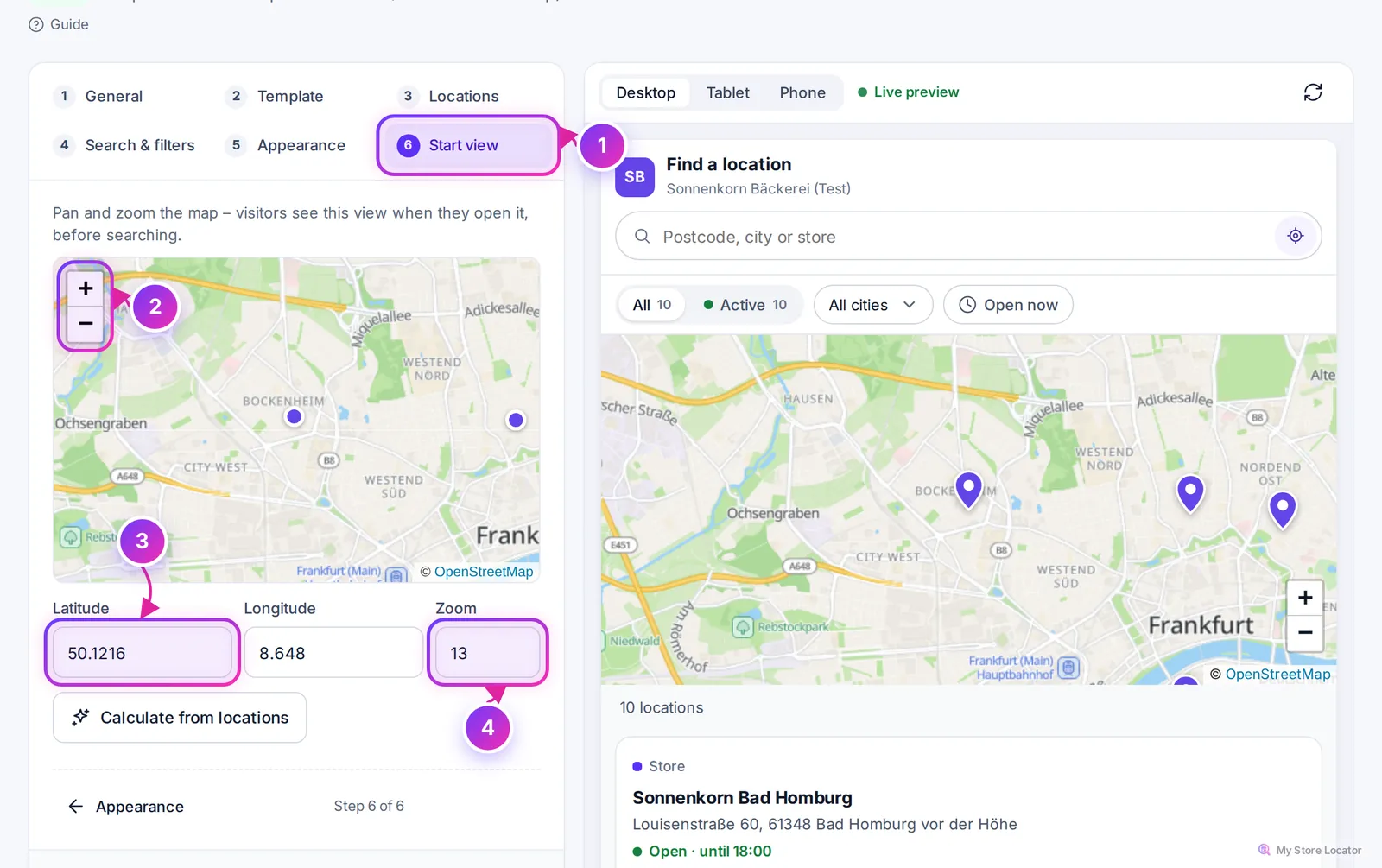
- Click the Start view tab.
- Drag the small map with the mouse and zoom with + and −.
- Latitude and Longitude show the centre of the view. You can also enter the values directly.
- Zoom ranges from 2 (whole world) to 18 (single streets).
Calculate from the locations and save
If you have added new locations or moved the view, one click calculates the right view again.
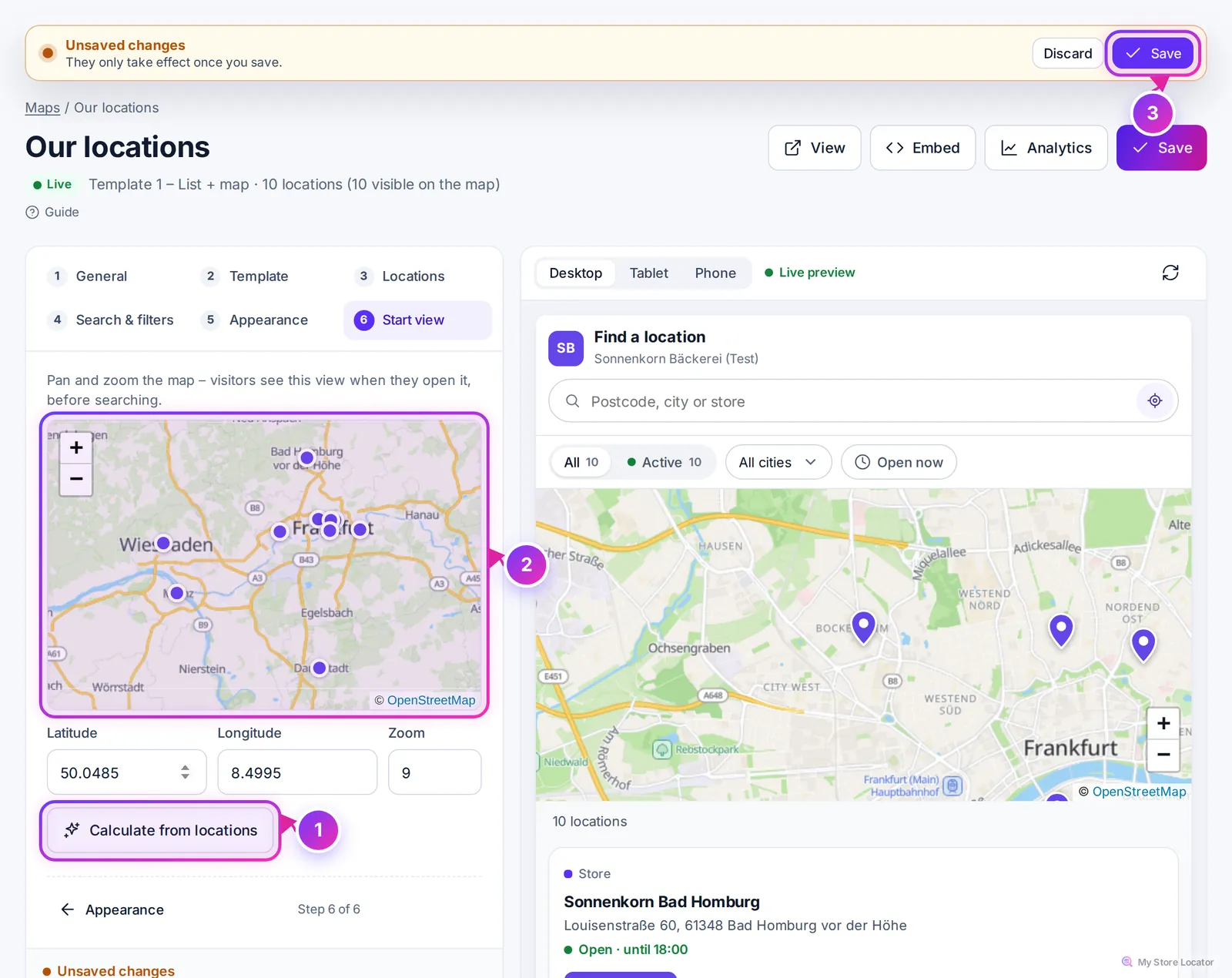
- Calculate from locations picks the centre and zoom so that all locations of the map are visible.
- The small map shows the new view – here from Bad Homburg to Darmstadt.
- Click Save. Only then do visitors see the new start view.
Tip: When a visitor searches, the map jumps to the results. After Clear search it shows all locations again.
Good to know
Can I use a different start view per website?
The start view belongs to the map. For a different view, create another map (from Starter: 3 maps).
Why don't I see all locations when the map opens?
The saved view is too narrow. Click Calculate from locations and save.