
What you need
- Plan Pro or Business
- A map, see Create a map
- The permission "Edit maps"
Choose the template and the location
Open the map under Maps → Edit and switch to the 2 · Template tab. Templates 7 to 10 are at the bottom.
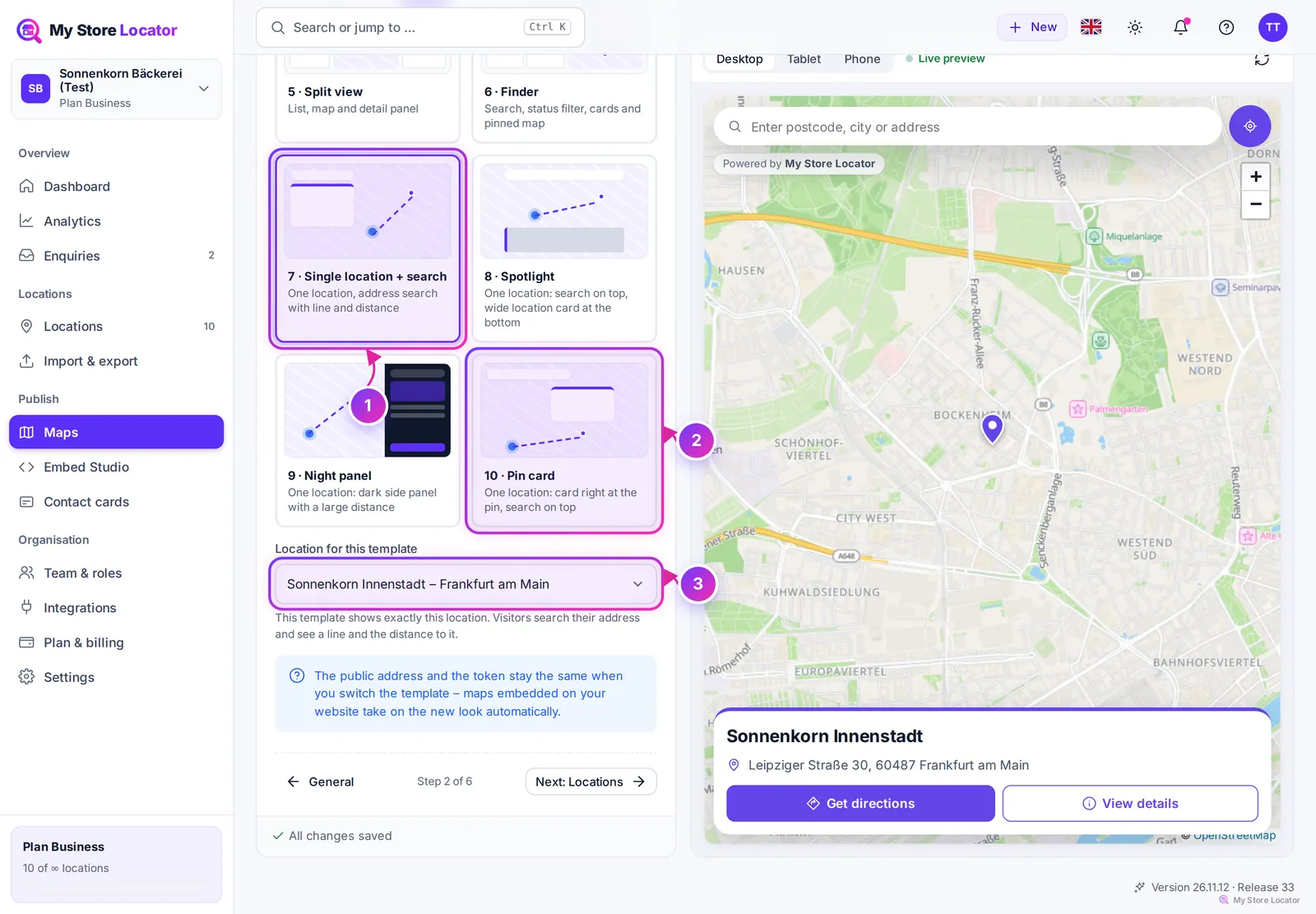
- 7 · Single location + search – one location, address search with line and distance.
- Next to it and below: 8 · Spotlight, 9 · Night panel and 10 · Pin card.
- Under Location for this template, choose the location the map should show. Then click Save at the top.
Tip: The public address and the token stay the same when you switch – maps embedded on your website show the new template automatically. For several stores, create one map per store.
7 · Single location + search
The map with your location and a card with the address at the top left. This is what it looks like after a visitor searched for "Bad Vilbel":
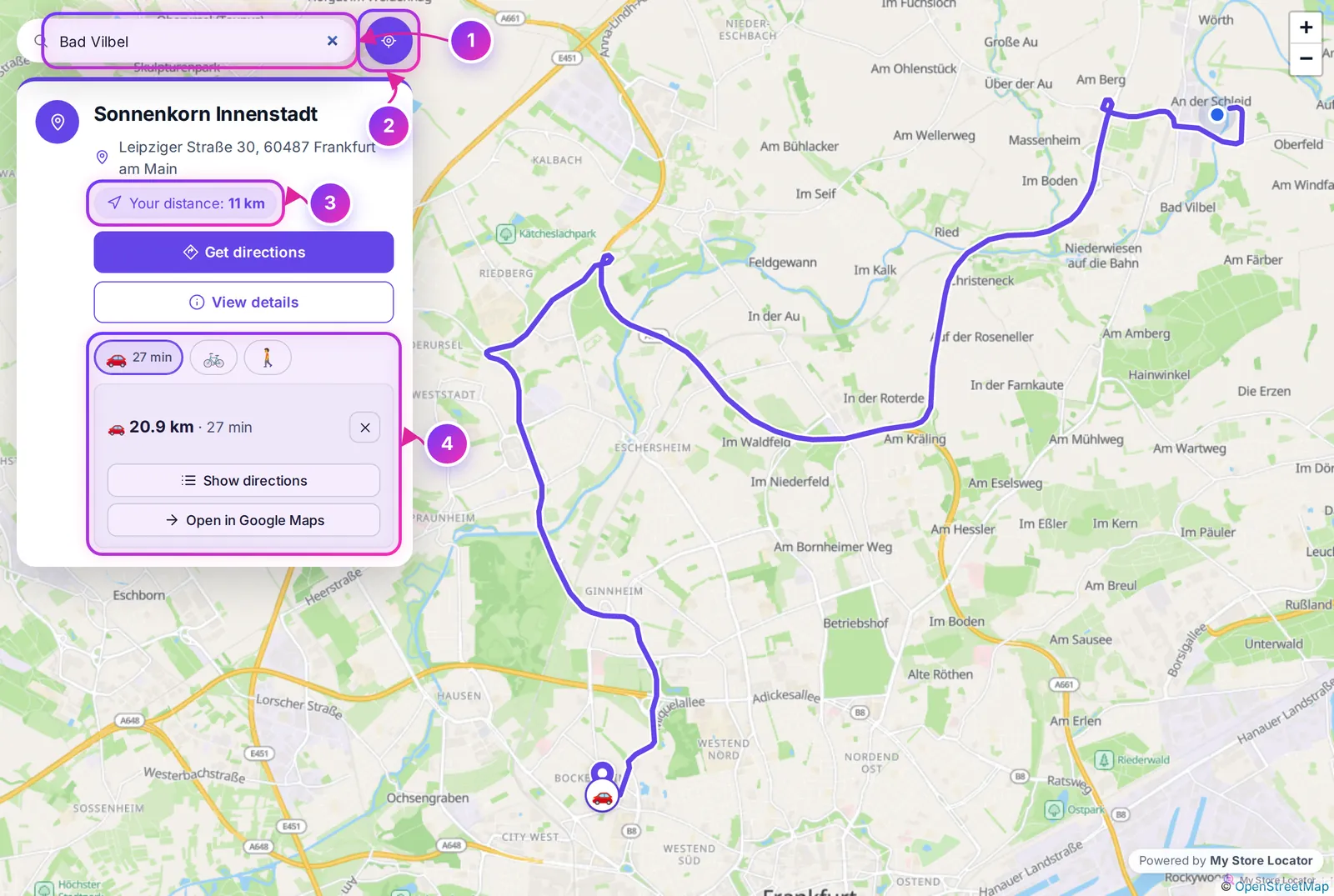
- The search box: Enter postcode, city or address.
- Search near me uses the device's location (the browser asks first).
- Your distance: the straight-line distance from the visitor to your location.
- The route: car, bike or on foot with distance and travel time, plus Show directions and Open in Google Maps. The route also appears on the map.
8 · Spotlight
Like template 7, but with a wide location card at the bottom – good on wide pages.
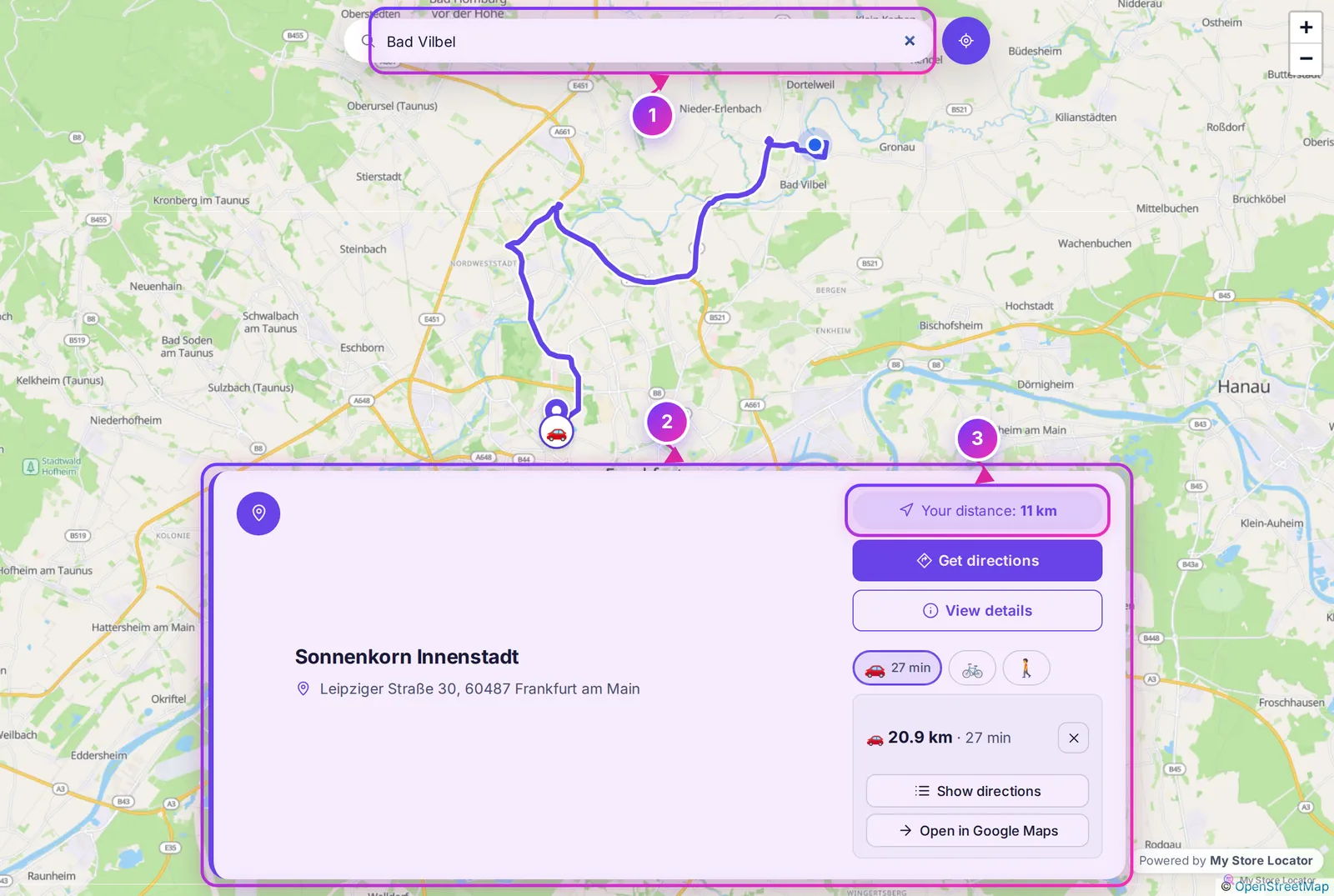
- The search at the top.
- The wide card at the bottom: name and address on the left, buttons and route on the right.
- Your distance after the search.
9 · Night panel
A dark panel on the right shows the distance in large type – eye-catching when the distance matters most.
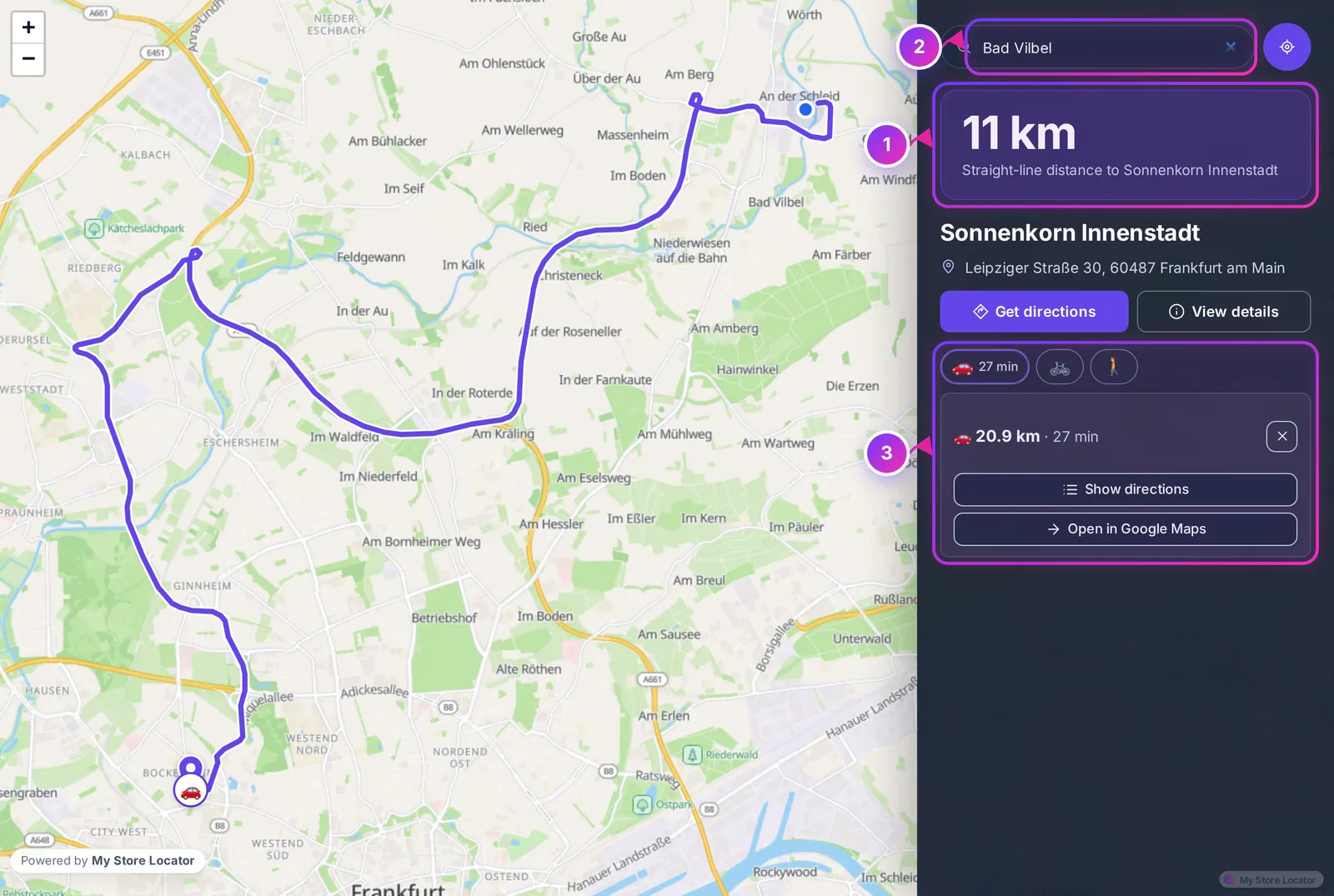
- The distance in large type, below it Straight-line distance to your location.
- The search at the top of the panel.
- Route with travel time, Show directions and Open in Google Maps.
10 · Pin card
The location card sits right at the pin on the map, the search is at the top.
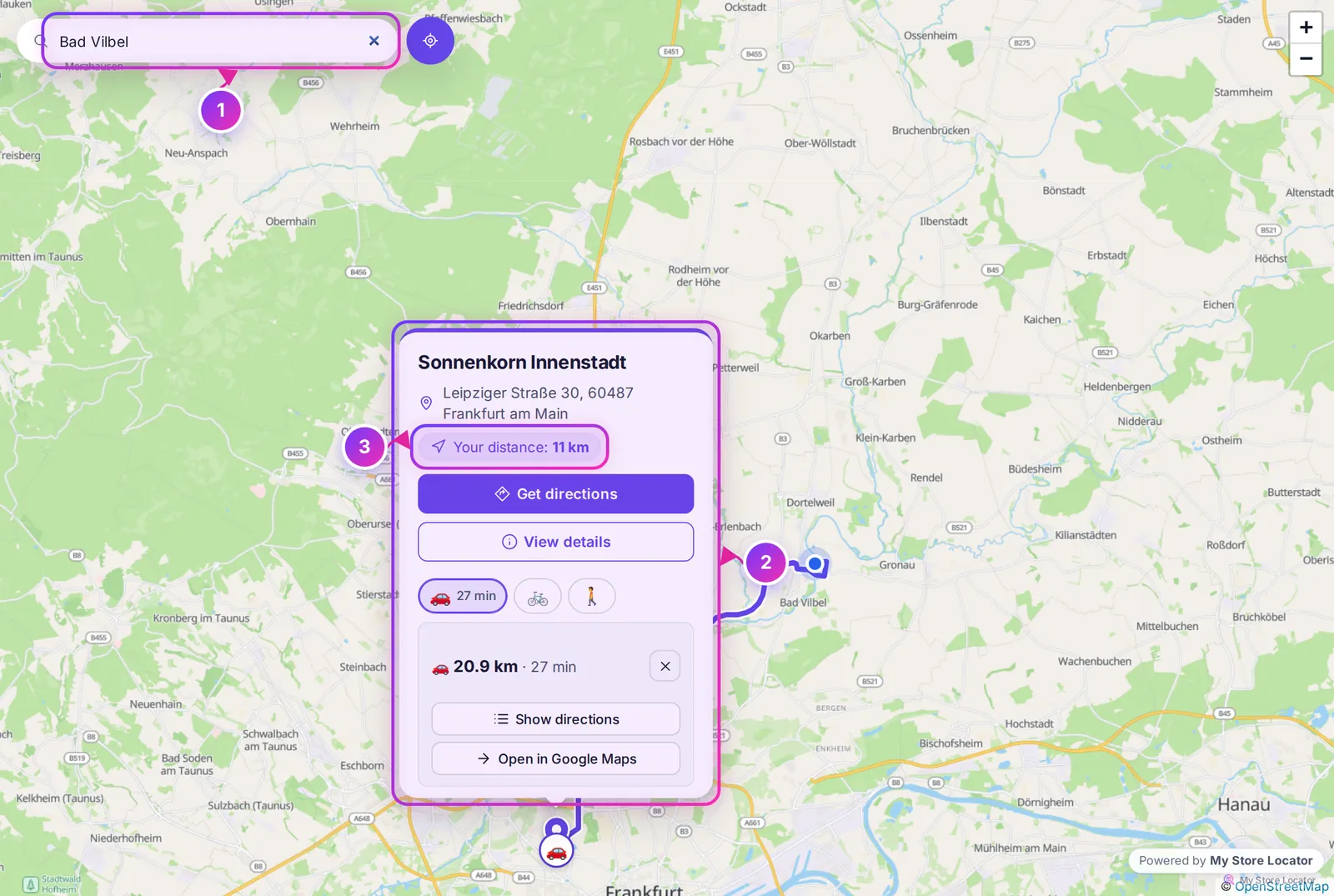
- The search at the top left.
- The card at the pin with address, Get directions and View details.
- Your distance after the search.
Good to know
I have several stores – does this still work?
Yes: create one map per store with template 7–10 and embed it on that store's page. For an overview of all stores, use templates 1–6, see The 10 templates compared.
Why do "Your distance" and the route kilometres differ?
"Your distance" is the straight line. The route follows the roads and is therefore longer – in the example 11 km straight line and 20.9 km by car.
I can't see templates 7–10 or they are locked.
Templates 7–10 are included from the Pro plan. Locked tiles say "from Pro". You change the plan under Plan & billing.
The preview in the editor doesn't show the new template.
At the moment, the preview shows the chosen template only after you Save. Click Save and then the refresh icon of the preview.