
What you need
- A My Store Locator account with a published map – the Free plan is enough
- Joomla 4.4 or 5 with HTTPS and an administrator login
Copy the install link
Open Integrations → Joomla. The panel shows the link to the current module.
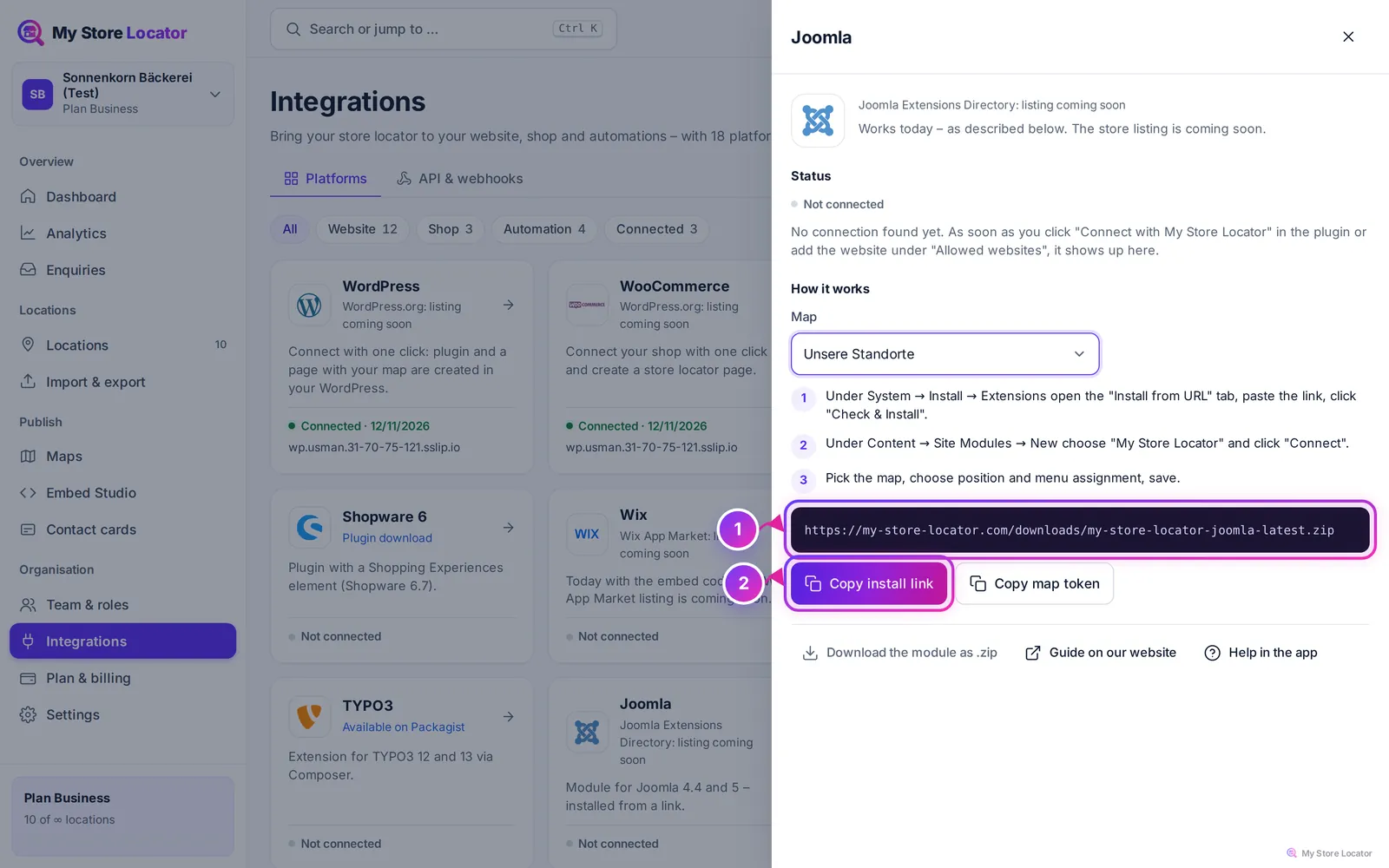
- The module's install link.
- Click Copy install link.
Tip: A listing in the Joomla Extensions Directory is coming soon. You can also download the module as a .zip and upload it.
Install the module in Joomla
In Joomla go to System → Install → Extensions.
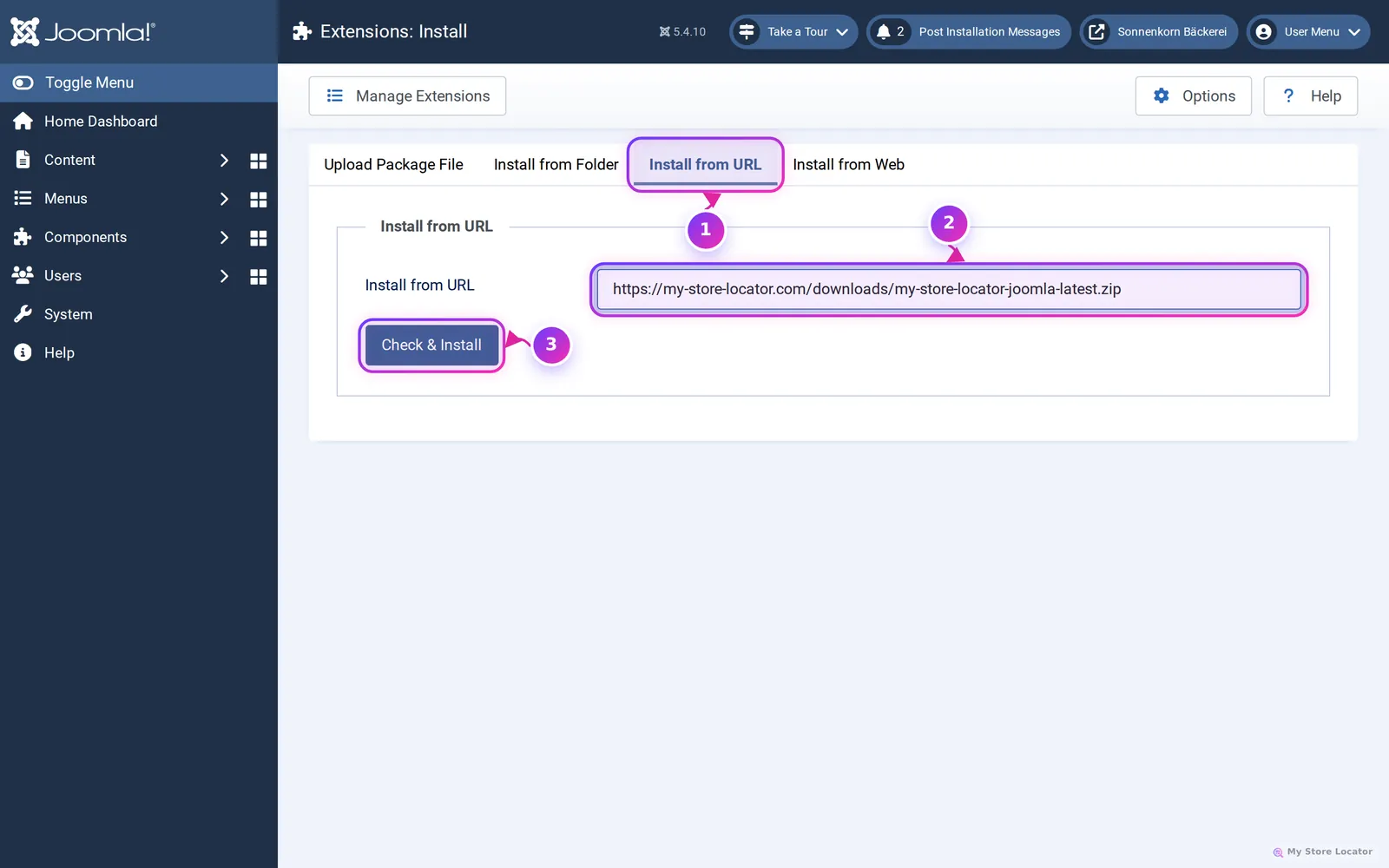
- Open the Install from URL tab.
- Paste the copied link.
- Click Check & Install. Joomla confirms that the module was installed.
Create a new module
Go to Content → Site Modules → New.
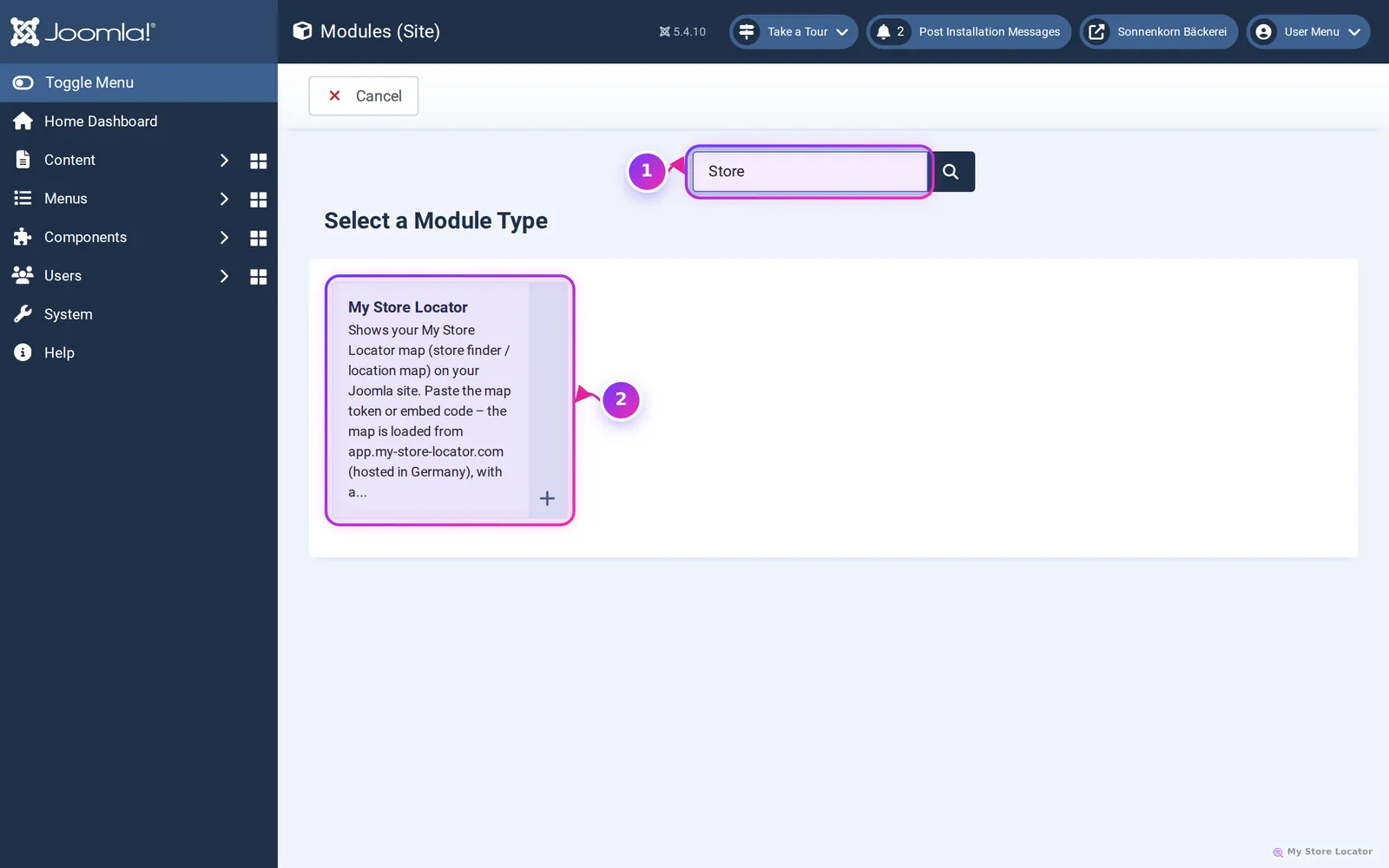
- Type "Store" into the search.
- Choose My Store Locator.
Enter a title and connect
The module form opens.
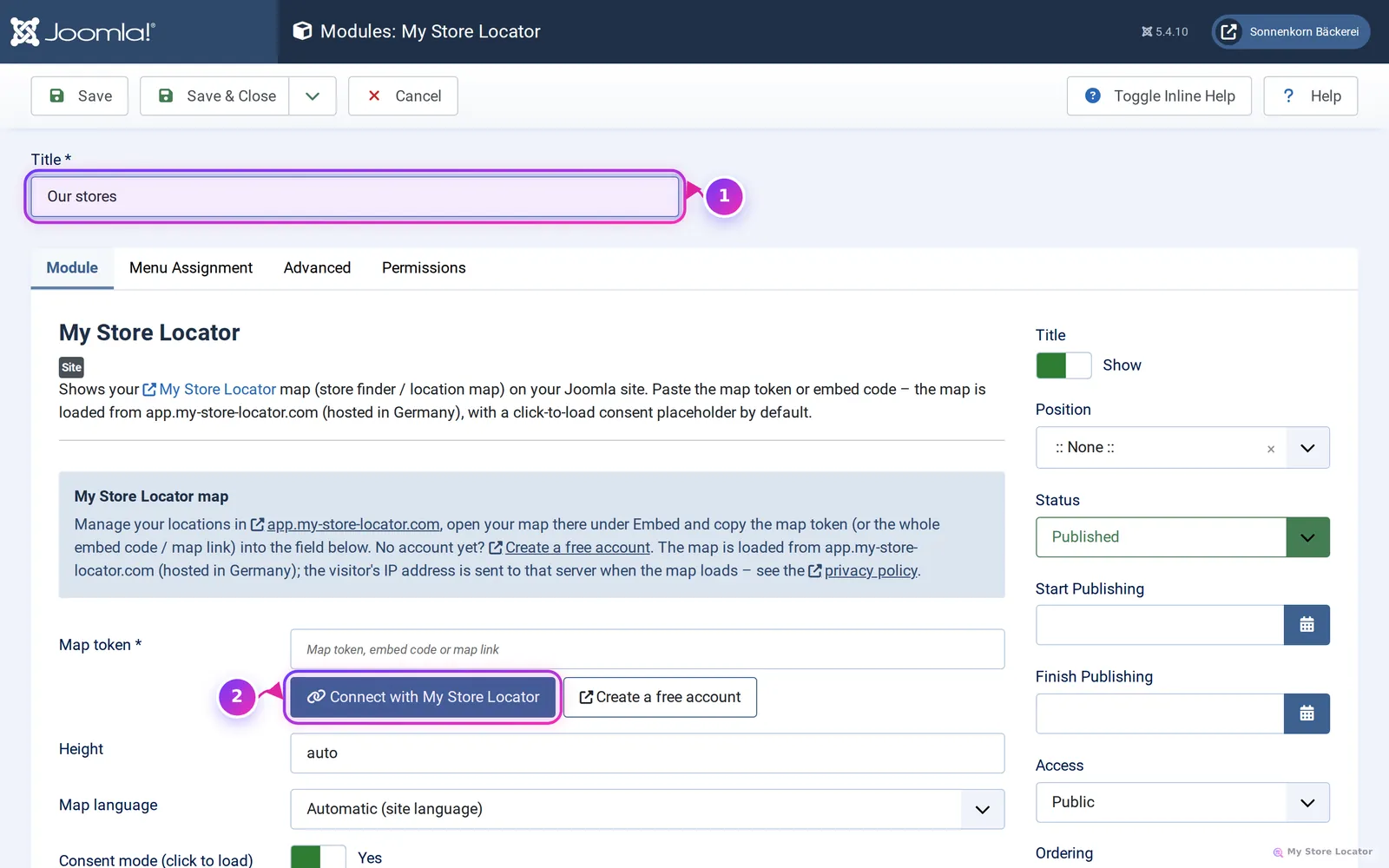
- Enter a Title, e.g. "Our stores". It appears above the map when "Show title" is on.
- Click Connect with My Store Locator. A small window opens.
Choose the map
In the window you sign in to My Store Locator if needed and choose the map.
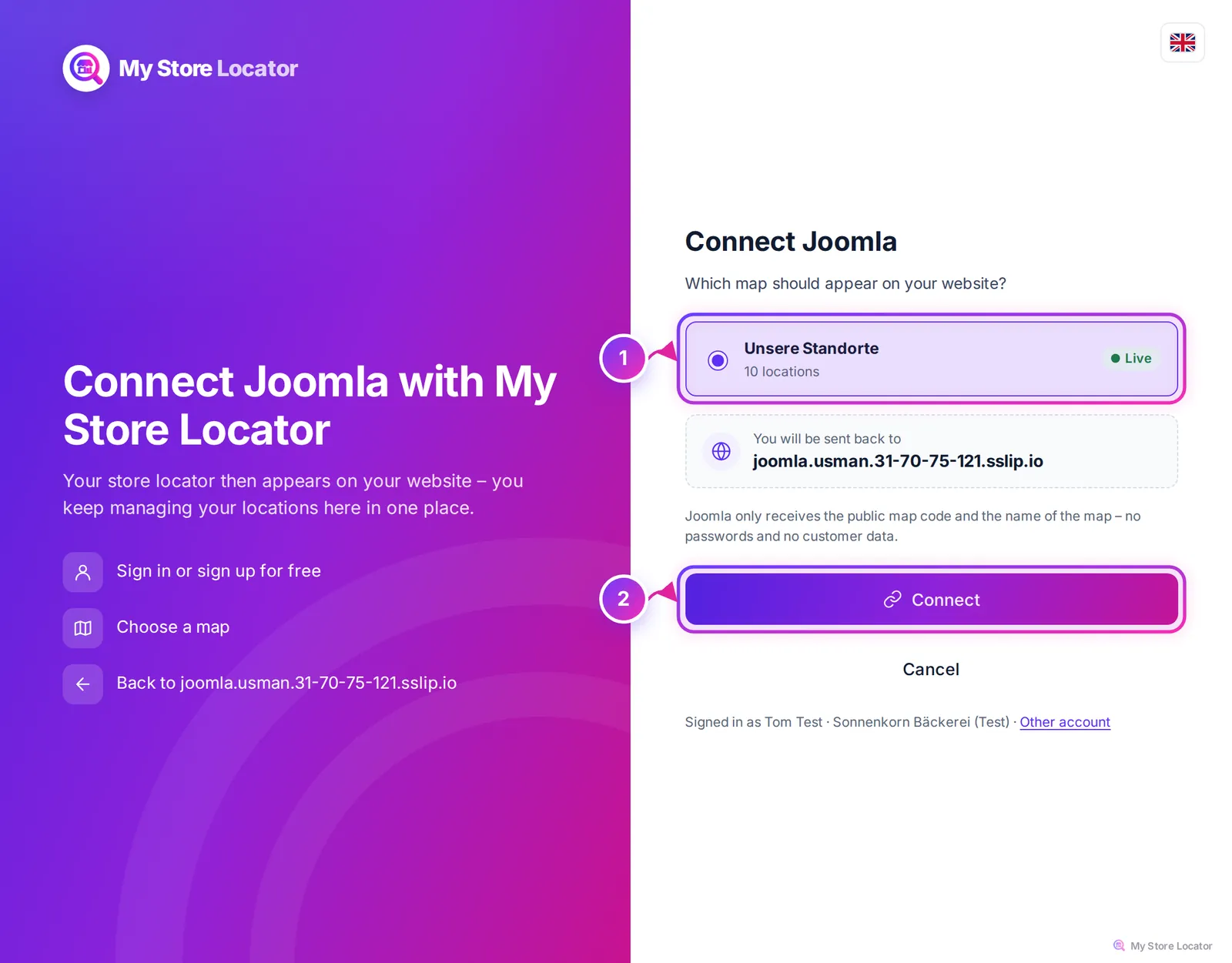
- Choose your map.
- Click Connect. The window closes and the map code appears in the module.
Tip: Joomla only receives the public map code and the name of the map – no passwords and no customer data.
Choose the position
Now you decide where the map appears on the page.
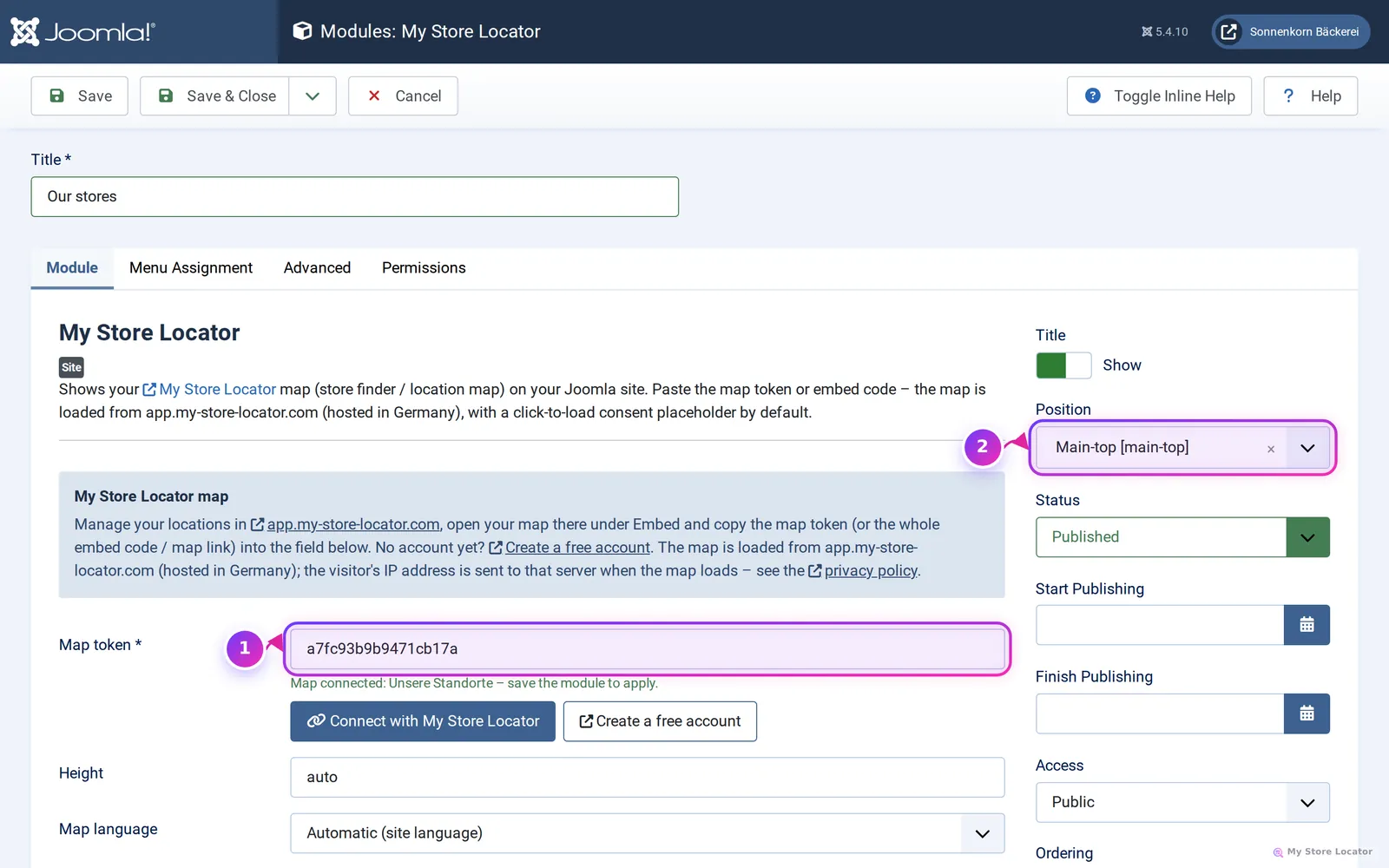
- The Map token field is filled in. Below it you can set height, language, consent mode and layout if needed.
- On the right choose a Position of your template, e.g. "main-top".
Choose the pages and save
On the Menu Assignment tab you decide on which pages the module appears.
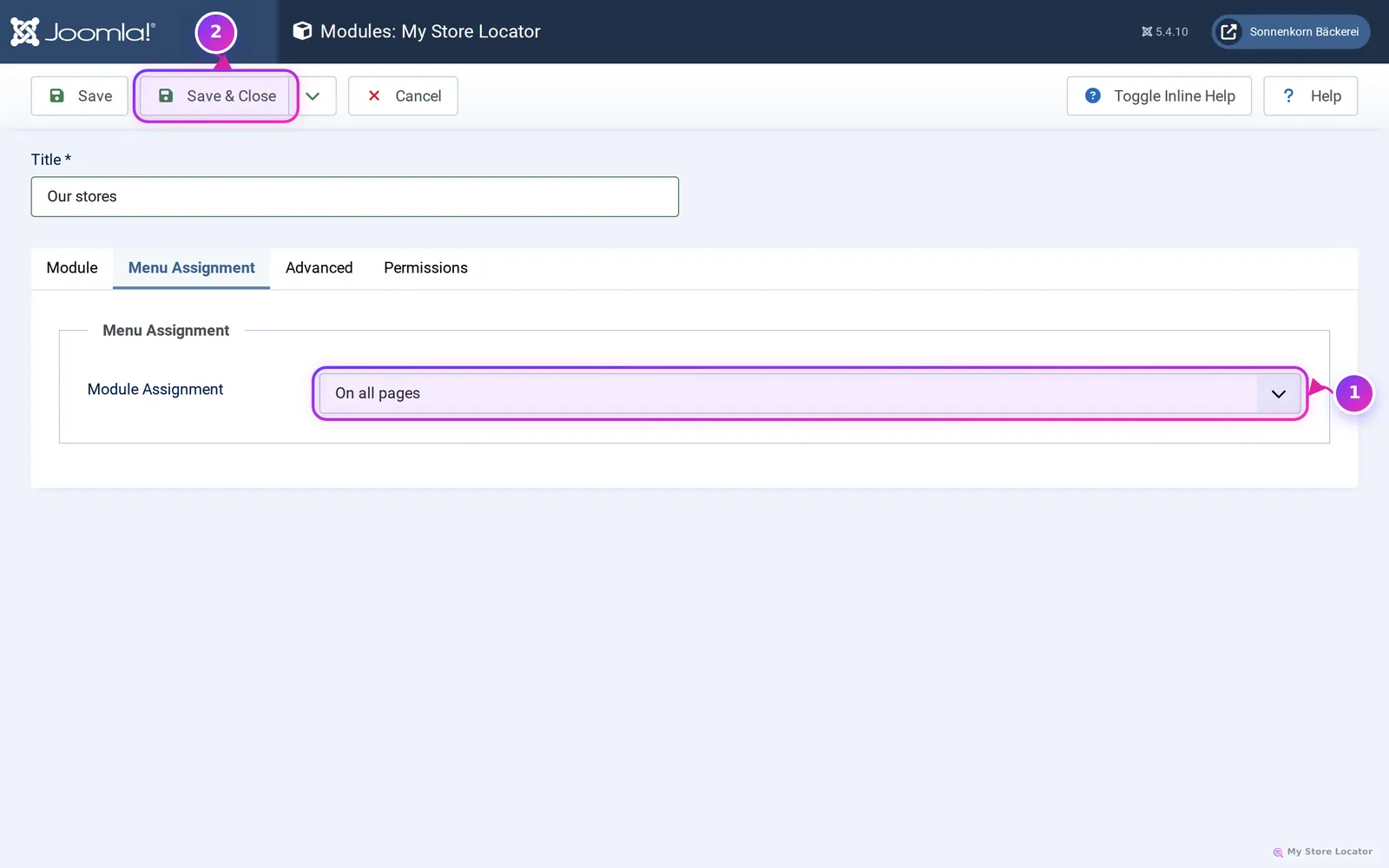
- Choose On all pages or only certain menu items, e.g. your "Stores" page.
- Click Save & Close.
The map on your Joomla site
This is the map on the website. Consent mode is on by default in the module: visitors load the map with one click.
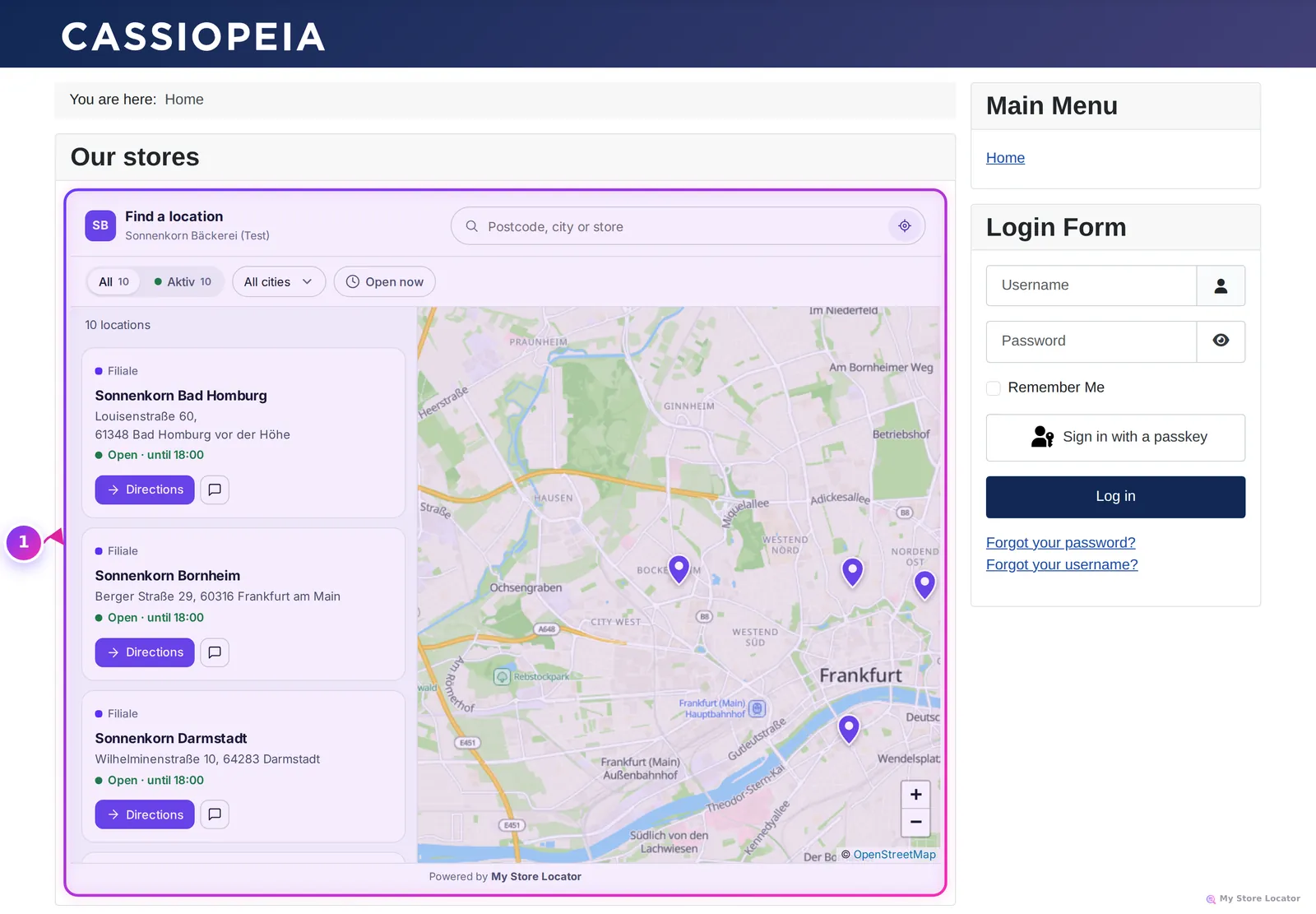
- Your map in the chosen position. New locations appear here by themselves after you save them in My Store Locator.
Tip: The module announces new versions itself – you update it like any other Joomla extension.
Good to know
The "Connect with My Store Locator" button is grey.
Connecting needs HTTPS. If your site still runs without HTTPS, paste the map token by hand (in the app under Maps → your map → Embed).
Can I show several maps?
Yes. Create one module per map.