
What you need
- A map that is already embedded on your website, see embed the map with HTML or iframe
- Your website's address (domain), e.g. www.your-company.com
Add your website
You find the setting in the Embed Studio under Allowed websites. Enter every domain where the map should appear. With *.your-company.com you allow all subdomains.
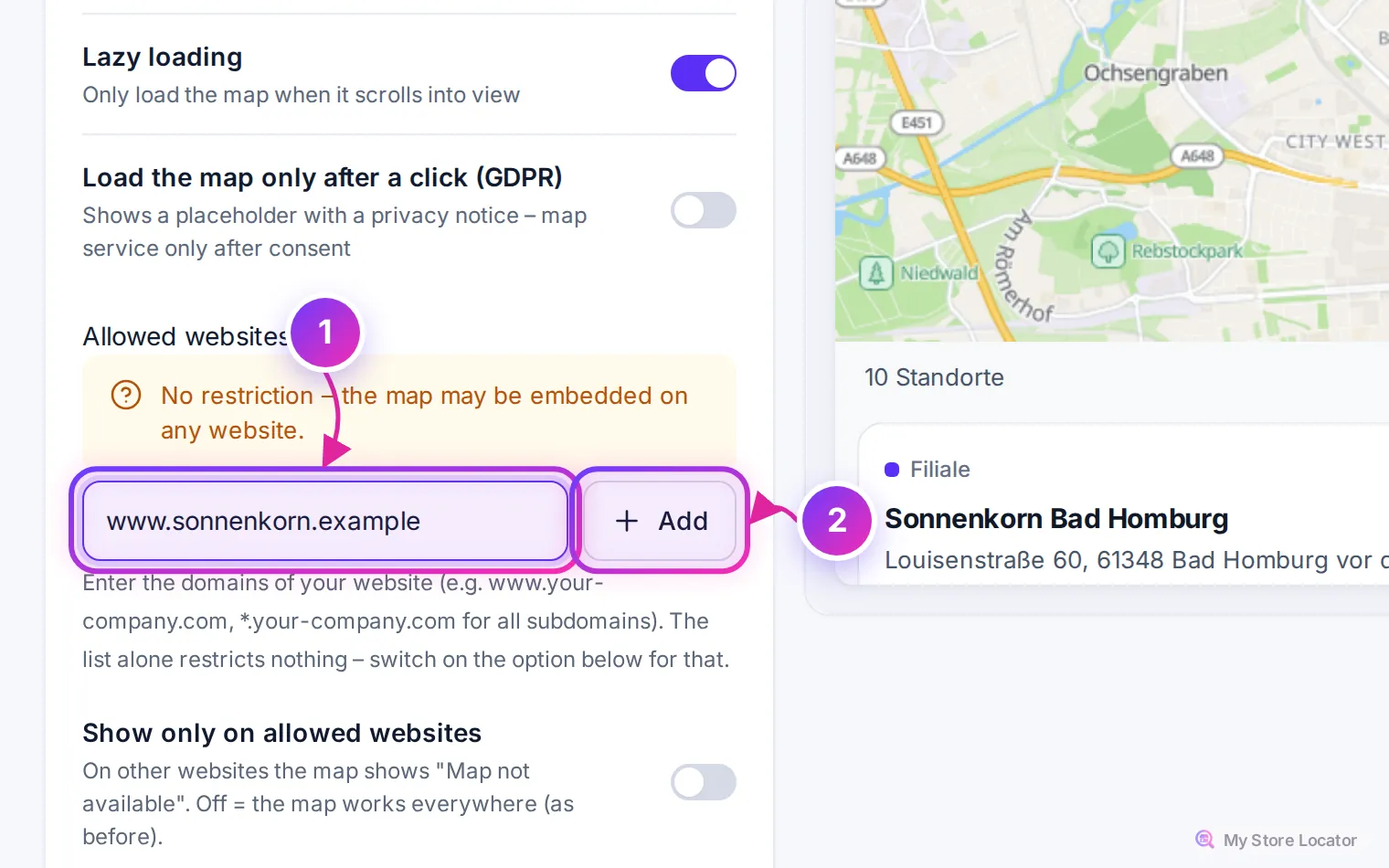
- Type the domain, e.g. www.sonnenkorn.example.
- Click Add.
Switch the restriction on
The list alone restricts nothing. Only the switch limits the map to these websites. Save at the top afterwards.
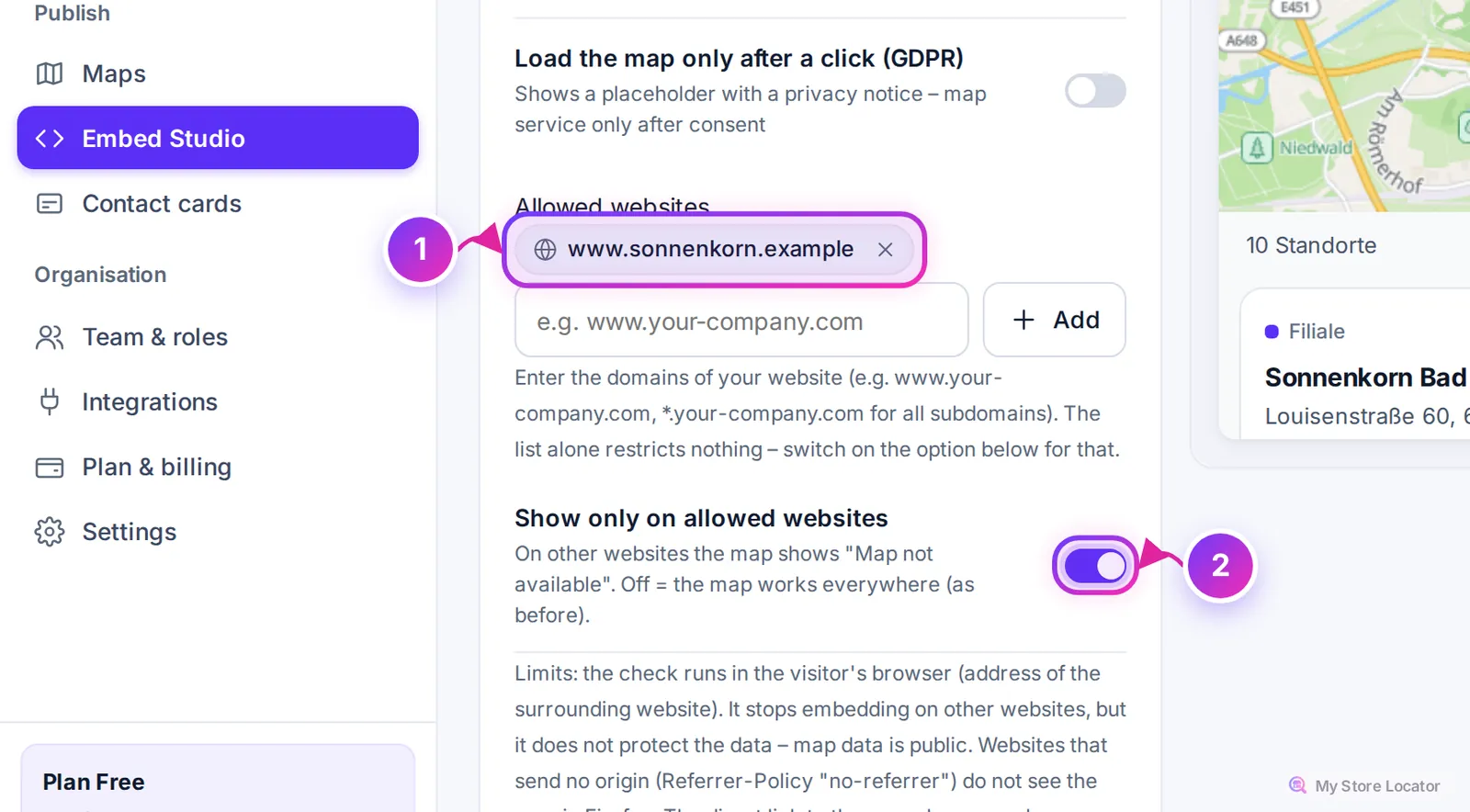
- Your domain is now on the list; × removes it again.
- Switch on Show only on allowed websites and click Save at the top.
Tip: Test your own website afterwards. If it shows "Map not available", a spelling is usually missing – e.g. with and without "www".
What other websites show
On a website that is not on the list, a notice appears instead of the map. Your own website shows the map as usual.
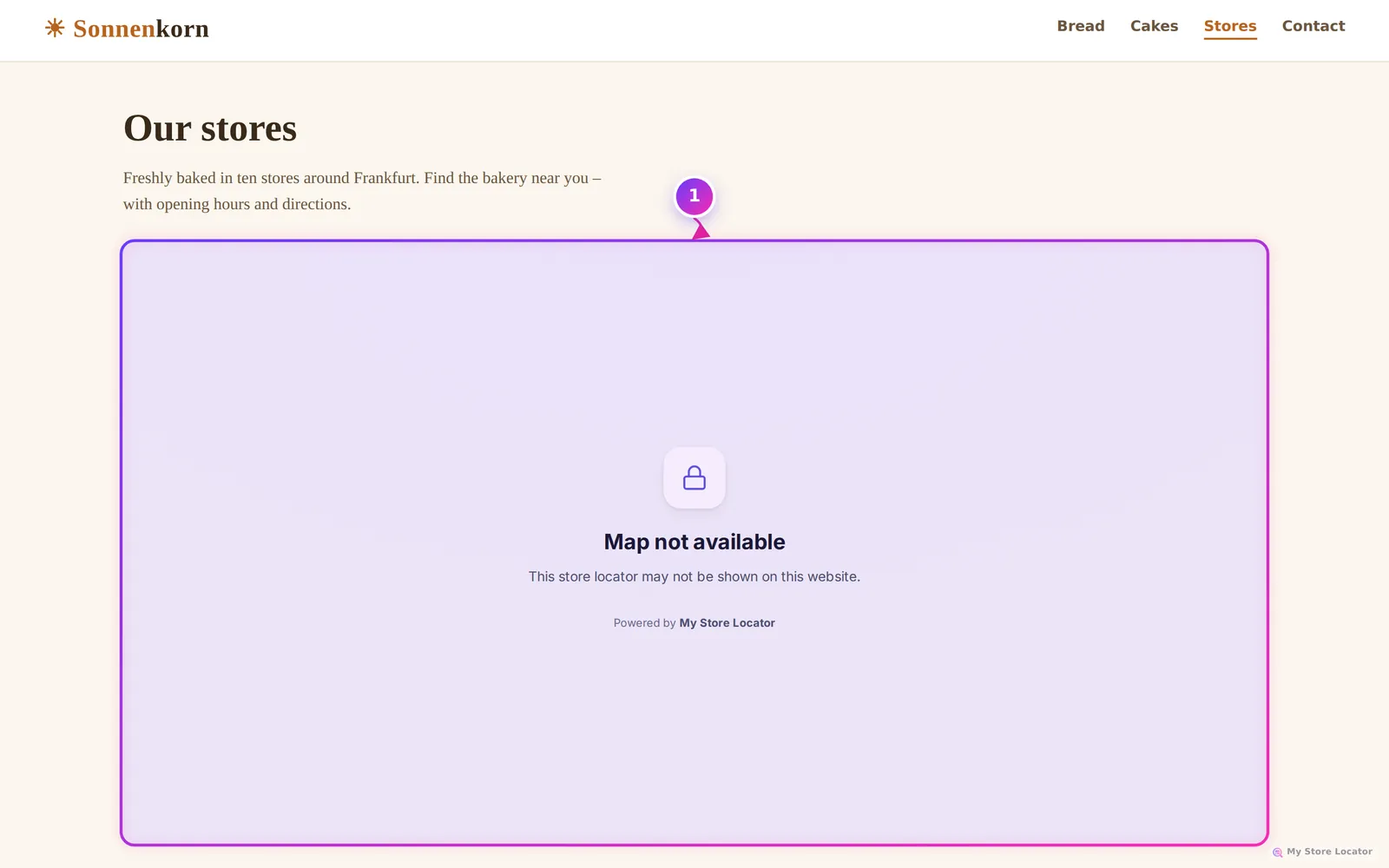
- Map not available – the map may not be shown on this website.
Good to know
Does this protect my data?
No. The check runs in the visitor's browser and only prevents embedding on other websites. The location data of your map is public, and the direct link always works.
My own website shows "Map not available".
Check the spelling of the domain (with and without "www") or allow all subdomains with *.your-company.com. Websites that send no origin (Referrer-Policy "no-referrer") are not recognised.
Do I have to change the code on my website?
No. The setting applies right after saving; the code stays the same.