
What you need
- A My Store Locator account with a published map – the Free plan is enough
- A website on Jimdo, Squarespace or IONOS
1. Copy the map link
In My Store Locator, open the Embed Studio.
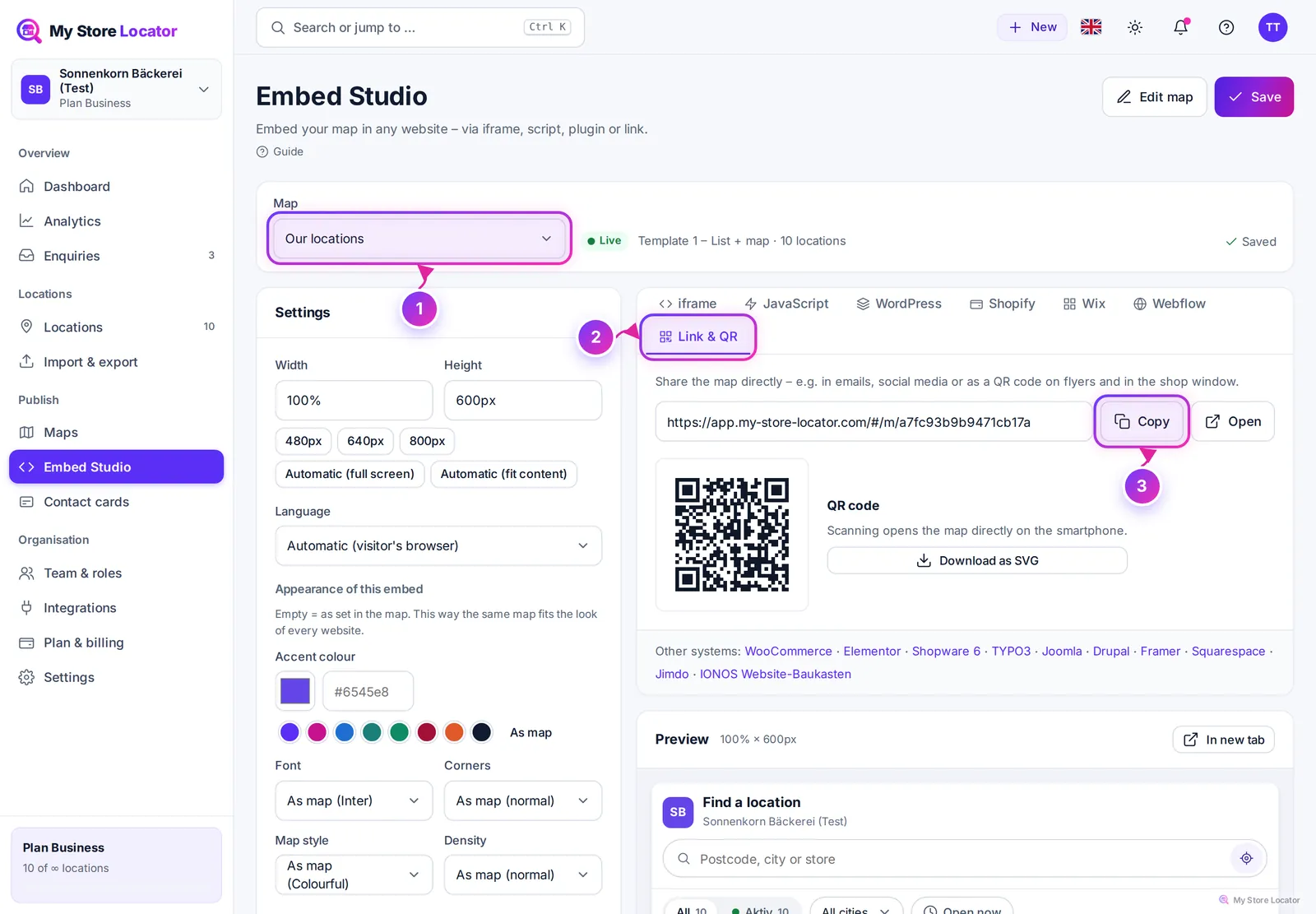
- Under Map, choose the right map.
- Open the Link & QR tab.
- Click Copy – the link to your map is now on your clipboard.
2. Link a button in Jimdo
Open your website in Jimdo with Edit Website. Use an existing button, e.g. "Find a store", or add a block with a button via Add Block. Click the button.
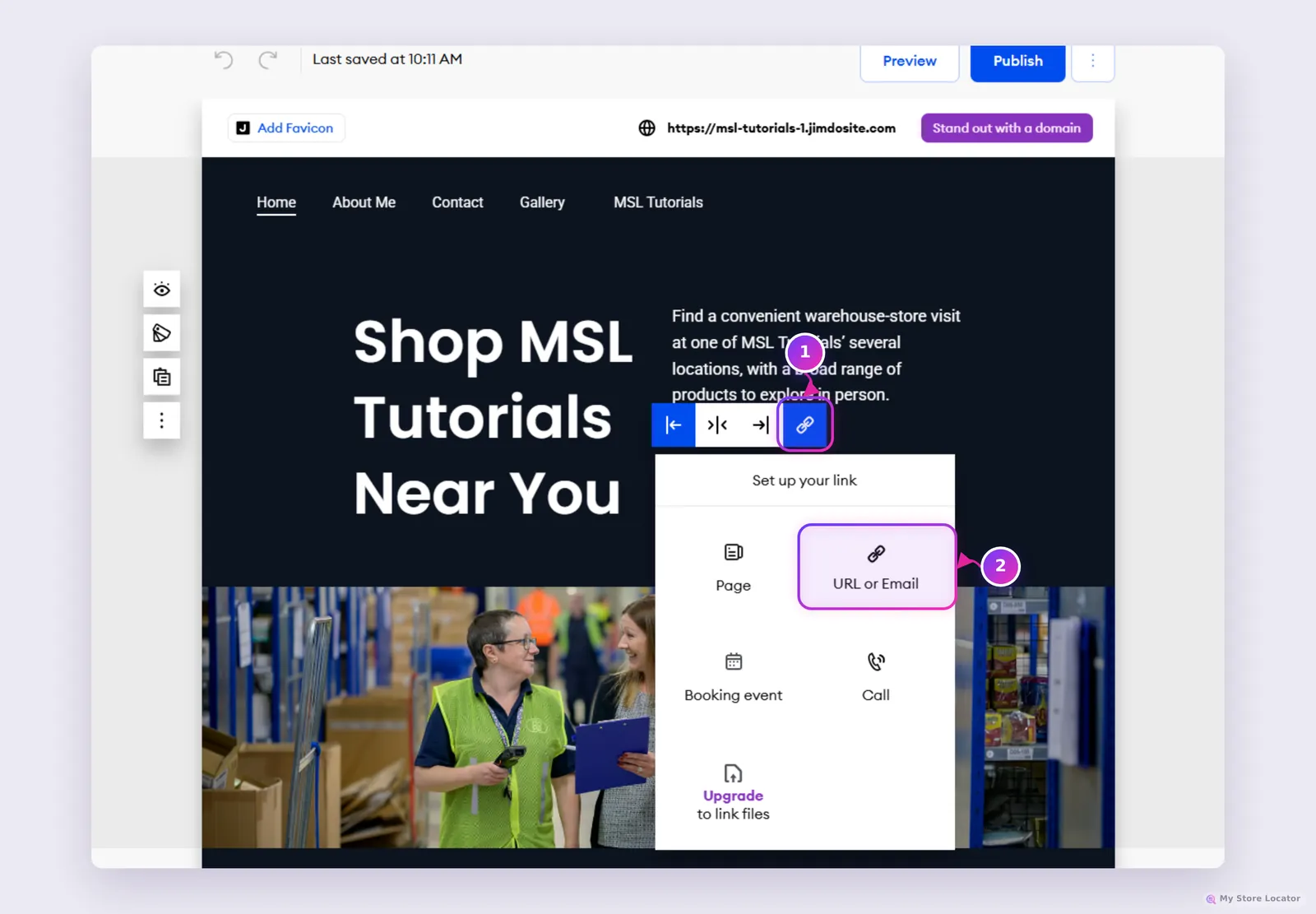
- In the small bar above the button, click the chain icon.
- Under Set up your link, choose URL or Email.
3. Paste the link and confirm
Jimdo saves the change automatically ("Last saved at …"). Click Publish to make it visible on your website.
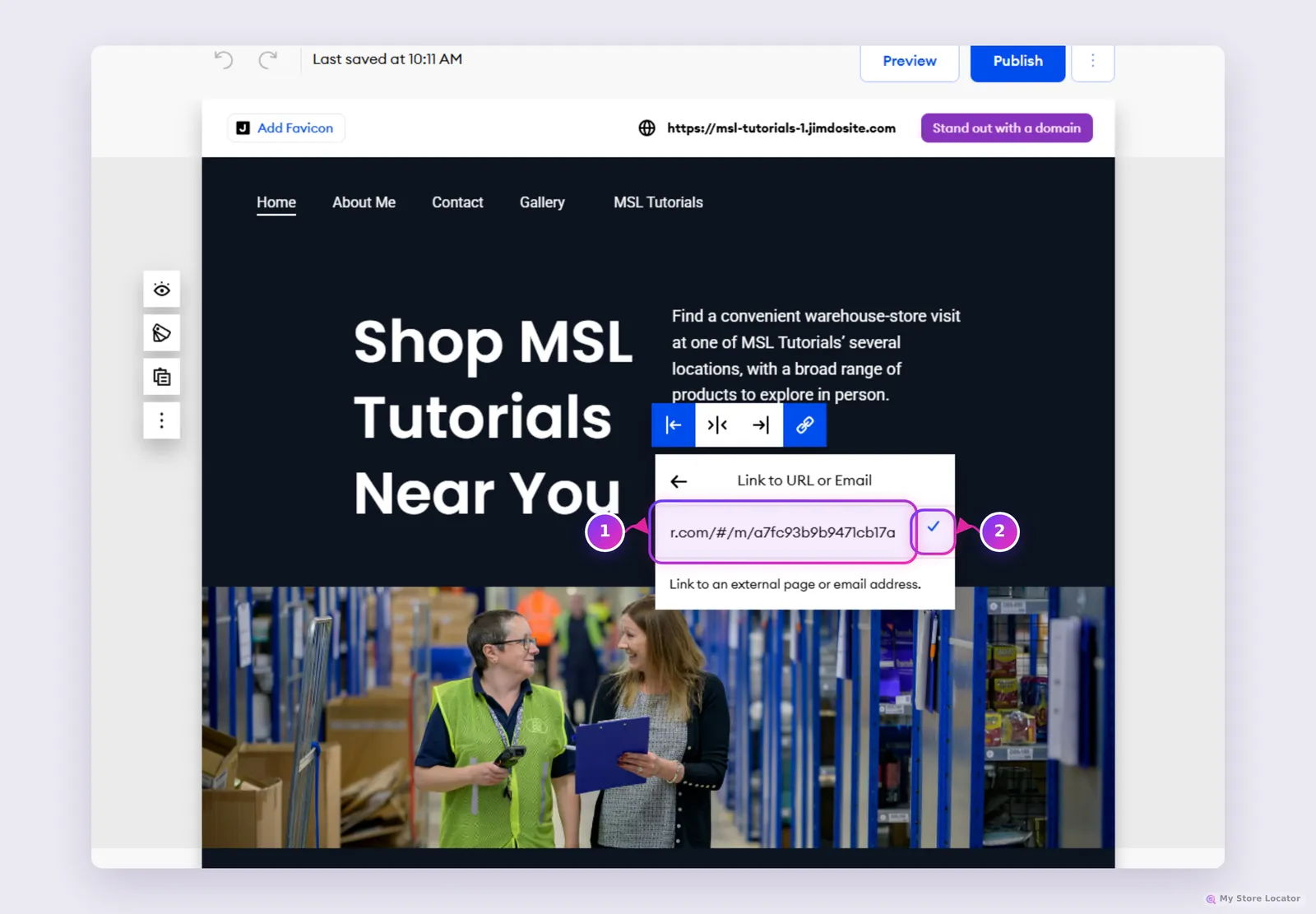
- Paste the copied map link into the field.
- Confirm with the check mark.
4. Done: the button opens your map
Visitors click the button and see your map with search, filters and directions – on smartphones too. Changes to your locations appear automatically; the link stays the same.
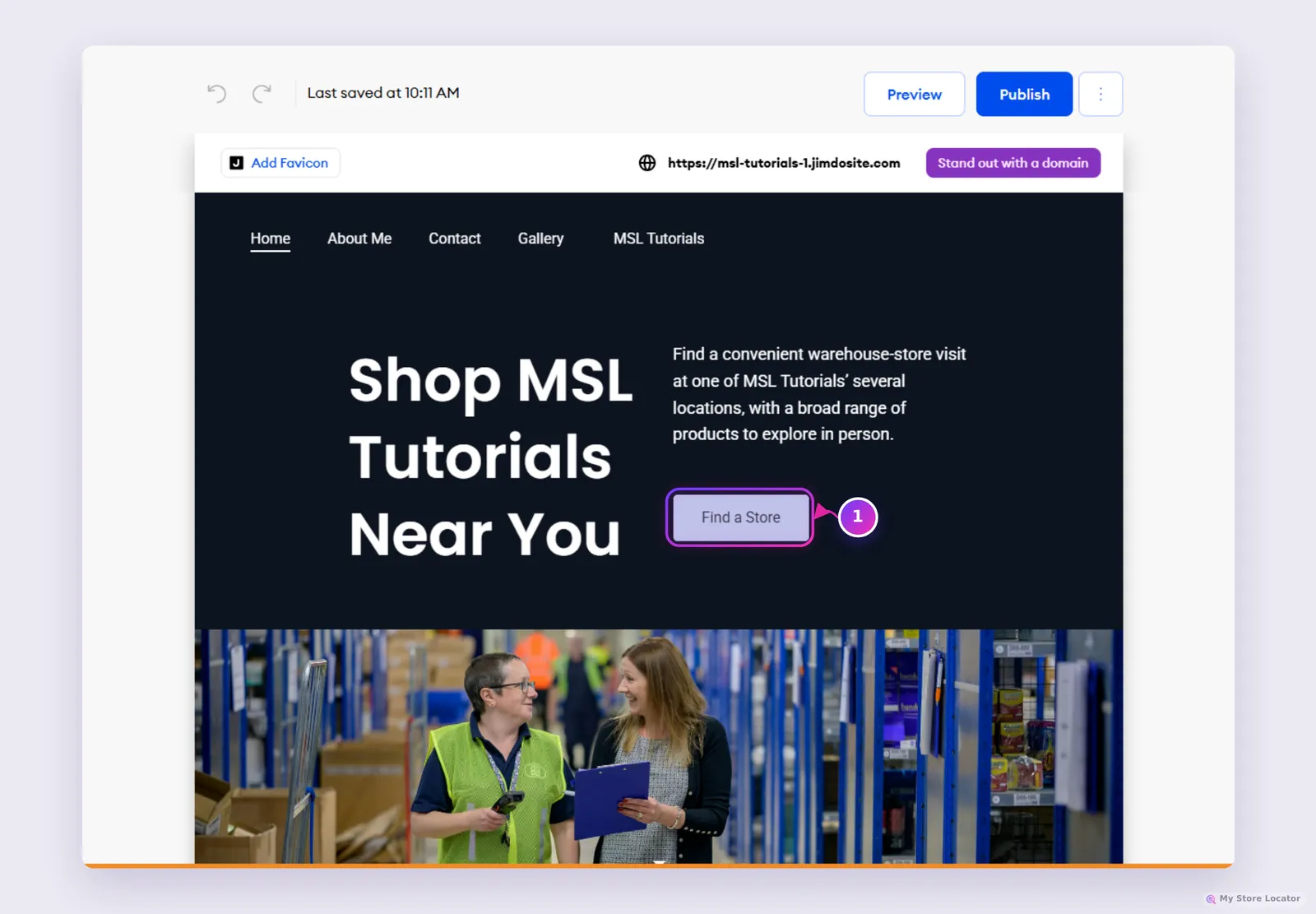
- The "Find a Store" button now opens the map.
Good to know
Can I show the map directly on the page in Jimdo?
In the new Jimdo builder we found no HTML element on the free plan – hence the button. If you still use the older Jimdo Creator, add the Widget/HTML element there and paste the code from the Embed Studio (iframe tab).
How does it work with Squarespace?
Copy the iframe code in the Embed Studio, edit the page in Squarespace, add a Code block, paste the code and save. Depending on the Squarespace plan, the iframe only shows on the published page. If no Code block is available, link the map with a button as shown above.
How does it work with the IONOS website builder?
Copy the iframe code, add an HTML element in the IONOS builder (MyWebsite), paste the code and publish. If your package has no HTML element, link the map with a button, see Share link and QR code.
Does the map open in a new window?
That depends on the builder. The map works the same either way – with search, filters, directions and contact form.