
What you need
- An authenticator app on your phone, e.g. Google Authenticator, Microsoft Authenticator or 1Password
- Your My Store Locator password
Start the setup
Two-factor sign-in applies to your personal account. Each person in the team sets it up for themselves.
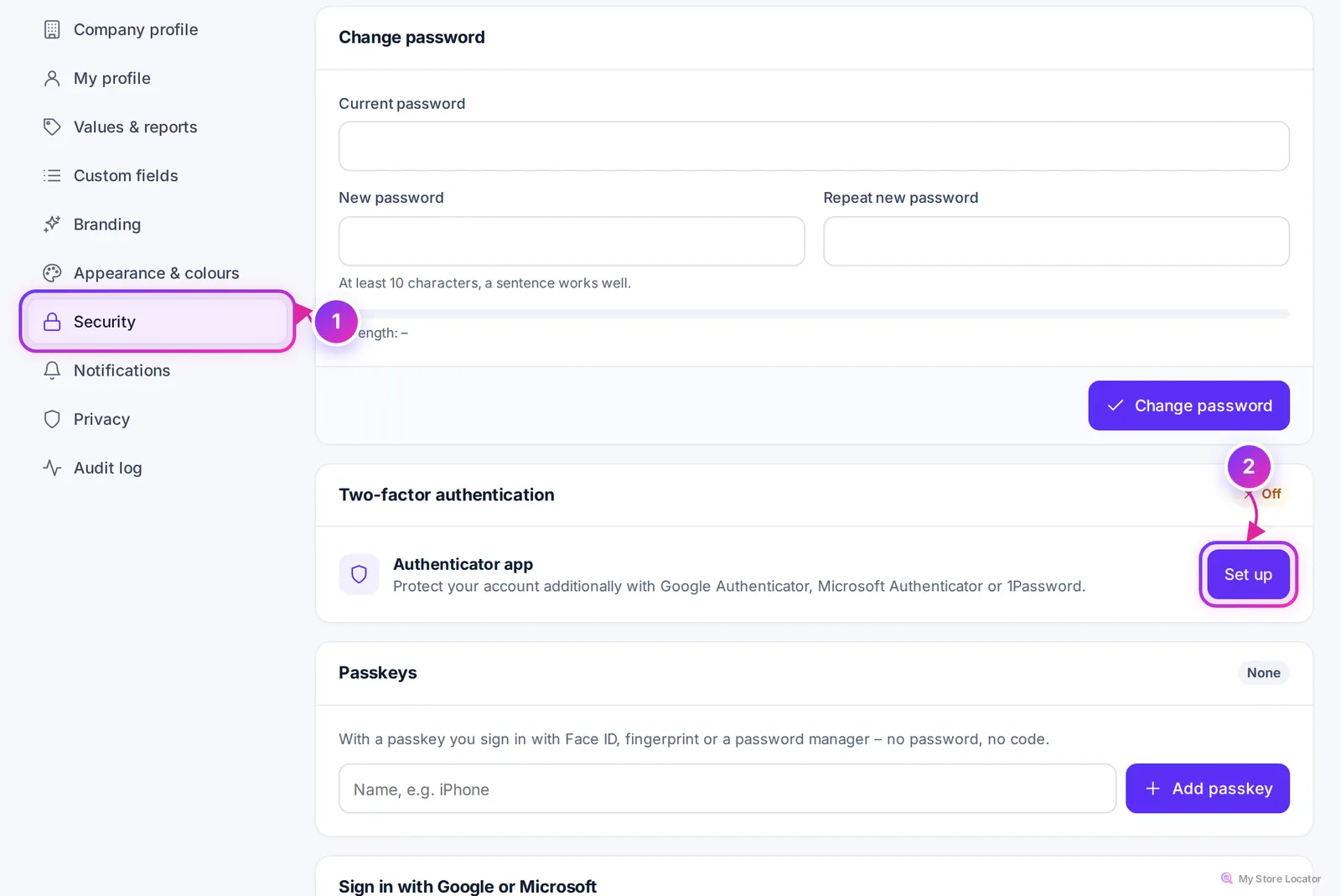
- Open Settings → Security.
- In the Two-factor authentication card, click Set up.
Confirm your password
For security, My Store Locator first asks for your password.
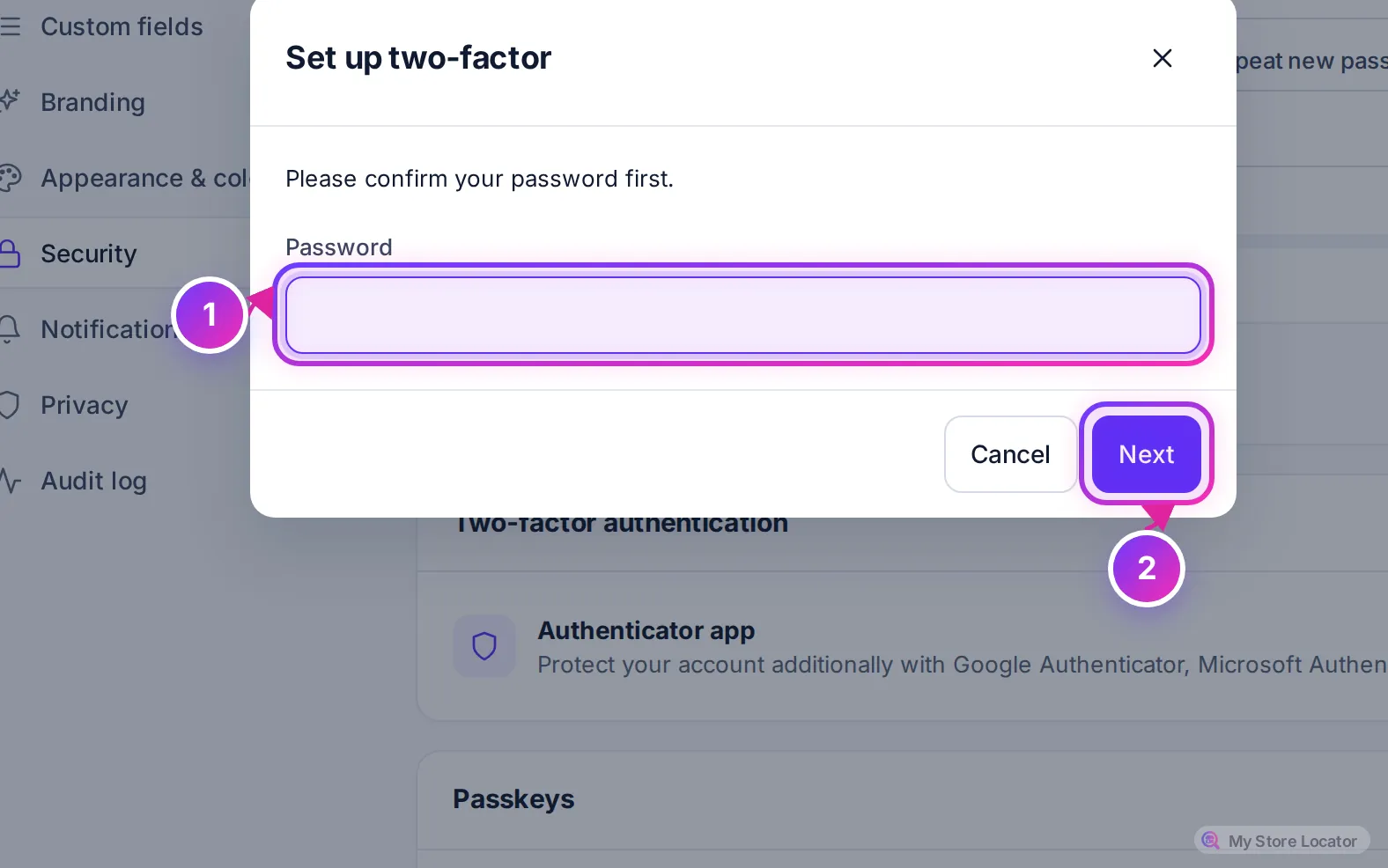
- Enter your password.
- Click Next.
Scan the QR code and activate
Open the authenticator app on your phone. (The QR code and key are blurred in the picture – never share them.)
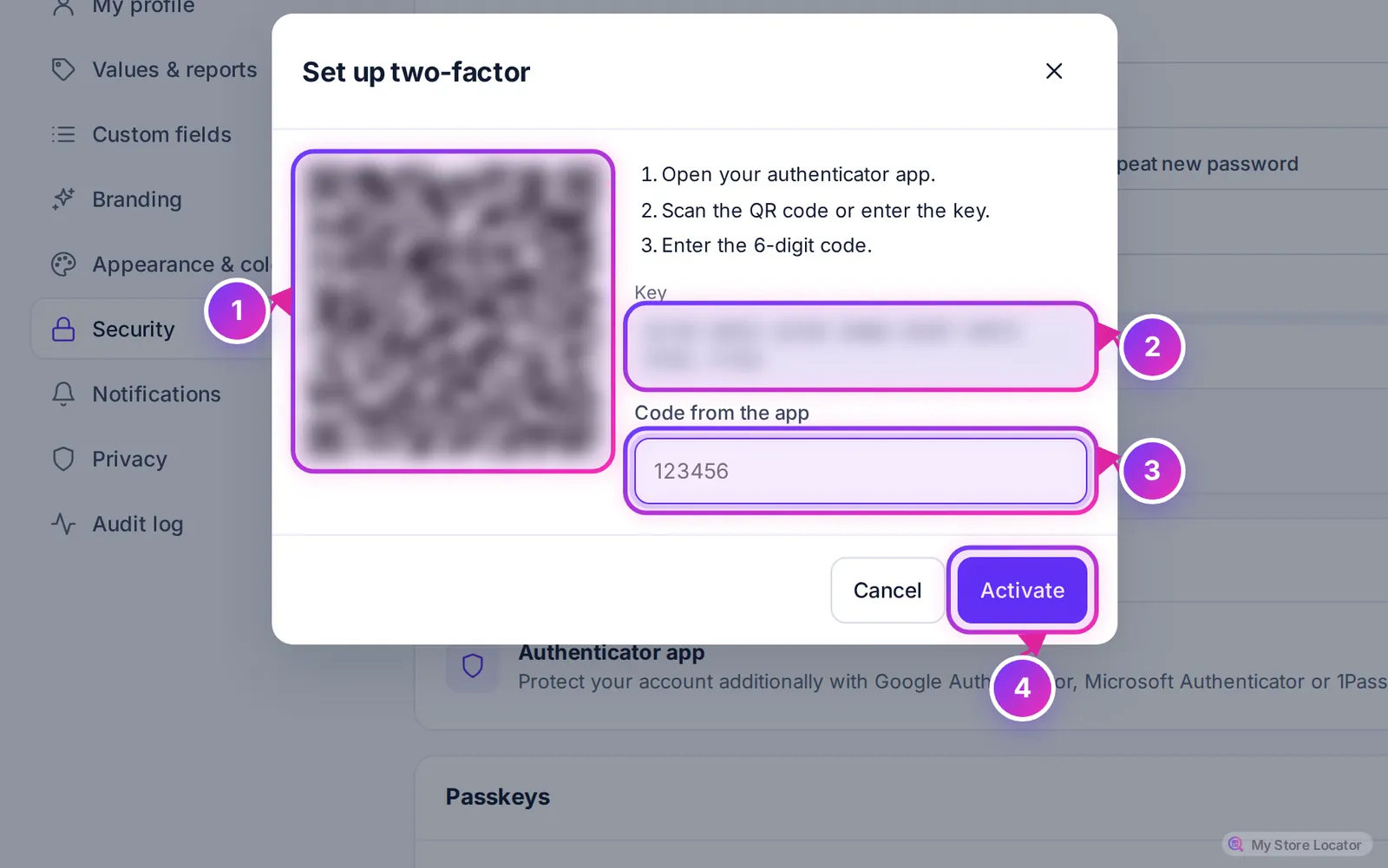
- Scan the QR code with the app …
- … or type the key into the app.
- Enter the 6-digit code from the app.
- Click Activate.
Tip: Afterwards My Store Locator shows your recovery codes – only once. Download them or copy them to a safe place. They get you into your account if your phone is missing.
Good to know
How do I sign in afterwards?
As usual – then My Store Locator asks for the code from the app, also when signing in with Google or Microsoft.
Lost your phone?
When signing in, click No access to the app? Use a recovery code and enter one of your recovery codes.
Can I switch 2FA off again?
Yes, under Settings → Security with Deactivate – you need your password and a current code.