
What you need
- A device with Face ID, fingerprint or a password manager that supports passkeys
Create a passkey
Open Settings → Security on the device you want to sign in with in future.
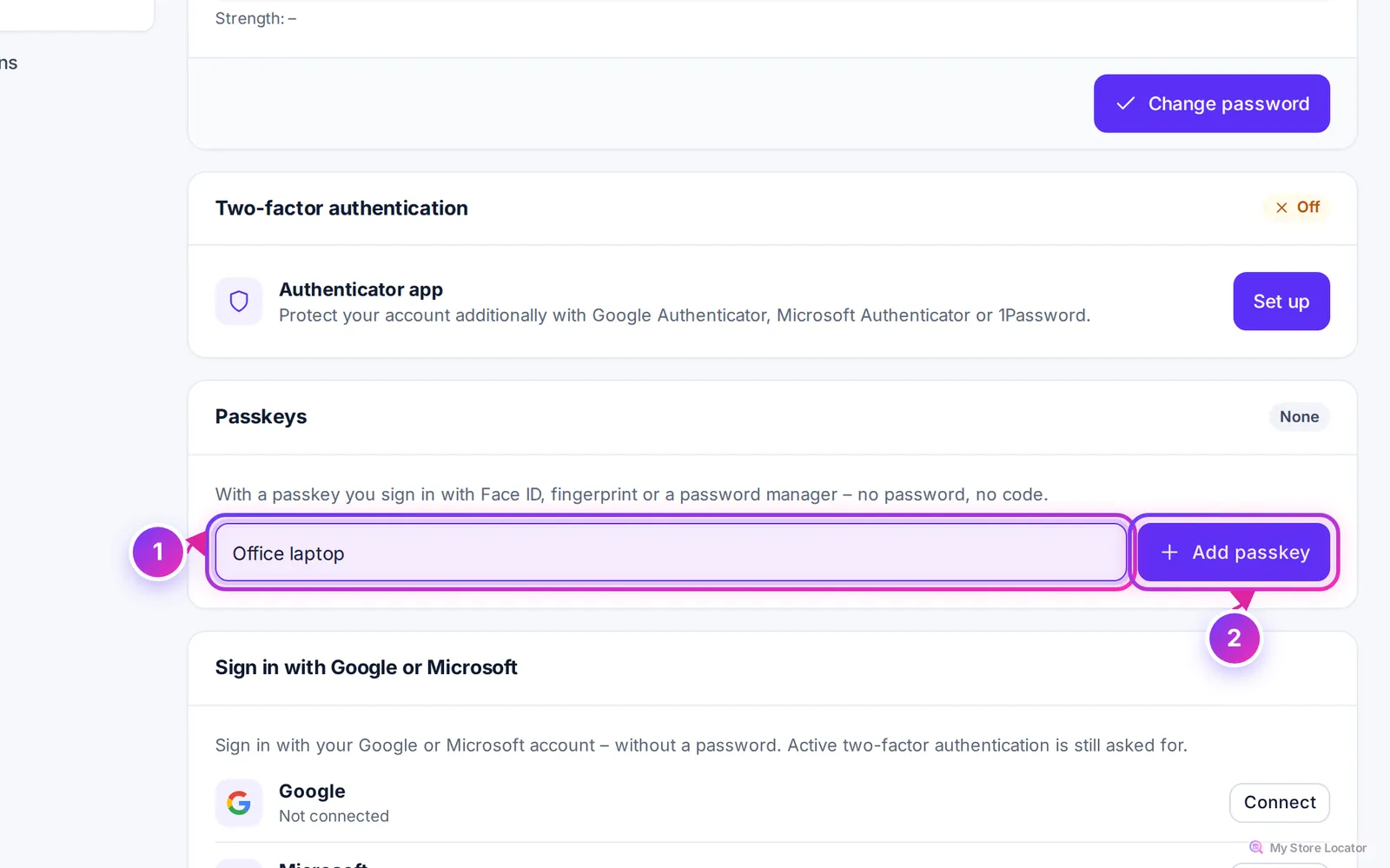
- Give the passkey a name, e.g. "iPhone" or "Office laptop".
- Click Add passkey and confirm with Face ID, fingerprint or your password manager.
Tip: Afterwards the list shows each passkey with when it was created and last used. Use Remove to delete a passkey, e.g. for an old phone.
Good to know
How do I sign in with the passkey?
Enter your e-mail when signing in, click Continue and then Sign in with a passkey.