
What you need
- Plan Pro or Business
- The right "Change form settings" (owners and administrators have it)
Open the settings
Open Enquiries in the menu.
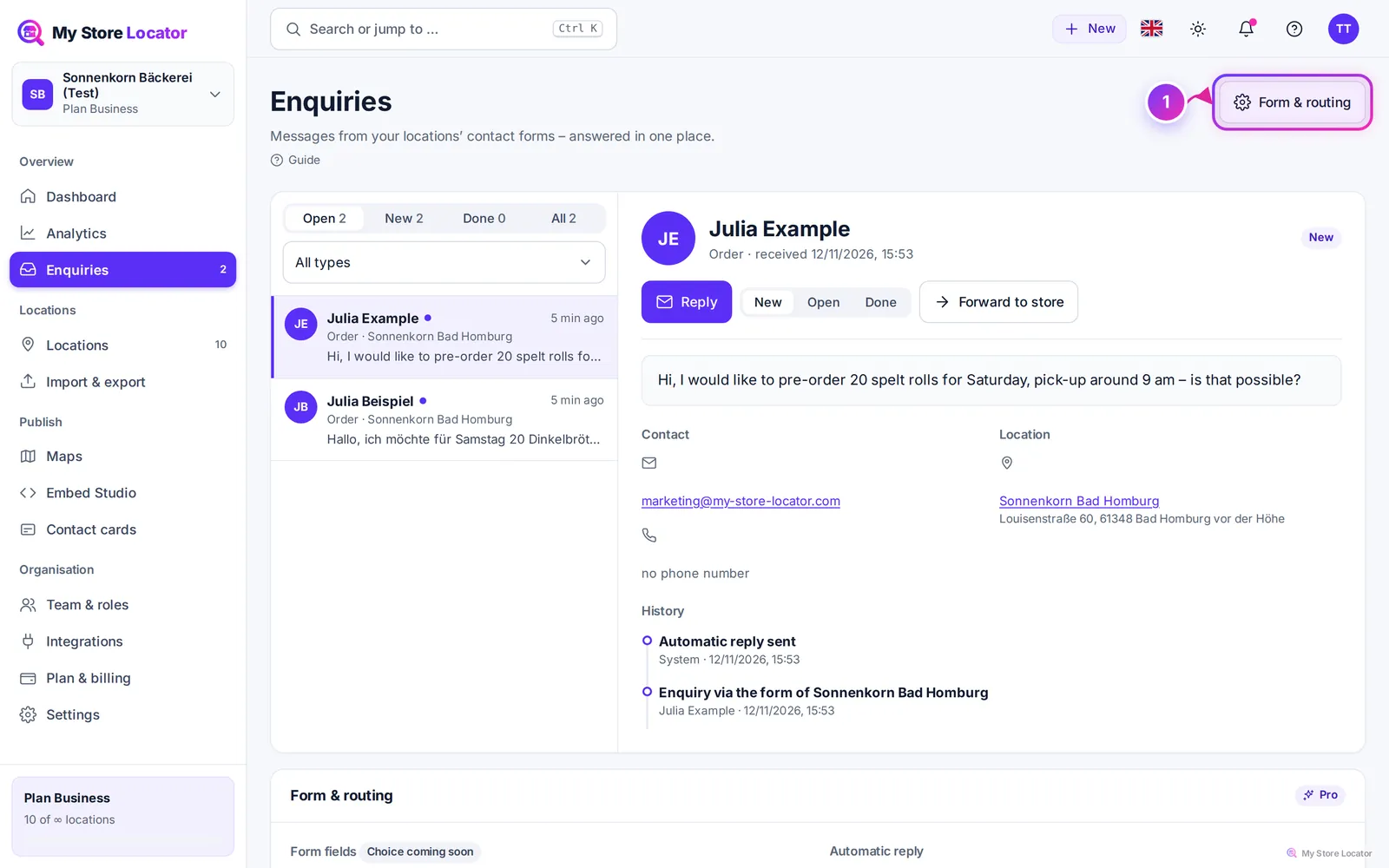
- Click Form & routing at the top right. The page jumps to the settings.
Routing and automatic reply
On the left you see the form fields: name, e-mail (required), phone, message and the privacy consent. Choosing your own fields is in preparation. Below you choose the routing.
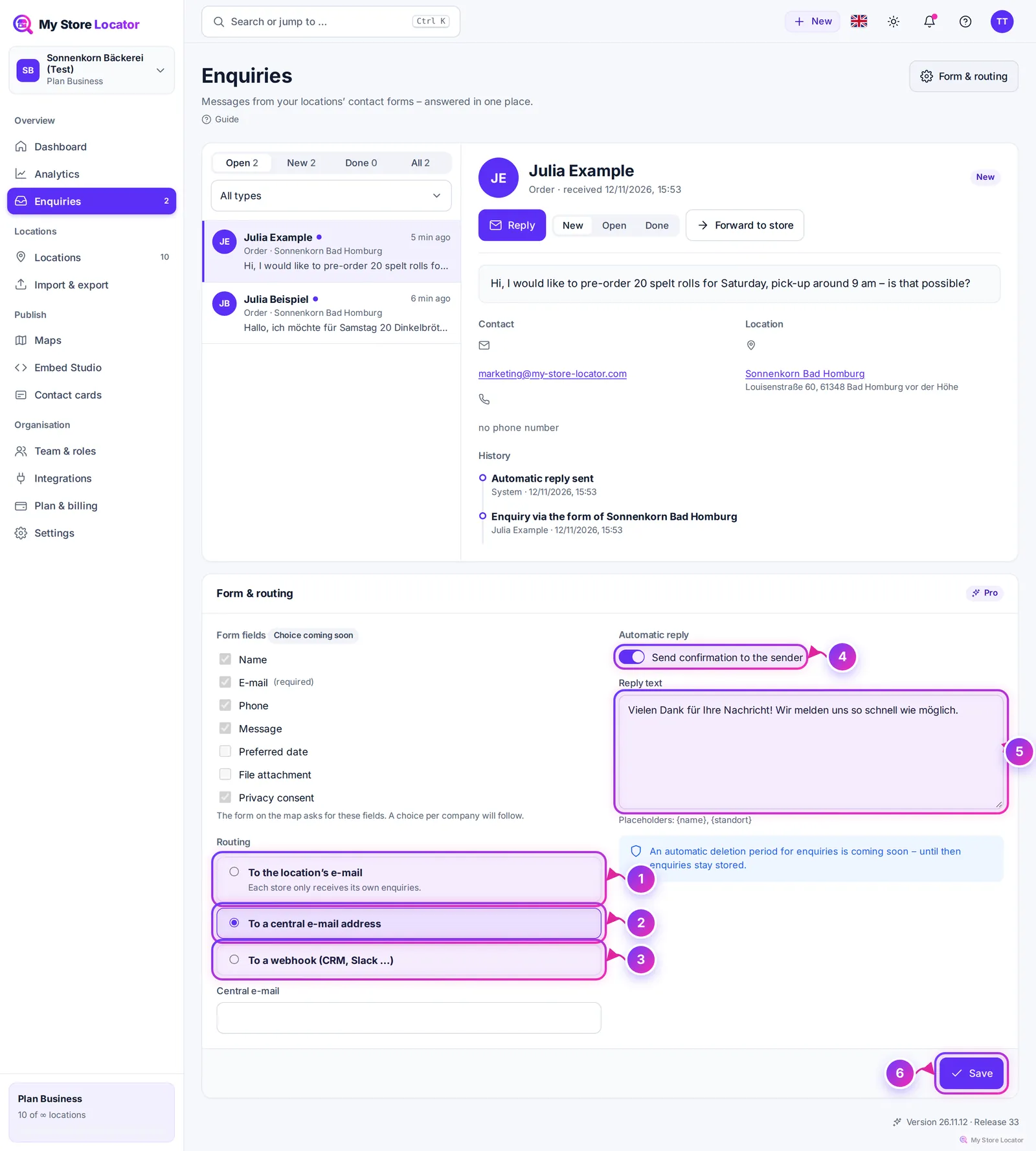
- To the location's e-mail: each store only gets its own enquiries – for that every location needs an e-mail address.
- To a central e-mail address: all enquiries go to one address that you enter below, for example your customer service.
- To a webhook (CRM, Slack …): every enquiry goes as the event
lead.createdto your webhooks under API & webhooks – without e-mail. - Send confirmation to the sender e-mails the customer right away.
- You write the reply text yourself;
{name}and{standort}are replaced. - Click Save.
Tip: Whatever the routing, every enquiry also lands in the inbox under Enquiries.
Good to know
How long are enquiries kept?
Until you delete them. An automatic deletion period is in preparation.
Which language does the automatic reply use?
You set the main text yourself – there is one text field. Write it so that it fits all your customers.