
What you need
- Every role can change this
- The Free plan is enough
Colour scheme, mode, density and corners
Open Settings → Appearance & colours. Every change applies immediately; the Preview on the right shows buttons, badges and a table row in the new look.
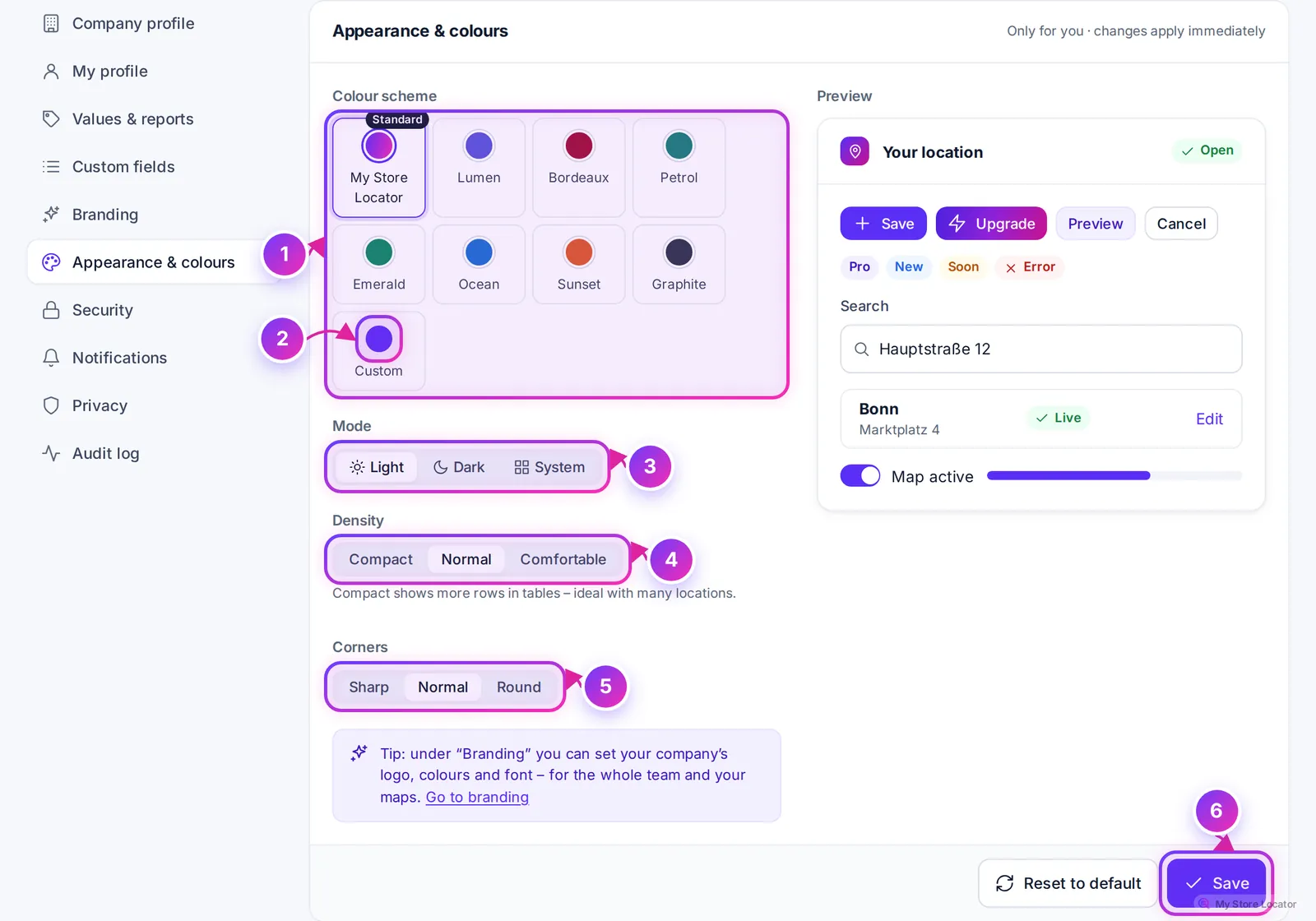
- Choose a colour scheme: My Store Locator (standard), Lumen, Bordeaux, Petrol, Emerald, Ocean, Sunset or Graphite.
- Custom opens a colour picker for your own colour.
- Mode: Light, Dark or System (follows your computer's setting).
- Density: Compact shows more rows in tables – ideal with many locations.
- Corners: sharp, normal or round.
- Save confirms the appearance for this browser.
Tip: You set the logo, colours and font for the whole team and your maps under Settings → Branding.
Example: Petrol and Dark
This is what My Store Locator looks like with the Petrol colour scheme in dark mode.
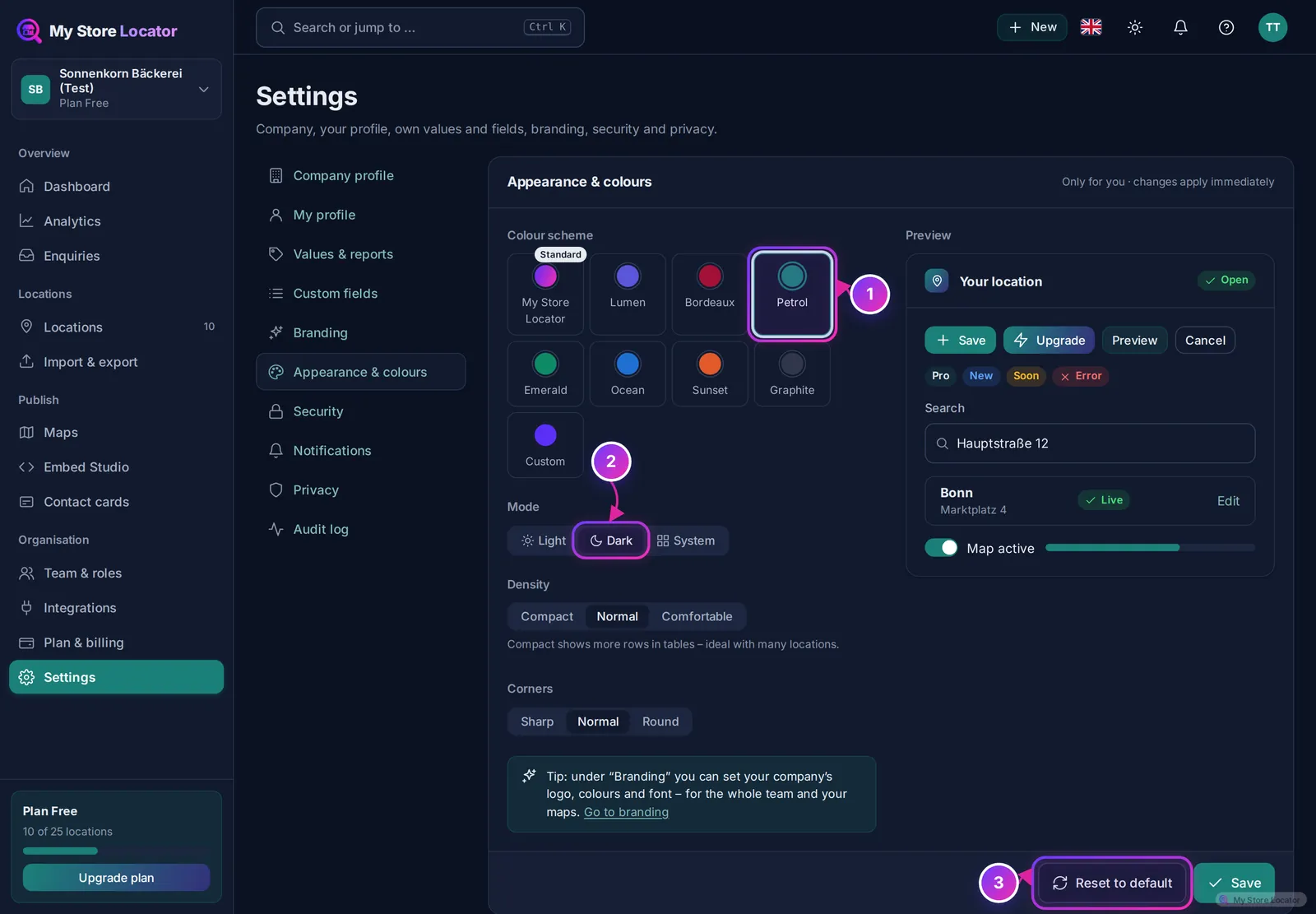
- The Petrol colour scheme colours the navigation, buttons and highlights.
- Dark switches the whole interface to dark colours.
- Reset to default sets everything back to the default.
Good to know
Does my team see my colours?
No. The appearance only applies to you and only in this browser. On another device you set it there again.
Does this change my public maps?
No. You set the look of the maps in the map editor, see Colours, font, markers and map style.